

Brainuxにアプリをインストール
インストール方法のパターン
Brainuxにアプリをインストールには、いくつか方法があります。
- Debinのレポジトリにあるソフトウェアの場合
aptコマンドでダウンロードからインストールまで実施できます。
apt show <パッケージ名> パッケージの詳細を表示します。
sudo apt install <パッケージ名> パッケージをインストールします。
dpkg -L <パッケージ名> インストールパッケージのファイルリストを確認
apt search <パッケージ名の一部> パッケージ名やキーワードを検索します。
(既にインストールされているかも確認できます。)
- ソースからインストールするパターン
ソースからインストールする場合は、基本的にドキュメントに書かれている方法でビルド、インストールします。
ただし、ソース内にビルドを自動化するスクリプトがあれば、自動化したビルドが可能になります。
「Makefile」がある場合は、make & sudo make install でインストールします。
「configure」スクリプトが用意されている場合、スクリプトを実行してから、make & sudo make installでインストールします。
「Imakefile」がある場合は、xmkmf -a & make & sudo make install でインストールします。
(環境に合わせてmakefileを作成してくれます。)
「CMakeLists.txt」がある場合は、mkdir build & cd build & cmake .. & cmake –build . & cmake –install でインストールします。
「*.cbpファイル(Code::Blocks IDE project、workspace files)がある」場合は、
cbp2make -in Bomberman.cbp -out Makefile & make でビルドできます。
インストールは、make installでできるかもしれませんが、基本的にアプリによります。
——————-
(注意) 2025/12/27追記
なお本ブログでのインストール記事でのパッケージ導入ですが、
アプリインストール時点で不足しているものについて記載しています。
アプリのインストールする順番によっては、
必要なパッケージが記載されていない場合もありますので、
その場合は別途別途導入してください。
インストールするパッケージ名がわからない場合は、googleなどの検索で、
“apt <コマンド名>”や、”apt <ライブラリ名>”などで検索で探せる場合があります。
ソースからのビルドする場合は、”<ライプラリ名>-dev” というパッケージを
導入すればいいことが多いです。
インストール可能な正しいパッケージ名を調べるには、
“apt search <パッケージ名の一部 or キーワード>” で確認することができます。
また、apt search コマンドでは既に導入済かどうかについても確認できます。
——————-
apt等でいろいろアプリをインストールしてみます
実行成功
FDclone CUI上で利用できるファイル&ディレクトリ管理ツール
xtightvncviewer X11上で稼働するvncviewer
rdesktop RDPプロトコルに対応した接続クライアント
xfreerdp2 RDPプロトコルに対応した接続クライアント
gngb GAME BOY エミュレータ
openmsx MSXエミュレータ(SDL1.2版で現実的な速度に。)[2025/12/22追加
fmsx MSXエミュレータ(MSX1/2/2+) [2025/12/20追加]
dosbox グラフィックス、サウンド、DOS を備えた x86 エミュレータ(Brainでは厳しい)
Neko Project 2 kai PC9801/9821 エミュレータ
px68k X68000エミュレータ(かなり遅いです。)
libSDL2 ハードウェアへの低レベルアクセスを提供する開発ライブラリ
fceux 2.2.3 (SDL1.2版) ファミコンエミュレータ(音無しであれば実用的な速度で動作)
mplayer/smplayer 音楽・動画再生ツール
xpenguins 小さなペンギンがウィンドウ上を動き回るデスクトップマスコットアプリ
xmkmf Imakefile から Makefile を生成するためのツール
cmake CMakeLists.txtからMakefileを生成するためのツール
cbp2make Code::Blocks IDE project (.cbp)からMakefileを生成するためのツール
oneko X11猫(マウスカーソルを追いかける猫を表示するデスクトップマスコット)
macopix アクティブウィンドウに座るマスコットプログラム
Emi Clock 美少女コスプレ時計 Emi Clock
xhime 常駐姫ちゃん (デスクトップマスコット的なアニメーションソフト)
xfishtank X のルートで様々な熱帯魚が泳ぐ壁紙上の水槽が楽しめます。
xfireworks Xのルートウィンドウ上で花火が打ちあがります
XMascot Xの画面上で揺れるマスコットを表示する プログラム (2025/12/14追加)
xdesktopwaves Xのルートウィンドウ上で水の波をシミュレーション
dclock X Window System 向けの柔軟な表示設定が可能なデジタル時計
mxclock 絵柄が綺麗な時計です.
SunClock 時刻と地理データを表示可能な可愛い時計
Xantfarm X11用のシンプルなアリ農場
XMangekyou X11で動く万華鏡です
Xshodow 「書道」のアプリケーションです.
動作未確認(動作遅延、動かない等)
remmina 複数の接続に対応した統合クライアント(動作はするが接続できない)
higan マルチゲームコンソールエミュレータ(動作はするが遅すぎる)
fceux ファミコンエミュレータ(動作は遅いです。)
nestopia ファミコンエミュレータ(動作は遅いです。キー入力反応なし?)
java Java VMの開発実行環境 (非常に遅い)
アプリケーション紹介
FDclone CUI上で利用できるファイル&ディレクトリ管理ツール
FDcloneは、古のDOS用のフリーツールであるFD(File&Directory)をUNIX ベースの OSに移植したものです。(FDclone公式ページ)
FDcloneはCUI上で利用できるファイル&ディレクトリ管理ツールということで、
Winowsで言えば、エクスプローラのような感じに使えます。
コマンドやファイル名を直接入力しなくても、ディレクトリの移動やファイルの操作支援ができるので、キー入力に工夫が必要なBrainuxにはピッタリなツールです。
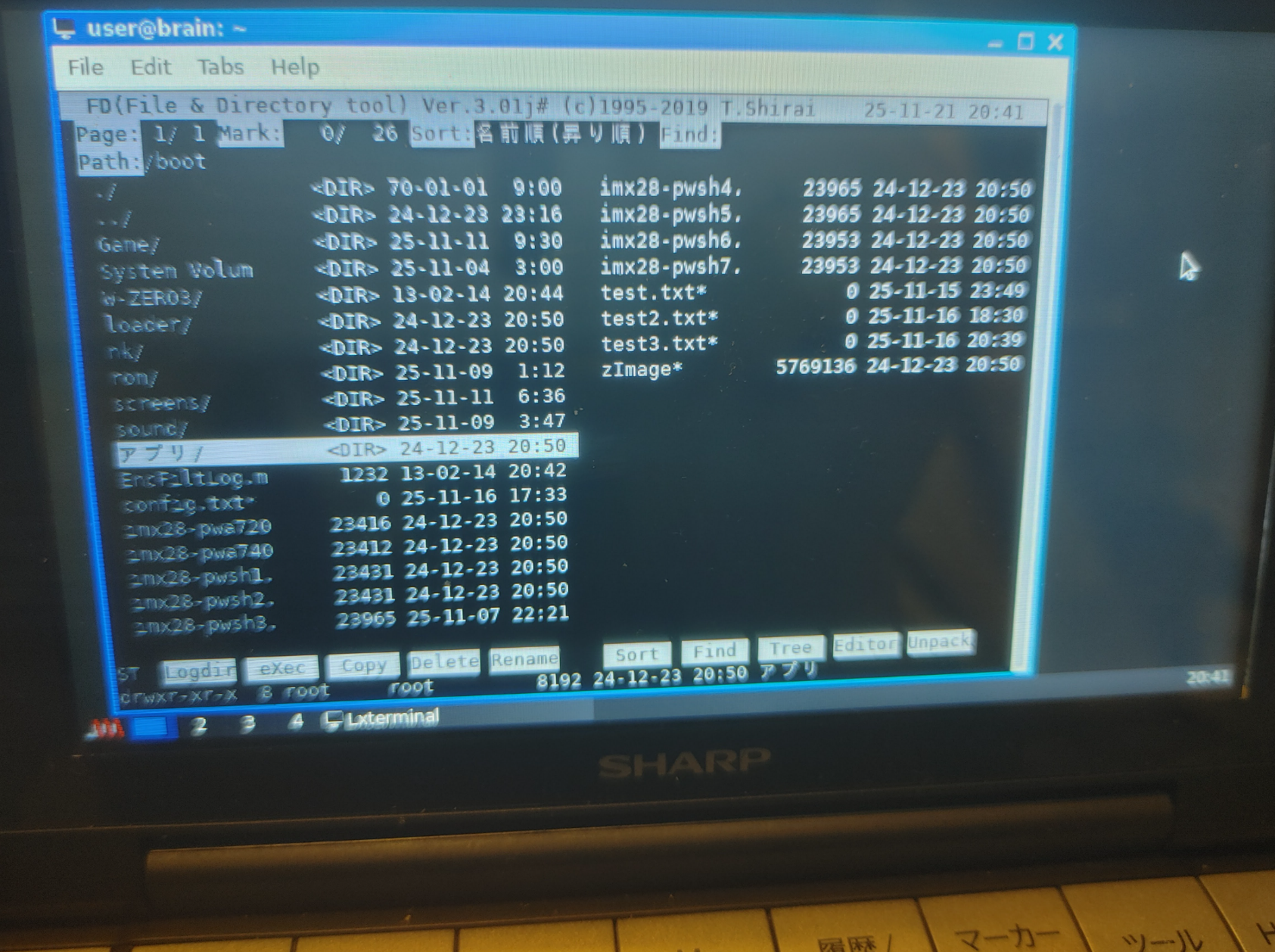
Brainuxでは、apt経由で導入できます。
sudo apt install fdclone
事前にSDカードの文字化け対策をしておけば、/boot以下でも日本語文字も正しく表示できます。
(Brainux起動時にshellで起動した場合は、fbtermを起動してからFDcloneを起動すれば、日本語ファイル名も正しく表示されます。)
シフトを押しながらEで、fdclone自体の設定変更や確認ができます。
キー割り当てや、ランチャ、アーカイバ設定なども可能です。
「内部設定」のおすすめは、以下の通りです。
SORTTYPE: 名前順(昇り順), 直前のソート形式を保持
SORTTREE: 有効
WRITEFS: 使用禁止
LANGUAGE: 英語(English)ではFDcloneのメッセージが英語になります。ここをUTF-8に変更するとメッセージが日本語になりますが日本語表示できない環境では文字化けするので注意。
FNAMEKCODE: UTF-8
その他キー割り当てや、拡張子にあった実行コマンド等いろいろチューニング可能です。
変更したら、保存から「Overwrite」を実行して設定を保存します。
チューニング次第で何でもできるようになるツールですので、おすすめです。
なお、「unzip」や「lhasa」、「nkf」をaptでパッケージをインストールすることで、
zipやlzh内ファイルの解凍なしでの参照(決定[Enter])や解凍(u)、
UTF-8以外の文書ファイルの表示等(ファイル選択してx、先頭に”nkf “と入れて実行)
も可能になります。
sudo apt install unzip lhasa nkf
cabファイルについては、
別途「cabextract」パッケージをaptでインストールすれば
cabextract 展開したいファイル名.cab
で解凍できるようになります(-l オプションでリスト表示)。
cabファイルへの変換もしたいのであれば、「gcab」パッケージをaptでインストールすれば、gcabコマンドで圧縮(-c)、解凍(-x)、リスト表示(-t or -l)ができるようになります。
sudo apt install cabextract
user@brain:~$ sudo apt show fdclone
[sudo] password for user:
Package: fdclone
Version: 3.01j-1
Priority: optional
Section: shells
Maintainer: Elías Alejandro Año Mendoza <ealmdz@gmail.com>
Installed-Size: 1,103 kB
Depends: libc6 (>= 2.28), libtinfo6 (>= 6)
Homepage: http://hp.vector.co.jp/authors/VA012337/soft/fd/
Tag: interface::shell, interface::text-mode, role::program,
 scope::application, uitoolkit::ncurses, use::browsing, use::organizing,
 works-with::file
Download-Size: 504 kB
APT-Sources: http://archive.debian.org/debian bullseye/main armel Packages
Description: console-base lightweight file manager
 FD (FD represents "File and Directory") is an easy-to-use
 file management tool for Un*x newbies.  As its name shows,
 this is a rewrite from scratch - the original version was written
 by Atsushi Idei for MS-DOS(tm) and once very popular in Japan.
 Messages are available either in English or in Japanese.

user@brain:~$ sudo apt install fdclone
Reading package lists... Done
Building dependency tree... Done
Reading state information... Done
The following NEW packages will be installed:
  fdclone
0 upgraded, 1 newly installed, 0 to remove and 1 not upgraded.
Need to get 504 kB of archives.
After this operation, 1,103 kB of additional disk space will be used.
Get:1 http://archive.debian.org/debian bullseye/main armel fdclone armel 3.01j-1 [504 kB]
Fetched 504 kB in 2s (287 kB/s)
Selecting previously unselected package fdclone.
(Reading database ... 46263 files and directories currently installed.)
Preparing to unpack .../fdclone_3.01j-1_armel.deb ...
Unpacking fdclone (3.01j-1) ...
Setting up fdclone (3.01j-1) ...
Processing triggers for man-db (2.9.4-2) ...
user@brain:~$
xtightvncviewer X11上で稼働するvncviewer
昔から使われている画面転送プロトコルであるVNCのクライアントです。
X11上で動きます。
VNCは、今思うと昔のうちのホームページでメイン張ってたコンテンツでした。
もう25年も前の記事・・・・当時はかなりのキワモノ扱いのソフトウェアでした。
リナザウとかW-Zero3とかPSPとかでもクライアントを動かして遊んでました。なつかしい。
さっそく、Brainuxで動かせるかを試します。
インストールはApt経由で可能です。
sudo apt install xtightvncviewer
今回は、接続先としてUltraVNCを導入した環境に接続しています。
xtightvnc <接続先IP>:<DISPLAY番号>
例)
xtightvnc 192.168.29.47:1
<パスワード入力>
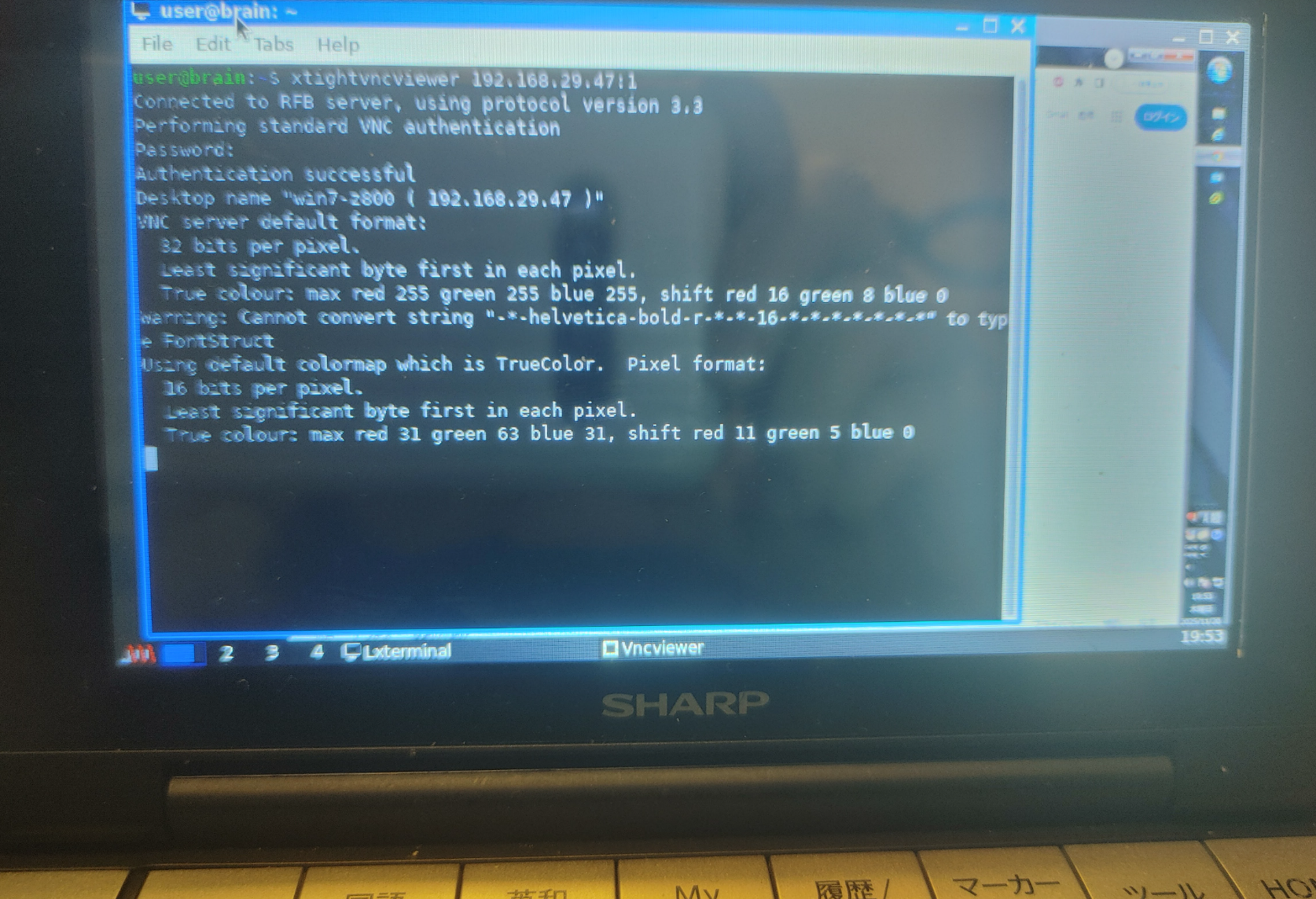
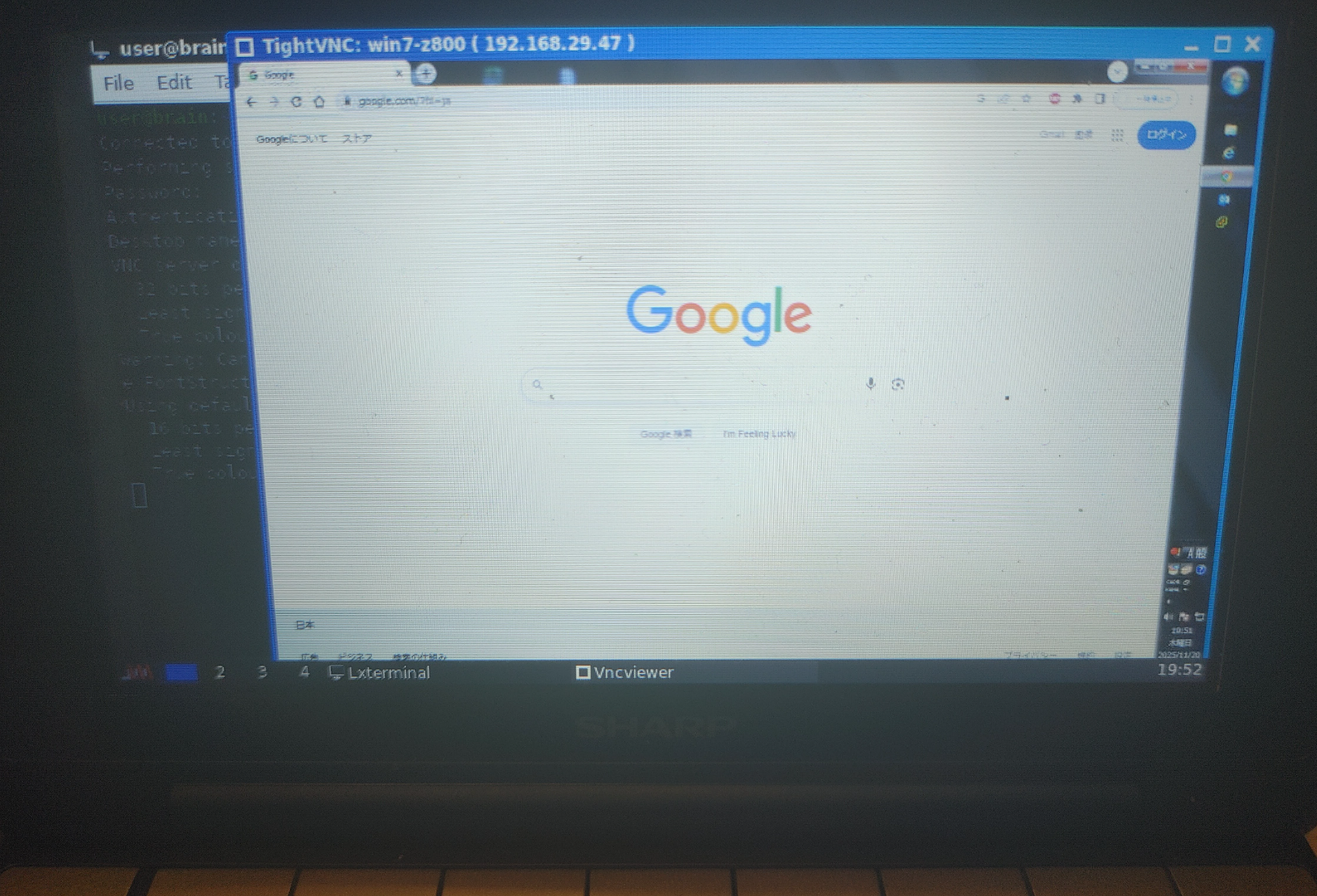
とりあえず、接続は可能です。
速度は、正直遅いです。
なお、VNCプロトコルには音声リダイレクトの機能はない(はず)なので、
音声リダイレクトをしたい場合は、Plusaudioとかを使うしかないと思います(未確認)。
user@brain:/etc/apt$ sudo apt show xtightvncviewer
Package: xtightvncviewer
Version: 1:1.3.10-3
Priority: optional
Section: x11
Source: tightvnc
Maintainer: Debian Remote Maintainers <debian-remote@lists.debian.org>
Installed-Size: 171 kB
Provides: vnc-viewer, vncviewer
Depends: libc6 (>= 2.28), libjpeg62-turbo (>= 1.3.1), libx11-6, libxaw7, libxext6, libxmu6, libxt6, zlib1g (>= 1:1.1.4)
Recommends: xfonts-base
Suggests: ssh, tightvncserver
Homepage: https://www.tightvnc.com
Tag: interface::graphical, interface::x11, network::client, role::program,
 uitoolkit::athena, use::login, use::viewing, x11::application
Download-Size: 87.2 kB
APT-Sources: http://archive.debian.org/debian bullseye/main armel Packages
Description: virtual network computing client software for X
 VNC stands for Virtual Network Computing. It is, in essence, a remote
 display system which allows you to view a computing `desktop' environment
 not only on the machine where it is running, but from anywhere on the
 Internet and from a wide variety of machine architectures.
 .
 It is implemented in a client/server model. This package provides a client
 for X, with this you can connect to a vncserver somewhere in the network
 and display its content in a window. There are vncserver available for other
 operating systems.
 .
 The difference between the xtightvncviewer and the normal vncviewer is the
 data encoding, optimized for low bandwidth connections. If the client do not
 support jpeg or zlib encoding it can use the default one. Later versions of
 xvncviewer (> 3.3.3r2) support a new automatic encoding that should be equally
 good as the tightvnc encoding.

user@brain:/etc/apt$ sudo apt install xtightvncviewer
Reading package lists... Done
Building dependency tree... Done
Reading state information... Done
Suggested packages:
  tightvncserver
Recommended packages:
  xfonts-base
The following NEW packages will be installed:
  xtightvncviewer
0 upgraded, 1 newly installed, 0 to remove and 1 not upgraded.
Need to get 87.2 kB of archives.
After this operation, 171 kB of additional disk space will be used.
Get:1 http://archive.debian.org/debian bullseye/main armel xtightvncviewer armel 1:1.3.10-3 [87.2 kB]
Fetched 87.2 kB in 1s (64.1 kB/s)
Selecting previously unselected package xtightvncviewer.
(Reading database ... 44210 files and directories currently installed.)
Preparing to unpack .../xtightvncviewer_1%3a1.3.10-3_armel.deb ...
Unpacking xtightvncviewer (1:1.3.10-3) ...
Setting up xtightvncviewer (1:1.3.10-3) ...
update-alternatives: using /usr/bin/xtightvncviewer to provide /usr/bin/vncviewer (vncviewer) in auto mode
Processing triggers for man-db (2.9.4-2) ...

user@brain:/etc/apt$ apt list | grep xtightvncviewer
WARNING: apt does not have a stable CLI interface. Use with caution in scripts.
xtightvncviewer/oldstable,now 1:1.3.10-3 armel [installed]

user@brain:~$ xtightvncviewer 192.168.29.47:1
Connected to RFB server, using protocol version 3.3
Performing standard VNC authentication
Password:
Authentication successful
Desktop name "win10-z800 ( 192.168.29.47 )"
VNC server default format:
  32 bits per pixel.
  Least significant byte first in each pixel.
  True colour: max red 255 green 255 blue 255, shift red 16 green 8 blue 0
Warning: Cannot convert string "-*-helvetica-bold-r-*-*-16-*-*-*-*-*-*-*" to type FontStruct
Using default colormap which is TrueColor.  Pixel format:
  16 bits per pixel.
  Least significant byte first in each pixel.
  True colour: max red 31 green 63 blue 31, shift red 11 green 5 blue 0


user@brain:~$ xtightvncviewer --help
TightVNC Viewer version 1.3.10

Usage: xtightvncviewer [<OPTIONS>] [<HOST>][:<DISPLAY#>]
       xtightvncviewer [<OPTIONS>] [<HOST>][::<PORT#>]
       xtightvncviewer [<OPTIONS>] -listen [<DISPLAY#>]
       xtightvncviewer -help

<OPTIONS> are standard Xt options, or:
        -via <GATEWAY>
        -shared (set by default)
        -noshared
        -viewonly
        -fullscreen
        -noraiseonbeep
        -passwd <PASSWD-FILENAME> (standard VNC authentication)
        -encodings <ENCODING-LIST> (e.g. "tight copyrect")
        -bgr233
        -owncmap
        -truecolour
        -depth <DEPTH>
        -compresslevel <COMPRESS-VALUE> (0..9: 0-fast, 9-best)
        -quality <JPEG-QUALITY-VALUE> (0..9: 0-low, 9-high)
        -nojpeg
        -nocursorshape
        -x11cursor
        -autopass

Option names may be abbreviated, e.g. -bgr instead of -bgr233.
See the manual page for more information.
user@brain:~$
rdesktop RDPプロトコルに対応した接続クライアント
rdesktopは、Windowsで使われているリモートコントロールサービスであるRemoteDesktop(RDP Service)に接続するためのツールです。
接続先でRDPを有効にするにはWindowsはPROエディションが必要です。
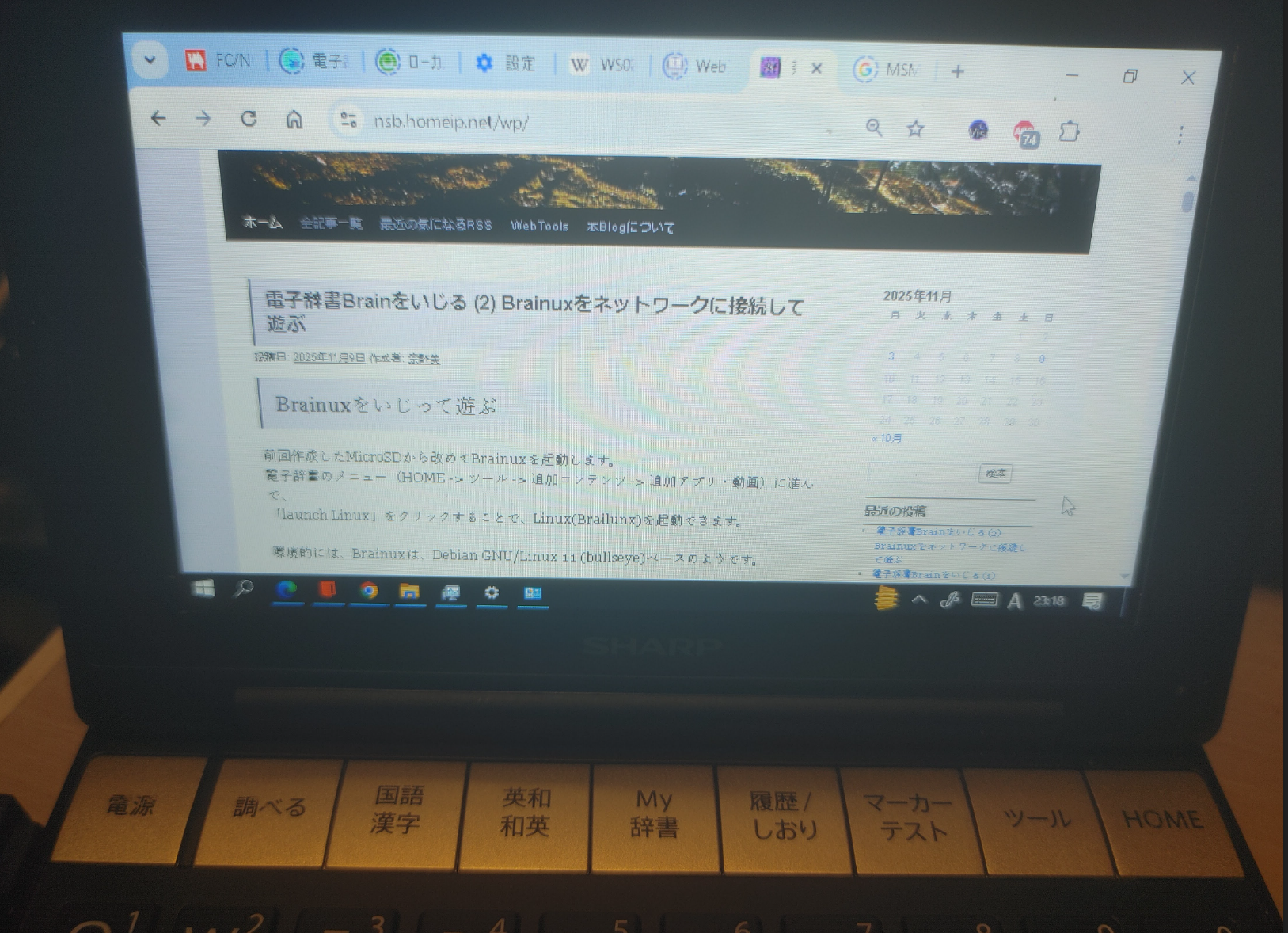
インストールはApt経由で可能です。
sudo apt install rdesktop
接続先でRDPを有効になっていれば、
たとえば、以下のコマンドで接続できます。
rdesktop -k en -x lan -a 8 -f <接続先IPアドレス> -u <ログインユーザ名> -p <Password>
例)
rdesktop -k en -x lan -a 8 -f 192.168.29.43 -u user -p userpass
-k :キーボードレイアウト(en)
-x :ネットワークモード(RDP5 experience)を指定します。
-a :色深度(32,24,16,8)
-f :フルスクリーンモード
-u :リモートデスクトップ(Windows)のユーザー名
-p :上記ユーザのWindowsパスワード
パスワード文字列に”!”などがある場合は、パスワード全てをシングルクォーテーションで括ります。
-f でフルスクリーン表示したときのBrainのキーボードでの解除は以下の同時押しです
≫の上向き + 文字切り替え + 決定 (Ctrl + Alt + Enter に相当)
それ以外だと、スタートメニューから電源->切断でもRDP接続を切断できます。
あと、usbサウンドデバイスを付けているのであれば、以下のオプションを追加すると音声のリダイレクションも可能でした。
ただ、画面描画が激しい状態だと音がとぎれてましたので、この辺はマシンパワーとかの取り合いをしている感じでした。なので音楽再生付きでyoutube鑑賞はムリゲーです。
どっちかだけなら何とかなるかもしれません。
-r sound:local:alsa
rdesktopは少し古いいツールなので、
Windows10や11に接続する際にNLA関係でエラーがでて接続できないときがあります。
その時は「RDP NLA」とかで検索して、Windows側で対応してみてください。
もしくは、次に試す「freerdp2」のほうを試してみてください。
user@brain:~$ sudo apt show rdesktop
Package: rdesktop
Version: 1.9.0-2+b1
Priority: optional
Section: x11
Source: rdesktop (1.9.0-2)
Maintainer: Laszlo Boszormenyi (GCS) <gcs@debian.org>
Installed-Size: 701 kB
Depends: libasound2 (>= 1.0.16), libc6 (>= 2.28), libgmp10, libgnutls30 (>= 3.6.14), libgssapi-krb5-2 (>= 1.17), libhogweed6, libnettle8, libpcsclite1 (>= 1.3.3), libtasn1-6 (>= 4.14), libx11-6, libxcursor1 (>> 1.1.2), libxrandr2
Suggests: pcscd
Homepage: https://www.rdesktop.org/
Tag: interface::graphical, interface::x11, network::client, protocol::ssl,
 role::program, scope::utility, uitoolkit::xlib, use::login,
 x11::application
Download-Size: 212 kB
APT-Sources: http://archive.debian.org/debian bullseye/main armel Packages
Description: RDP client for Windows NT/2000 Terminal Server and Windows Servers
 rdesktop is an open source client for Windows NT/2000 Terminal Server and
 Windows Server 2003/2008. Capable of natively speaking its Remote Desktop
 Protocol (RDP) in order to present the user's Windows desktop. Unlike Citrix
 ICA, no server extensions are required.


user@brain:~$ sudo apt install rdesktop
Reading package lists... Done
Building dependency tree... Done
Reading state information... Done
Suggested packages:
  pcscd
The following NEW packages will be installed:
  rdesktop
0 upgraded, 1 newly installed, 0 to remove and 1 not upgraded.
Need to get 212 kB of archives.
After this operation, 701 kB of additional disk space will be used.
Get:1 http://archive.debian.org/debian bullseye/main armel rdesktop armel 1.9.0-2+b1 [212 kB]
Fetched 212 kB in 1s (244 kB/s)
Selecting previously unselected package rdesktop.
(Reading database ... 44348 files and directories currently installed.)
Preparing to unpack .../rdesktop_1.9.0-2+b1_armel.deb ...
Unpacking rdesktop (1.9.0-2+b1) ...
Setting up rdesktop (1.9.0-2+b1) ...
Processing triggers for man-db (2.9.4-2) ...


user@brain:~$ rdesktop
rdesktop: A Remote Desktop Protocol client.
Version 1.9.0. Copyright (C) 1999-2016 Matthew Chapman et al.
See http://www.rdesktop.org/ for more information.

Usage: rdesktop [options] server[:port]
   -u: user name
   -d: domain
   -s: shell / seamless application to start remotely
   -c: working directory
   -p: password (- to prompt)
   -n: client hostname
   -k: keyboard layout on server (en-us, de, sv, etc.)
   -g: desktop geometry (WxH[@DPI][+X[+Y]])
   -i: enables smartcard authentication, password is used as pin
   -f: full-screen mode
   -b: force bitmap updates
   -L: local codepage
   -A: path to SeamlessRDP shell, this enables SeamlessRDP mode
   -V: tls version (1.0, 1.1, 1.2, defaults to negotiation)
   -B: use BackingStore of X-server (if available)
   -e: disable encryption (French TS)
   -E: disable encryption from client to server
   -m: do not send motion events
   -M: use local mouse cursor
   -C: use private colour map
   -D: hide window manager decorations
   -K: keep window manager key bindings
   -S: caption button size (single application mode)
   -T: window title
   -t: disable use of remote ctrl
   -N: enable numlock synchronization
   -X: embed into another window with a given id.
   -a: connection colour depth
   -z: enable rdp compression
   -x: RDP5 experience (m[odem 28.8], b[roadband], l[an] or hex nr.)
   -P: use persistent bitmap caching
   -r: enable specified device redirection (this flag can be repeated)
         '-r comport:COM1=/dev/ttyS0': enable serial redirection of /dev/ttyS0 to COM1
             or      COM1=/dev/ttyS0,COM2=/dev/ttyS1
         '-r disk:floppy=/mnt/floppy': enable redirection of /mnt/floppy to 'floppy' share
             or   'floppy=/mnt/floppy,cdrom=/mnt/cdrom'
         '-r clientname=<client name>': Set the client name displayed
             for redirected disks
         '-r lptport:LPT1=/dev/lp0': enable parallel redirection of /dev/lp0 to LPT1
             or      LPT1=/dev/lp0,LPT2=/dev/lp1
         '-r printer:mydeskjet': enable printer redirection
             or      mydeskjet="HP LaserJet IIIP" to enter server driver as well
         '-r sound:[local[:driver[:device]]|off|remote]': enable sound redirection
                     remote would leave sound on server
                     available drivers for 'local':
                     alsa:      ALSA output driver, default device: default
         '-r clipboard:[off|PRIMARYCLIPBOARD|CLIPBOARD]': enable clipboard
                      redirection.
                      'PRIMARYCLIPBOARD' looks at both PRIMARY and CLIPBOARD
                      when sending data to server.
                      'CLIPBOARD' looks at only CLIPBOARD.
         '-r scard[:"Scard Name"="Alias Name[;Vendor Name]"[,...]]
          example: -r scard:"eToken PRO 00 00"="AKS ifdh 0"
                   "eToken PRO 00 00" -> Device in GNU/Linux and UNIX environment
                   "AKS ifdh 0"       -> Device shown in Windows environment
          example: -r scard:"eToken PRO 00 00"="AKS ifdh 0;AKS"
                   "eToken PRO 00 00" -> Device in GNU/Linux and UNIX environment
                   "AKS ifdh 0"       -> Device shown in Microsoft Windows environment
                   "AKS"              -> Device vendor name
   -0: attach to console
   -4: use RDP version 4
   -5: use RDP version 5 (default)
   -o: name=value: Adds an additional option to rdesktop.
           sc-csp-name        Specifies the Crypto Service Provider name which
                              is used to authenticate the user by smartcard
           sc-container-name  Specifies the container name, this is usually the username
           sc-reader-name     Smartcard reader name to use
           sc-card-name       Specifies the card name of the smartcard to use
   -v: enable verbose logging
xfreerdp2 RDPプロトコルに対応した接続クライアント
rdesktop と同様のRDP Clientです。
rdesktopよりも比較的新しいソフトですので、NLA認証の問題も解決されているようです。
インストールはApt経由で可能です。
sudo apt install freerdp2-x11
接続先でRDPを有効になっていれば、
たとえば、以下のコマンドで接続できます。
xfreerdp /v:<接続先IPアドレス> /u:<ログインユーザ /p:<接続パスワード /f
例)
xfreerdp /v:192.168.29.43 /u:user /p:userpass /f
rdesktop同様、BrainにUSBサウンドデバイスを挿した状態で以下のコマンドオプションを追加すると音声も転送されます。
(一部ノイズ交じりなのも、画面描画が激しい状態だと音がとぎれるのも一緒)
/sound:sys:alsa
サウンドがうまく再生できないときは、以下のメッセージが今コンソール側に出ているっぽいので、ALSAのバッファがたりていないのかもしれません。
ALSA lib pcm.c:8545:(snd_pcm_recover) underrun occurred
user@brain:~$ sudo apt show freerdp2-x11
Package: freerdp2-x11
Version: 2.3.0+dfsg1-2+deb11u1
Priority: optional
Section: x11
Source: freerdp2
Maintainer: Debian Remote Maintainers <debian-remote@lists.debian.org>
Installed-Size: 553 kB
Provides: freerdp
Depends: libc6 (>= 2.4), libfreerdp-client2-2 (= 2.3.0+dfsg1-2+deb11u1), libfreerdp2-2 (>= 2.3.0+dfsg1), libwinpr2-2 (>= 2.1.0+dfsg1), libx11-6 (>= 2:1.2.99.901), libxcursor1 (>> 1.1.2), libxext6, libxfixes3, libxi6 (>= 2:1.2.99.4), libxinerama1, libxrandr2 (>= 2:1.5.0), libxrender1
Conflicts: freerdp-x11
Replaces: freerdp-x11
Homepage: https://www.freerdp.com/
Download-Size: 97.6 kB
APT-Sources: http://archive.debian.org/debian bullseye/main armel Packages
Description: RDP client for Windows Terminal Services (X11 client)
FreeRDP is a libre client/server implementation of the Remote
Desktop Protocol (RDP).
.
Currently, the FreeRDP client supports the following Windows Versions:
.
* Windows NT Server
* Windows 2000 Terminal Server
* Windows XP
* Windows 2003 Server
* Windows Vista
* Windows 2008/2008r2/2011SBS Server
* Windows 7
* Windows 2012/2012r2 Server
* Windows 8
* Windows 10
.
This package contains the X11 based client.
user@brain:~$ sudo apt install freerdp2-x11
Reading package lists... Done
Building dependency tree... Done
Reading state information... Done
The following additional packages will be installed:
libaom0 libavcodec58 libavutil56 libcodec2-0.9 libdav1d4 libfreerdp-client2-2 libfreerdp2-2 libgsm1 libopenjp2-7 libshine3 libsnappy1v5 libsoxr0
libswresample3 libswscale5 libva-drm2 libva-x11-2 libva2 libvdpau1 libwebpmux3 libwinpr2-2 libx264-160 libx265-192 libxvidcore4 libzvbi-common libzvbi0
ocl-icd-libopencl1
Suggested packages:
opencl-icd
Recommended packages:
va-driver-all | va-driver vdpau-driver-all | vdpau-driver
The following NEW packages will be installed:
freerdp2-x11 libaom0 libavcodec58 libavutil56 libcodec2-0.9 libdav1d4 libfreerdp-client2-2 libfreerdp2-2 libgsm1 libopenjp2-7 libshine3 libsnappy1v5
libsoxr0 libswresample3 libswscale5 libva-drm2 libva-x11-2 libva2 libvdpau1 libwebpmux3 libwinpr2-2 libx264-160 libx265-192 libxvidcore4 libzvbi-common
libzvbi0 ocl-icd-libopencl1
0 upgraded, 27 newly installed, 0 to remove and 1 not upgraded.
Need to get 17.4 MB of archives.
After this operation, 45.1 MB of additional disk space will be used.
~
Processing triggers for libc-bin (2.31-13+deb11u11) ...
user@brain:~$ xfreerdp
FreeRDP - A Free Remote Desktop Protocol Implementation
See www.freerdp.com for more information
Usage: xfreerdp [file] [options] [/v:<server>[:port]]
Syntax:
/flag (enables flag)
/option:<value> (specifies option with value)
+toggle -toggle (enables or disables toggle, where '/' is a synonym of '+')
/a:<addin>[,<options>] Addin
/action-script:<file-name> Action script
/admin Admin (or console) session
+aero Enable desktop composition
/app:<path> or ||<alias> Remote application program
/app-cmd:<parameters> Remote application command-line parameters
/app-file:<file-name> File to open with remote application
/app-guid:<app-guid> Remote application GUID
/app-icon:<icon-path> Remote application icon for user interface
/app-name:<app-name> Remote application name for user interface
/app-workdir:<workspace path> Remote application workspace path
/assistance:<password> Remote assistance password
/auto-request-control Automatically request remote assistance
input control
+async-channels Enable Asynchronous channels
(experimental)
+async-input Enable Asynchronous input
+async-update Enable Asynchronous update
/audio-mode:<mode> Audio output mode
+auth-only Enable Authenticate only
-authentication Disable Authentication (experimental)
+auto-reconnect Enable Automatic reconnection
/auto-reconnect-max-retries:<retries>
Automatic reconnection maximum retries, 0
for unlimited [0,1000]
+bitmap-cache Enable bitmap cache
/bpp:<depth> Session bpp (color depth)
/buildconfig Print the build configuration
/cert:[deny,ignore,name:<name>,tofu,fingerprint:<hash>:<hash as hex>
[,fingerprint:<hash>:<another hash>]]
Certificate accept options. Use with care!
* deny ... Automatically abort
connection if the certificate does not
match, no user interaction. *
ignore ... Ignore the certificate
checks altogether (overrules all other
options) * name
... Use the alternate <name>
instead of the certificate subject to
match locally stored certificates * tofu
... Accept certificate
unconditionally on first connect and deny
on subsequent connections if the
certificate does not match * fingerprints
... A list of certificate hashes that are
accepted unconditionally for a connection
/cert-deny [deprecated, use /cert:deny] Automatically
abort connection for any certificate that
can not be validated.
/cert-ignore [deprecated, use /cert:ignore] Ignore
certificate
/cert-name:<name> [deprecated, use /cert:name:<name>]
Certificate name
/cert-tofu [deprecated, use /cert:tofu] Automatically
accept certificate on first connect
/client-build-number:<number> Client Build Number sent to server
(influences smartcard behaviour, see
[MS-RDPESC])
/client-hostname:<name> Client Hostname to send to server
-clipboard[:[use-selection:<atom>]]
Disable Redirect clipboard.
* use-selection:<atom> ... (X11) Specify
which X selection to access. Default is
CLIPBOARD. PRIMARY is the X-style
middle-click selection.
/codec-cache:[rfx|nsc|jpeg] Bitmap codec cache
-compression Disable compression
/compression-level:<level> Compression level (0,1,2)
+credentials-delegation Enable credentials delegation
/d:<domain> Domain
-decorations Disable Window decorations
/disp Display control
/drive:<name>,<path> Redirect directory <path> as named share
<name>. Hotplug support is enabled with
/drive:hotplug,*. This argument provides
the same function as "Drives that I plug
in later" option in MSTSC.
+drives Enable Redirect all mount points as shares
/dvc:<channel>[,<options>] Dynamic virtual channel
/dynamic-resolution Send resolution updates when the window is
resized
/echo Echo channel
-encryption Disable Encryption (experimental)
/encryption-methods:[40,][56,][128,][FIPS]
RDP standard security encryption methods
/f Fullscreen mode (<Ctrl>+<Alt>+<Enter>
toggles fullscreen)
-fast-path Disable fast-path input/output
+fipsmode Enable FIPS mode
/floatbar[:sticky:[on|off],default:[visible|hidden],show:
[always|fullscreen||window]]
floatbar is disabled by default (when
enabled defaults to sticky in fullscreen
mode)
-fonts Disable smooth fonts (ClearType)
/frame-ack:<number> Number of frame acknowledgement
/from-stdin[:force] Read credentials from stdin. With <force>
the prompt is done before connection,
otherwise on server request.
/g:<gateway>[:<port>] Gateway Hostname
/gateway-usage-method:[direct|detect]
Gateway usage method
/gd:<domain> Gateway domain
/gdi:sw|hw GDI rendering
/geometry Geometry tracking channel
+gestures Enable Consume multitouch input locally
/gfx[:[[RFX|AVC420|AVC444],mask:<value>]]
RDP8 graphics pipeline
/gfx-h264[:[[AVC420|AVC444],mask:<value>]
[DEPRECATED] use /gfx:avc420 instead]
RDP8.1 graphics pipeline using H264 codec
+gfx-progressive Enable RDP8 graphics pipeline using progressive
codec
+gfx-small-cache Enable RDP8 graphics pipeline using small cache
mode
+gfx-thin-client Enable RDP8 graphics pipeline using thin client
mode
+glyph-cache Enable Glyph cache (experimental)
/gp:<password> Gateway password
-grab-keyboard Disable Grab keyboard
/gt:[rpc|http[,no-websockets]|auto[,no-websockets]]
Gateway transport type
/gu:[[<domain>\]<user>|<user>[@<domain>]]
Gateway username
/gat:<access token> Gateway Access Token
/h:<height> Height
-heartbeat Disable Support heartbeat PDUs
/help Print help
+home-drive Enable Redirect user home as share
/ipv6 Prefer IPv6 AAA record over IPv4 A record
/jpeg JPEG codec support
/jpeg-quality:<percentage> JPEG quality
/kbd:0x<id> or <name> Keyboard layout
/kbd-lang:0x<id> Keyboard active language identifier
/kbd-fn-key:<value> Function key value
/kbd-list List keyboard layouts
/kbd-lang-list List keyboard languages
/kbd-remap:List of <key>=<value>,... pairs to remap scancodes
Keyboard scancode remapping
/kbd-subtype:<id> Keyboard subtype
/kbd-type:<id> Keyboard type
/load-balance-info:<info-string> Load balance info
/log-filters:<tag>:<level>[,<tag>:<level>[,...]]
Set logger filters, see wLog(7) for
details
/log-level:[OFF|FATAL|ERROR|WARN|INFO|DEBUG|TRACE]
Set the default log level, see wLog(7) for
details
/max-fast-path-size:<size> Specify maximum fast-path update size
/max-loop-time:<time> Specify maximum time in milliseconds spend
treating packets
+menu-anims Enable menu animations
/microphone[:[sys:<sys>,][dev:<dev>,][format:<format>,][rate:<rate>,]
[channel:<channel>]] Audio input (microphone)
/monitor-list List detected monitors
/monitors:<id>[,<id>[,...]] Select monitors to use
-mouse-motion Disable Send mouse motion
/multimon[:force] Use multiple monitors
+multitouch Enable Redirect multitouch input
+multitransport Enable Support multitransport protocol
-nego Disable protocol security negotiation
/network:[modem|broadband|broadband-low|broadband-high|wan|lan|auto]
Network connection type
/nsc NSCodec support
+offscreen-cache Enable offscreen bitmap cache
/orientation:[0|90|180|270] Orientation of display in degrees
+old-license Enable Use the old license workflow (no CAL and
hwId set to 0)
/p:<password> Password
/parallel[:<name>[,<path>]] Redirect parallel device
/parent-window:<window-id> Parent window id
+password-is-pin Enable Use smart card authentication with
password as smart card PIN
/pcb:<blob> Preconnection Blob
/pcid:<id> Preconnection Id
/pheight:<height> Physical height of display (in
millimeters)
/play-rfx:<pcap-file> Replay rfx pcap file
/port:<number> Server port
-suppress-output Disable suppress output when minimized
+print-reconnect-cookie Enable Print base64 reconnect cookie after
connecting
/printer[:<name>[,<driver>]] Redirect printer device
/proxy:[<proto>://][<user>:<password>@]<host>:<port>
Proxy settings: override env. var (see
also environment variable below). Protocol
"socks5" should be given explicitly where
"http" is default.
/pth:<password-hash> Pass the hash (restricted admin mode)
/pwidth:<width> Physical width of display (in millimeters)
/rdp2tcp:<executable path[:arg...]>
TCP redirection
/reconnect-cookie:<base64-cookie> Pass base64 reconnect cookie to the
connection
/redirect-prefer:<FQDN|IP|NETBIOS>,[...]
Override the preferred redirection order
/relax-order-checks Do not check if a RDP order was announced
during capability exchange, only use when
connecting to a buggy server
/restricted-admin Restricted admin mode
/rfx RemoteFX
/rfx-mode:[image|video] RemoteFX mode
/scale:[100|140|180] Scaling factor of the display
/scale-desktop:<percentage> Scaling factor for desktop applications
(value between 100 and 500)
/scale-device:100|140|180 Scaling factor for app store applications
/sec:[rdp|tls|nla|ext] Force specific protocol security
+sec-ext Enable NLA extended protocol security
-sec-nla Disable NLA protocol security
-sec-rdp Disable RDP protocol security
-sec-tls Disable TLS protocol security
/serial[:<name>[,<path>[,<driver>[,permissive]]]]
Redirect serial device
/shell:<shell> Alternate shell
/shell-dir:<dir> Shell working directory
/size:<width>x<height> or <percent>%[wh]
Screen size
/smart-sizing[:<width>x<height>] Scale remote desktop to window size
/smartcard[:<str>[,<str>...]] Redirect the smartcard devices containing
any of the <str> in their names.
/smartcard-logon Activates Smartcard Logon authentication.
(EXPERIMENTAL: NLA not supported)
/sound[:[sys:<sys>,][dev:<dev>,][format:<format>,][rate:<rate>,]
[channel:<channel>,][latency:<latency>,][quality:<quality>]]
Audio output (sound)
/span Span screen over multiple monitors
/spn-class:<service-class> SPN authentication service class
/ssh-agent SSH Agent forwarding channel
/t:<title> Window title
-themes Disable themes
/timeout:<time in ms> Advanced setting for high latency links:
Adjust connection timeout, use if you
encounter timeout failures with your
connection
/tls-ciphers:[netmon|ma|ciphers] Allowed TLS ciphers
/tls-seclevel:<level> TLS security level - defaults to 1
-toggle-fullscreen Disable Alt+Ctrl+Enter to toggle
fullscreen
/tune:<setting:value>,<setting:value>
[experimental] directly manipulate freerdp
settings, use with extreme caution!
/tune-list Print options allowed for /tune
/u:[[<domain>\]<user>|<user>[@<domain>]]
Username
+unmap-buttons Enable Let server see real physical pointer
button
/usb:[dbg,][id:<vid>:<pid>#...,][addr:<bus>:<addr>#...,][auto]
Redirect USB device
/v:<server>[:port] Server hostname
/vc:<channel>[,<options>] Static virtual channel
/version Print version
/video Video optimized remoting channel
/vmconnect[:<vmid>] Hyper-V console (use port 2179, disable
negotiation)
/w:<width> Width
-wallpaper Disable wallpaper
+window-drag Enable full window drag
/window-position:<xpos>x<ypos> window position
/wm-class:<class-name> Set the WM_CLASS hint for the window
instance
/workarea Use available work area
Examples:
xfreerdp connection.rdp /p:Pwd123! /f
xfreerdp /u:CONTOSO\JohnDoe /p:Pwd123! /v:rdp.contoso.com
xfreerdp /u:JohnDoe /p:Pwd123! /w:1366 /h:768 /v:192.168.1.100:4489
xfreerdp /u:JohnDoe /p:Pwd123! /vmconnect:C824F53E-95D2-46C6-9A18-23A5BB403532 /v:192.168.1.100
Clipboard Redirection: +clipboard
Drive Redirection: /drive:home,/home/user
Smartcard Redirection: /smartcard:<device>
Serial Port Redirection: /serial:<name>,<device>,[SerCx2|SerCx|Serial],[permissive]
Serial Port Redirection: /serial:COM1,/dev/ttyS0
Parallel Port Redirection: /parallel:<name>,<device>
Printer Redirection: /printer:<device>,<driver>
TCP redirection: /rdp2tcp:/usr/bin/rdp2tcp
Audio Output Redirection: /sound:sys:oss,dev:1,format:1
Audio Output Redirection: /sound:sys:alsa
Audio Input Redirection: /microphone:sys:oss,dev:1,format:1
Audio Input Redirection: /microphone:sys:alsa
Multimedia Redirection: /video
USB Device Redirection: /usb:id:054c:0268#4669:6e6b,addr:04:0c
For Gateways, the https_proxy environment variable is respected:
export https_proxy=http://proxy.contoso.com:3128/
xfreerdp /g:rdp.contoso.com ...
More documentation is coming, in the meantime consult source files
user@brain:~$remmina 複数の接続に対応した統合クライアント(動作はするが接続できない)
様々なプロトコルに対応した接続用クライアントです。
ssh,RDP,VNC等
接続前のGUIは立ち上がりますが、実際に接続しようとしてもつながりません。
標準のsshでさえつながらないので、どこかネットワーク的にもうまくいっていないのかもしれません。
インストールはApt経由で可能です。
sudo apt install remmina remmina-plugin-rdp remmina-plugin-vnc
user@brain:~$ sudo apt show remmina
[sudo] password for user:
Package: remmina
Version: 1.4.11+dfsg-3
Priority: optional
Section: x11
Maintainer: Debian Remote Maintainers <debian-remote@lists.debian.org>
Installed-Size: 478 kB
Depends: libavahi-client3 (>= 0.6.16), libavahi-common3 (>= 0.6.16), libavahi-ui-gtk3-0 (>= 0.6.30), libayatana-appindicator3-1 (>= 0.4.90), libc6 (>= 2.28), libcairo2 (>= 1.6.0), libgcrypt20 (>= 1.8.0), libglib2.0-0 (>= 2.55.1), libgtk-3-0 (>= 3.21.5), libjson-glib-1.0-0 (>= 1.5.2), libpango-1.0-0 (>= 1.14.0), libsodium23 (>= 1.0.10), libsoup2.4-1 (>= 2.41.90), libssh-4 (>= 0.8.1), libssl1.1 (>= 1.1.0), libvte-2.91-0 (>= 0.51.90), remmina-common (= 1.4.11+dfsg-3), default-dbus-session-bus | dbus-session-bus
Recommends: remmina-plugin-rdp, remmina-plugin-vnc, remmina-plugin-secret
Suggests: remmina-plugin-exec, remmina-plugin-kwallet, remmina-plugin-nx, remmina-plugin-spice, remmina-plugin-www, remmina-plugin-xdmcp
Homepage: https://www.remmina.org/
Tag: interface::graphical, interface::x11, protocol::ssh, role::program,
 uitoolkit::gtk, x11::application
Download-Size: 161 kB
APT-Sources: http://archive.debian.org/debian bullseye/main armel Packages
Description: GTK+ Remote Desktop Client
 Remmina is a remote desktop client written in GTK+, aiming to be
 useful for system administrators and travellers, who need to work
 with lots of remote computers in front of either large monitors or
 tiny netbooks.
 .
 Remmina supports multiple network protocols in an integrated and
 consistent user interface.
 .
 Currently RDP, VNC, SPICE, WWW, NX, XDMCP, EXEC and SSH are supported.

user@brain:~$
user@brain:~$
user@brain:~$ sudo apt install remmina
Reading package lists... Done
Building dependency tree... Done
Reading state information... Done
The following additional packages will be installed:
  libavahi-glib1 libavahi-ui-gtk3-0 libayatana-appindicator3-1
  libayatana-ido3-0.4-0 libayatana-indicator3-7 libdbusmenu-glib4
  libdbusmenu-gtk3-4 libsodium23 libssh-4 remmina-common
Suggested packages:
  remmina-plugin-exec remmina-plugin-kwallet remmina-plugin-nx
  remmina-plugin-spice remmina-plugin-www remmina-plugin-xdmcp
Recommended packages:
  remmina-plugin-rdp remmina-plugin-vnc remmina-plugin-secret
The following NEW packages will be installed:
  libavahi-glib1 libavahi-ui-gtk3-0 libayatana-appindicator3-1
  libayatana-ido3-0.4-0 libayatana-indicator3-7 libdbusmenu-glib4
  libdbusmenu-gtk3-4 libsodium23 libssh-4 remmina remmina-common
0 upgraded, 11 newly installed, 0 to remove and 1 not upgraded.
Need to get 1,476 kB of archives.
After this operation, 5,820 kB of additional disk space will be used.
Do you want to continue? [Y/n] Y
Get:1 http://archive.debian.org/debian bullseye/main armel libavahi-glib1 armel 0.8-5+deb11u2 [44.0 kB]
~
Processing triggers for shared-mime-info (2.0-1) ...


user@brain:~$ sudo apt show remmina-plugin-rdp
Package: remmina-plugin-rdp
Version: 1.4.11+dfsg-3
Priority: optional
Section: gnome
Source: remmina
Maintainer: Debian Remote Maintainers <debian-remote@lists.debian.org>
Installed-Size: 132 kB
Depends: libc6 (>= 2.28), libcairo2 (>= 1.6.0), libcups2 (>= 1.6.0), libfreerdp-client2-2 (>= 2.2.0~), libfreerdp2-2 (>= 2.2.0~), libgdk-pixbuf-2.0-0 (>= 2.22.0), libglib2.0-0 (>= 2.41.1), libgtk-3-0 (>= 3.19.12), libwinpr2-2 (>= 2.0.0~git20160317.1.75ae3f5+dfsg1), libx11-6, remmina (= 1.4.11+dfsg-3)
Homepage: https://www.remmina.org/
Tag: role::plugin, uitoolkit::gtk
Download-Size: 51.2 kB
APT-Sources: http://archive.debian.org/debian bullseye/main armel Packages
Description: RDP plugin for Remmina
 Remmina is a remote desktop client written in GTK+, aiming to be
 useful for system administrators and travellers, who need to work
 with lots of remote computers in front of either large monitors or
 tiny netbooks.
 .
 Remmina supports multiple network protocols in an integrated and
 consistent user interface.
 .
 Currently RDP, VNC, SPICE, WWW, NX, XDMCP, EXEC and SSH are supported.
 .
 This package contains the RDP plugin for Remmina.


user@brain:~$ sudo apt install remmina-plugin-rdp
Reading package lists... Done
Building dependency tree... Done
Reading state information... Done
The following NEW packages will be installed:
  remmina-plugin-rdp
0 upgraded, 1 newly installed, 0 to remove and 1 not upgraded.
Need to get 51.2 kB of archives.
After this operation, 132 kB of additional disk space will be used.
Get:1 http://archive.debian.org/debian bullseye/main armel remmina-plugin-rdp armel 1.4.11+dfsg-3 [51.2 kB]
Fetched 51.2 kB in 1s (54.9 kB/s)
Selecting previously unselected package remmina-plugin-rdp:armel.
(Reading database ... 45099 files and directories currently installed.)
Preparing to unpack .../remmina-plugin-rdp_1.4.11+dfsg-3_armel.deb ...
Unpacking remmina-plugin-rdp:armel (1.4.11+dfsg-3) ...
Setting up remmina-plugin-rdp:armel (1.4.11+dfsg-3) ...


user@brain:~$ sudo apt show remmina-plugin-vnc
Package: remmina-plugin-vnc
Version: 1.4.11+dfsg-3
Priority: optional
Section: gnome
Source: remmina
Maintainer: Debian Remote Maintainers <debian-remote@lists.debian.org>
Installed-Size: 68.6 kB
Depends: libc6 (>= 2.28), libcairo2 (>= 1.6.0), libgdk-pixbuf-2.0-0 (>= 2.22.0), libglib2.0-0 (>= 2.26.0), libgtk-3-0 (>= 3.9.12), libvncclient1 (>= 0.9.10), remmina (= 1.4.11+dfsg-3)
Homepage: https://www.remmina.org/
Tag: role::plugin, uitoolkit::gtk
Download-Size: 31.1 kB
APT-Sources: http://archive.debian.org/debian bullseye/main armel Packages
Description: VNC plugin for Remmina
 Remmina is a remote desktop client written in GTK+, aiming to be
 useful for system administrators and travellers, who need to work
 with lots of remote computers in front of either large monitors or
 tiny netbooks.
 .
 Remmina supports multiple network protocols in an integrated and
 consistent user interface.
 .
 Currently RDP, VNC, SPICE, WWW, NX, XDMCP, EXEC and SSH are supported.
 .
 This package contains the VNC plugin for Remmina.


user@brain:~$ sudo apt install remmina-plugin-vnc
Reading package lists... Done
Building dependency tree... Done
Reading state information... Done
The following additional packages will be installed:
  liblzo2-2 libvncclient1
The following NEW packages will be installed:
  liblzo2-2 libvncclient1 remmina-plugin-vnc
0 upgraded, 3 newly installed, 0 to remove and 1 not upgraded.
Need to get 248 kB of archives.
After this operation, 501 kB of additional disk space will be used.
Do you want to continue? [Y/n] Y
Get:1 http://archive.debian.org/debian bullseye/main armel liblzo2-2 armel 2.10-2 [48.5 kB]
Get:2 http://archive.debian.org/debian bullseye/main armel libvncclient1 armel 0.9.13+dfsg-2+deb11u1 [168 kB]
Get:3 http://archive.debian.org/debian bullseye/main armel remmina-plugin-vnc armel 1.4.11+dfsg-3 [31.1 kB]
Fetched 248 kB in 3s (89.2 kB/s)
Selecting previously unselected package liblzo2-2:armel.
(Reading database ... 45107 files and directories currently installed.)
Preparing to unpack .../liblzo2-2_2.10-2_armel.deb ...
Unpacking liblzo2-2:armel (2.10-2) ...
Selecting previously unselected package libvncclient1:armel.
Preparing to unpack .../libvncclient1_0.9.13+dfsg-2+deb11u1_armel.deb ...
Unpacking libvncclient1:armel (0.9.13+dfsg-2+deb11u1) ...
Selecting previously unselected package remmina-plugin-vnc:armel.
Preparing to unpack .../remmina-plugin-vnc_1.4.11+dfsg-3_armel.deb ...
Unpacking remmina-plugin-vnc:armel (1.4.11+dfsg-3) ...
Setting up liblzo2-2:armel (2.10-2) ...
Setting up libvncclient1:armel (0.9.13+dfsg-2+deb11u1) ...
Setting up remmina-plugin-vnc:armel (1.4.11+dfsg-3) ...
Processing triggers for libc-bin (2.31-13+deb11u11) ...
user@brain:~$
higan マルチゲームコンソールエミュレータ(動作はするが遅すぎる)
gngb GAME BOY エミュレータ
libSDL2 ハードウェアへの低レベルアクセスを提供する開発ライブラリ
libSDL2は、オーディオ, キーボード, マウス, ジョイスティック, グラフィックハードウェアへの低レベルアクセスを提供する開発ライブラリです。(SDL – Simple DirectMedia Layer )
実はdebian11レポジトリに、libSDL2としてすでに登録されているのでAPT経由でインストール自体はできます。
$ sudo apt show libsdl2-2.0-0
ただし、APTでインストールしたものだと、Brainux上で動かないようです。
具体的には、libSDL2に依存するパッケージが”Illigal instruction”エラーで異常終了します。
パッケージが、libSDL2に依存しているかについては、以下のコマンドで確認できます。
sudo apt show <パッケージ名>
このため、今回はlibSDL2をBrainuxで動くように再構築する必要があります。
先達の方の記事を参考に、再構築します。
ビルドツール類をインストールします。
$ sudo apt update
$ sudo apt-get install g++ build-essential libsdl2-dev
libSDL2のソースをダウンロードします。
$cd
$sudo apt source libsdl2
そのままでは動かないので、ソースコードを修正します。
$ cd libsdl2-2.0.14+dfsg2/include
$ sudo cp -p SDL_atomic.h SDL_atomic.h.org
$ sudo vi SDL_atomic.h
SDL_atomic.hの184行目を以下の通り修正する。
(“|| defined(__ARM_ARCH_5TE__)”を消すせばいいとのことです。)
#elif defined(__ARM_ARCH_6__) || defined(__ARM_ARCH_6J__) || defined(__ARM_ARCH_6K__) || defined(__ARM_ARCH_6T2__) || defined(__ARM_ARCH_6Z__) || defined(__ARM_ARCH_6ZK__) || defined(__ARM_ARCH_5TE__)

↓

#elif defined(__ARM_ARCH_6__) || defined(__ARM_ARCH_6J__) || defined(__ARM_ARCH_6K__) || defined(__ARM_ARCH_6T2__) || defined(__ARM_ARCH_6Z__) || defined(__ARM_ARCH_6ZK__)
SDL2の依存関係を解消して、ビルドします。
$ cd ~/libsdl2-2.0.14+dfsg2
$ sudo apt-get build-dep libsdl2
$ sudo dpkg-buildpackage
以下のようにエラーがでたら、修正のコミットが必要となります。
dpkg-source: info: local changes detected, the modified files are:
libsdl2-2.0.14+dfsg2/include/SDL_atomic.h
libsdl2-2.0.14+dfsg2/include/SDL_atomic.h.org
dpkg-source: info: you can integrate the local changes with dpkg-source --commit
dpkg-source: error: aborting due to unexpected upstream changes, see /tmp/libsdl2_2.0.14+dfsg2-3+deb11u1.diff.sPjez4
dpkg-buildpackage: error: dpkg-source -b . subprocess returned exit status 2
修正のコミットは以下のコマンドを実行します。
$ dpkg-source –commit
以下のように表示されるので、「Enter the desired patch name」はbrainと入力しています。
エディタが立ち上がったら、ctal-xで終了する
dpkg-source: info: local changes detected, the modified files are:
libsdl2-2.0.14+dfsg2/include/SDL_atomic.h
libsdl2-2.0.14+dfsg2/include/SDL_atomic.h.org
Enter the desired patch name: brain
dpkg-source: info: local changes have been recorded in a new patch: libsdl2-2.0.14+dfsg2/debian/patches/brain
再度、再構築コマンドを実行すると、延々とコンパイルが行われます。
(うちのBraiux環境[PW-SH3]で環境での実行では4.5時間ほどかかりました。Brainへの給電は必須です。)
$ dpkg-buildpackage
再構築が終わったら、1つ上のディレクトリにインストール用パッケージ(.deb)ファイルができているので、これをインストールします。
$ cd ..
$ sudo dpkg -i libsdl2-2.0-0_2.0.14+dfsg2-3+deb11u1_armel.deb
$ sudo dpkg -i libsdl2-dev_2.0.14+dfsg2-3+deb11u1_armel.deb
(以下3つは必要に応じてインストールしてください。)
$ sudo dpkg -i libsdl2-2.0-0-dbgsym_2.0.14+dfsg2-3+deb11u1_armel.deb
$ sudo dpkg -i libsdl2-dev-dbgsym_2.0.14+dfsg2-3+deb11u1_armel.deb
$ sudo dpkg -i libsdl2-doc_2.0.14+dfsg2-3+deb11u1_all.deb
これで、libSDL2に依存しているアプリケーションパッケージでも、”Illigal instruction”エラーが出なくなることを確認しました。(libSDL2に依存しているアプリケーションの再導入は不要です。)
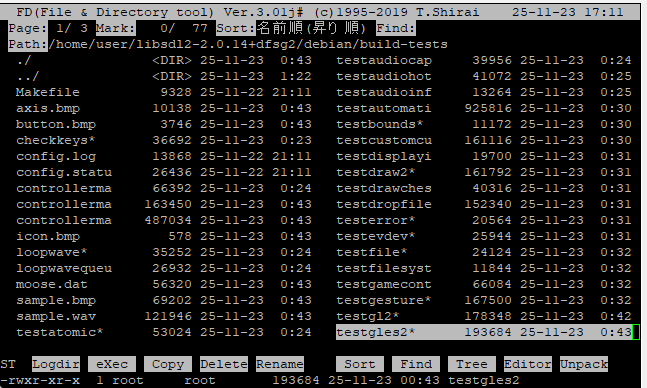
ちなみに、再構築完了後に、以下のフォルダを確認すると、SDL2のテストプログラムが作成されていますので、確認できます。
~/libsdl2-2.0.14+dfsg2/debian/build-tests
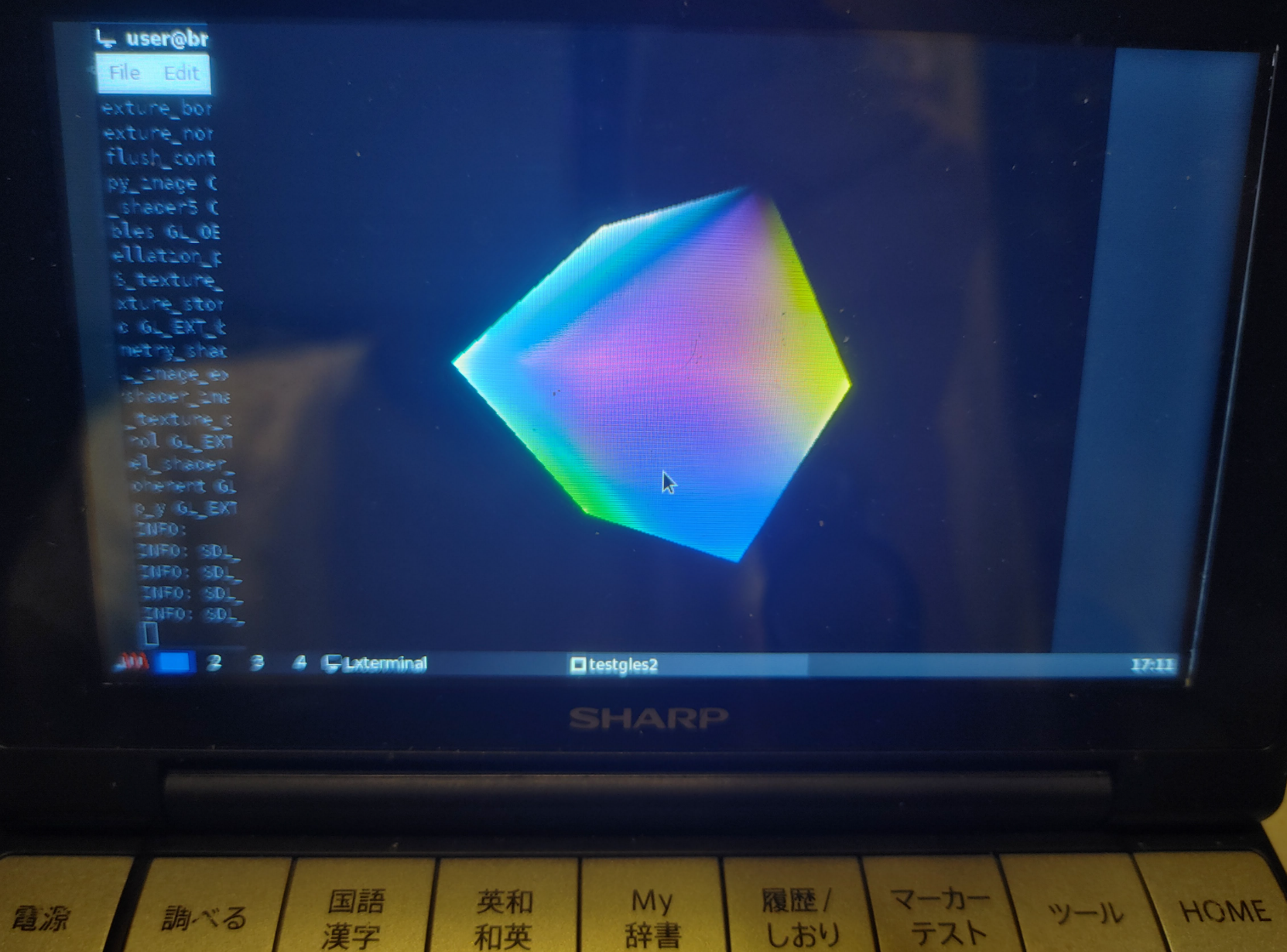
試しにX11環境で”testgles2″ を実行してみたところ、2.20 frames per secondでした。
fceux ファミコンエミュレータ(動作は遅いです。->SDL1.2版では動きます。)
fceux 2.2.3 (SDL1.2版) ファミコンエミュレータ(音無しであれば実用的な速度で動作)
nestopia ファミコンエミュレータ(動作は遅いです。キー入力反応なし?)
openmsx MSXエミュレータ(動作は遅い->SDL1.2版で現実的な速度に。)
openmsx 0.15 (SDL1.2版) インストール 2025/12/22追記
fMSX MSXエミュレータ(MSX1/2/2+)
java Java VMの開発実行環境 (非常に遅い)
Java VMの開発実行環境です。
開発環境インストール sudo apt install openjdk-11-jdk
実行環境インストール sudo apt install openjdk-11-jre
ただ、バージョン表示するだけでも1分程度かかる状況ですので、実用的ではないと思います。
一応、openjdk-11-demoパッケージの”Font2DTest.jar”を実行してみました。
X11上にFont2DTestのウィンドウ枠が出ることまでは確認しましたが、
あまりに遅くて諦めました。
user@brain:~$ java --version
openjdk 11.0.24 2024-07-16
OpenJDK Runtime Environment (build 11.0.24+8-post-Debian-2deb11u1)
OpenJDK Zero VM (build 11.0.24+8-post-Debian-2deb11u1, interpreted mode)
user@brain:~$


user@brain:~$ java -jar /usr/share/doc/openjdk-11-jre-headless/demo/jfc/Font2DTest/Font2DTest.jar
(2026/01/04追記)
BrainのCPUであるARM926EJ-Sのアーキテクチャはarmv5tejでjavaバイナリ実行支援である”Jazelle DBX命令(BXJ)”をサポートしているんだけど、この機能を利用できるJavaVMは現行のものではないみたい。
user@brain:~$ cat /proc/cpuinfo
Features : swp half thumb fastmult edsp java
過去のいくつかのJavaVMのバージョンで、Jazelle DBX命令を使えるものを探したのですが見つかりませんでした。
dosbox グラフィックス、サウンド、DOS を備えた x86 エミュレータ(Brainでは厳しい)
px68k X68000エミュレータ
xpenguins 小さなペンギンがウィンドウ上を動き回るデスクトップマスコットアプリ
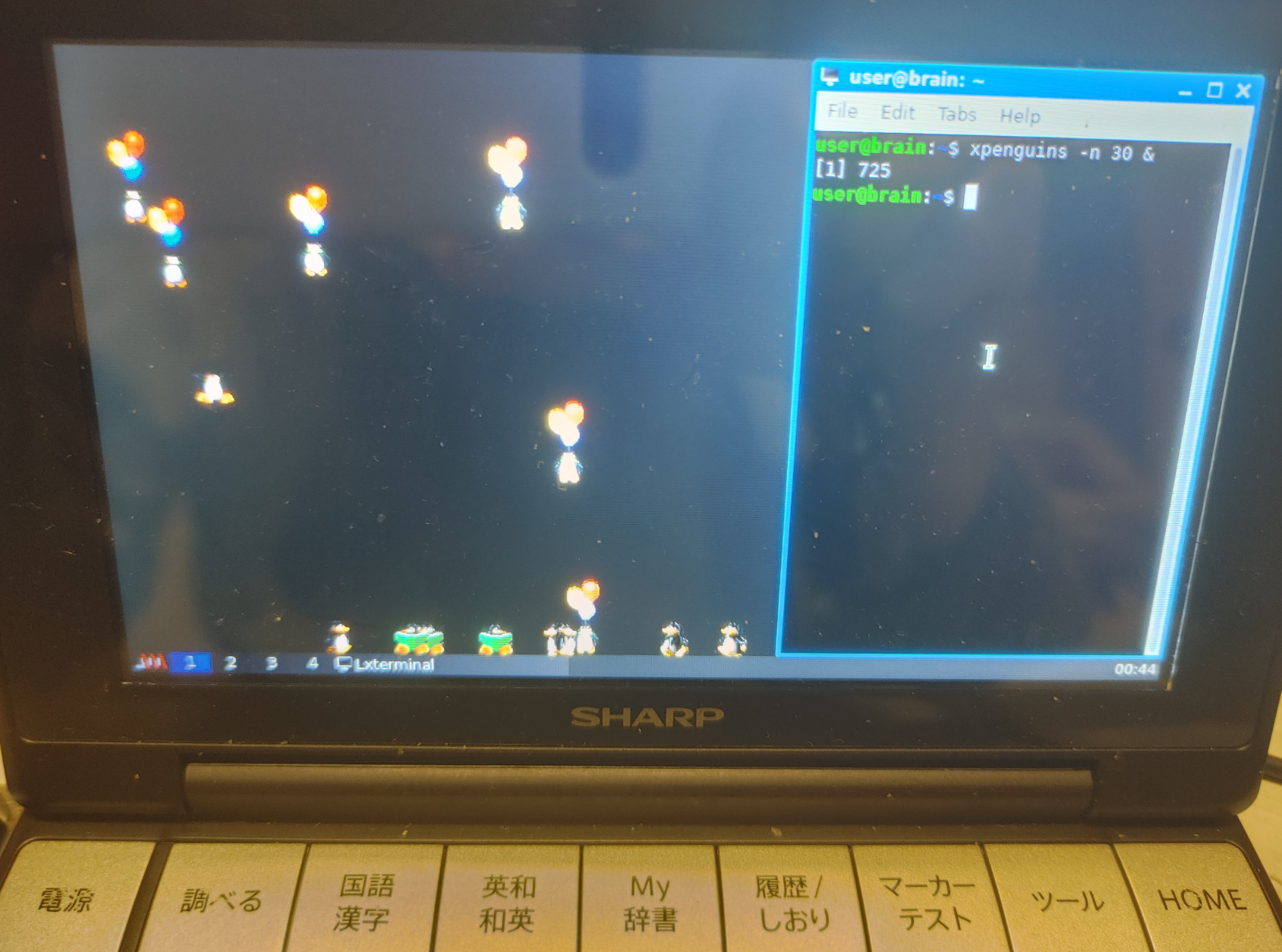
ウィンドウの上をかわいい小さなペンギンが歩き回るX11アプリケーションです。
あと表示されているペンギンをクリックすると・・・・
インストールはApt経由で可能です。
sudo apt show xpenguins
X11環境で、Shellから”xpenguins &”で起動できます。
オプションで、いろいろ表示を指定できるのでぜひ試してみてください。
-n <ペンギンの数>でペンギンの数を増やしたり、–allでいろんなペンギン?を表示したりできますが、表示する数を増やすとさすがにちらつきます。ちらつきは、-m 150とかで軽減できるようです。
user@brain:~$ sudo apt show xpenguins
Package: xpenguins
Version: 2.2-11
Priority: optional
Section: games
Maintainer: Debian Games Team <pkg-games-devel@lists.alioth.debian.org>
Installed-Size: 1,139 kB
Depends: libc6 (>= 2.7), libx11-6, libxext6, libxpm4
Homepage: http://xpenguins.seul.org/
Tag: game::toys, interface::graphical, interface::x11, role::program,
 scope::utility, uitoolkit::xlib, use::entertaining, x11::screensaver
Download-Size: 172 kB
APT-Sources: http://archive.debian.org/debian bullseye/main armel Packages
Description: little penguins walk on your windows
 Ever wanted cute little penguins walking along the tops of your
 windows? Ever wanted to send an army of cute little penguins to invade
 the screen of someone else on your network? Probably not, but why not
 try this program out anyway, it's cool!


user@brain:~$
user@brain:~$ sudo apt install xpenguins
Reading package lists... Done
Building dependency tree... Done
Reading state information... Done
The following NEW packages will be installed:
  xpenguins
0 upgraded, 1 newly installed, 0 to remove and 2 not upgraded.
Need to get 172 kB of archives.
After this operation, 1,139 kB of additional disk space will be used.
Get:1 http://archive.debian.org/debian bullseye/main armel xpenguins armel 2.2-11 [172 kB]
Fetched 172 kB in 1s (131 kB/s)
Selecting previously unselected package xpenguins.
(Reading database ... 60135 files and directories currently installed.)
Preparing to unpack .../xpenguins_2.2-11_armel.deb ...
Unpacking xpenguins (2.2-11) ...
Setting up xpenguins (2.2-11) ...
Processing triggers for man-db (2.9.4-2) ...
user@brain:~$


user@brain:~$ xpenguins -h
XPenguins 2.2 (1 October 2001) by Robin Hogan
Usage: xpenguins [options]
Options:
  -d, --display        <display>    Send the penguins to specified display
  -m, --delay          <millisecs>  Set delay between frames
  -n, --penguins       <n>          Create <n> penguins (max 256)
  -q, --quiet                       Suppress all non-fatal messages
  -v, --version                     Show version information
  -h, --help                        Show this message
  -c, --config-dir     <dir>        Look for config files (and themes) in <dir>
  -p, --ignorepopups                Penguins ignore "popup" windows
  -r, --rectwin                     Regard shaped windows as rectangular
  -t, --theme          <theme>      Use named <theme>
  -l, --list-themes                 List available themes
  -i, --theme-info                  Describe a theme and exit (use with -t)
  -b, --no-blood                    Do not show any gory images
  -a, --no-angels                   Do not show any cherubim
  -s, --squish                      kill penguins with mouse
      --all                         Run all available themes simultaneously
      --random-theme                Choose a random theme
      --id             <window id>  Send penguins to window with this ID
      --nice           <ld1> <ld2>  Start killing penguins when load reaches
                                       <ld1>, kill all if load reches <ld2>
("--" can be replaced with "-" in all cases)
System data directory: /usr/share/xpenguins
user@brain:~$

user@brain:~$ xpenguins -l
Big Penguins
Bill
Classic Penguins
Penguins
Turtles
あと、テーマを追加することもできます。
オフィシャルページの右側の真ん中よりちょっと下にある、「XPenguins Themes」のところの
Source tarball:xpenguins_themes-1.0.tar.gz
ダウンロードして、解凍した後、themes以下の各フォルダを
/usr/share/xpenguins/themes/の下にコピーしてみてください。(要root権限)。
追加テーマは、なかなか攻めたラインナップとなっておりますのでぜひ試してみてください。
-l
インストールされたテーマのリスト
-t “<テーマ名>”
テーマを使用
–all
すべてのテーマを利用。数が多い場合は -n 5 とかで数を制限しましょう
xmkmf Imakefile から Makefile を生成するためのツール
xmkmfは、X11アプリケーションがソース提供されているときに、コンパイルに必要な”Makefile”を環境に合わせて”Imakefiie”から作成してくれるツールです。
最近開発されたアプリケーションであれば、”configure”コマンドで環境に合わせて”Makefile”を作成してコンパイルすることも多いのですが、昔は”Imakefiie”を用意するアプリケーションも多かったのです。
インストールはApt経由で可能です。
sudo apt install xutils-dev
通常は、アプリケーションのソースディレクトリ(Imakefileがあるフォルダ)で以下のコマンドを実行します。
xmkmf
user@brain:~/xhime/xhime151/xhime1.51$ xmkmf
mv -f Makefile Makefile.bak
imake -DUseInstalled -I/usr/lib/X11/config
user@brain:~/xhime/xhime151/xhime1.51$
また、xmkmf -a のように -aオプションを付けると、
make Makefiles、make includes、make depend まで自動的に実行します。
user@brain:~/xhime/xhime151/xhime1.51$ xmkmf -a
mv -f Makefile Makefile.bak
imake -DUseInstalled -I/usr/lib/X11/config
make Makefiles
make: Nothing to be done for 'Makefiles'.
make includes
make: Nothing to be done for 'includes'.
make depend
gccmakedep  --      -Dlinux -D__arm__ -D__arm32__ -U__arm -Uarm -D_POSIX_C_SOURCE=199309L                              -D_POSIX_SOURCE -D_XOPEN_SOURCE                          -D_BSD_SOURCE -D_SVID_SOURCE                                 -D_LARGEFILE_SOURCE -D_FILE_OFFSET_BITS=64                                                                   -DFUNCPROTO=15 -DNARROWPROTO   -DSHAPE  -DAUDIO_DEVICE=\"/dev/audio\"  -DMAILSPOOL_PATH=\"/usr/spool/mail/\" -DXHIMEDAT_PATH=\"/usr/lib/X11/xhime\" -DXSYSV_SIG   -- xhime.c
user@brain:~/xhime/xhime151/xhime1.51$
あとは、通常通り、以下でビルド&インストールです。
make
make install
インストールログ
user@brain:~/xhime/xhime151/xhime1.51$ sudo apt show xutils-dev
Package: xutils-dev
Version: 1:7.7+5+b1
Priority: optional
Section: x11
Source: xutils-dev (1:7.7+5)
Maintainer: Debian X Strike Force <debian-x@lists.debian.org>
Installed-Size: 1,489 kB
Depends: libc6 (>= 2.7), cpp
Tag: devel::buildtools, devel::lang:c, devel::library, implemented-in::c,
 interface::commandline, role::devel-lib, role::program, scope::utility,
 works-with::software:source
Download-Size: 239 kB
APT-Sources: http://archive.debian.org/debian bullseye/main armel Packages
Description: X Window System utility programs for development
 xutils-dev provides a set of utility programs shipped with the X Window System
 that do not require the X libraries; many of these programs are useful
 even on a system that does not have any X clients or X servers installed.
 .
 The programs in this package include:
  - imake, a C preprocessor interface to the make utility;
  - lndir, a tool that creates a shadow directory of symbolic links to
    another directory tree;
  - makedepend, a tool to create dependencies in makefiles;
  - makeg, a tool for making debuggable executables.
 .
 This package also lscontains xorg-macros.m4, a set of macros used in configure
 scripts of X.Org packages.


user@brain:~/xhime/xhime151/xhime1.51$ sudo apt install xutils-dev
Reading package lists... Done
Building dependency tree... Done
Reading state information... Done
The following NEW packages will be installed:
  xutils-dev
0 upgraded, 1 newly installed, 0 to remove and 2 not upgraded.
Need to get 239 kB of archives.
After this operation, 1,489 kB of additional disk space will be used.
Get:1 http://archive.debian.org/debian bullseye/main armel xutils-dev armel 1:7.7+5+b1 [239 kB]
Fetched 239 kB in 1s (200 kB/s)
Selecting previously unselected package xutils-dev.
(Reading database ... 60570 files and directories currently installed.)
Preparing to unpack .../xutils-dev_1%3a7.7+5+b1_armel.deb ...
Unpacking xutils-dev (1:7.7+5+b1) ...
Setting up xutils-dev (1:7.7+5+b1) ...
Processing triggers for man-db (2.9.4-2) ...
user@brain:~/xhime/xhime151/xhime1.51$


user@brain:~/xhime/xhime151/xhime1.51$ xmkmf --help
usage:  /usr/bin/xmkmf [-a] [top_of_sources_pathname [current_directory]]
user@brain:~/xhime/xhime151/xhime1.51$
cmake CMakeLists.txtからMakefileを生成するためのツール
アプリケーションのソースを確認した際に、「CMakeLists.txt」があれば、
ここからビルド環境に合わせたMakefileを生成してビルドできます。
cmake コマンドは、apt経由でインストール可能です。
apt install cmake
ビルドは以下のような流れで実施できます。
mkdir build
cd build
cmake ..
cmake –build .
cmake –install
user@brain:~/oneko-git/oneko/build$ cmake ..
-- The C compiler identification is GNU 10.2.1
-- Detecting C compiler ABI info
-- Detecting C compiler ABI info - done
-- Check for working C compiler: /usr/bin/cc - skipped
-- Detecting C compile features
-- Detecting C compile features - done
-- Configuring done
-- Generating done
-- Build files have been written to: /home/user/oneko-git/oneko/build

user@brain:~/oneko-git/oneko/build$ cmake --build .
Scanning dependencies of target oneko
[ 50%] Building C object CMakeFiles/oneko.dir/oneko.c.o
[100%] Linking C executable oneko
[100%] Built target oneko
インストールログ
user@brain:~$ apt show cmake
Package: cmake
Version: 3.18.4-2+deb11u1
Priority: optional
Section: devel
Maintainer: Debian CMake Team <pkg-cmake-team@lists.alioth.debian.org>
Installed-Size: 19.4 MB
Depends: cmake-data (= 3.18.4-2+deb11u1), procps, libarchive13 (>= 3.3.3), libc6 (>= 2.28), libcurl4 (>= 7.16.2), libexpat1 (>= 2.0.1), libgcc-s1 (>= 3.5), libjsoncpp24 (>= 1.9.4), librhash0 (>= 1.2.6), libstdc++6 (>= 9), libuv1 (>= 1.11.0), zlib1g (>= 1:1.2.3.3)
Recommends: gcc, make
Suggests: cmake-doc, ninja-build
Homepage: https://cmake.org/
Tag: devel::buildtools, implemented-in::c++, interface::commandline,
 interface::text-mode, role::program, scope::utility,
 uitoolkit::ncurses, works-with::software:source
Download-Size: 3,384 kB
APT-Sources: http://archive.debian.org/debian bullseye/main armel Packages
Description: cross-platform, open-source make system
 CMake is used to control the software compilation process using
 simple platform and compiler independent configuration files. CMake
 generates native makefiles and workspaces that can be used in the
 compiler environment of your choice. CMake is quite sophisticated: it
 is possible to support complex environments requiring system
 configuration, pre-processor generation, code generation, and template
 instantiation.
 .
 CMake was developed by Kitware as part of the NLM Insight
 Segmentation and Registration Toolkit project. The ASCI VIEWS project
 also provided support in the context of their parallel computation
 environment. Other sponsors include the Insight, VTK, and VXL open
 source software communities.


user@brain:~$ apt install cmake
E: Could not open lock file /var/lib/dpkg/lock-frontend - open (13: Permission denied)
E: Unable to acquire the dpkg frontend lock (/var/lib/dpkg/lock-frontend), are you root?
user@brain:~$ sudo apt install cmake
[sudo] password for user:
Reading package lists... Done
Building dependency tree... Done
Reading state information... Done
The following additional packages will be installed:
  cmake-data libjsoncpp24 librhash0
Suggested packages:
  cmake-doc ninja-build
The following NEW packages will be installed:
  cmake cmake-data libjsoncpp24 librhash0
0 upgraded, 4 newly installed, 0 to remove and 2 not upgraded.
Need to get 5,317 kB of archives.
After this operation, 29.0 MB of additional disk space will be used.
Do you want to continue? [Y/n] Y
Get:1 http://archive.debian.org/debian bullseye/main armel cmake-data all 3.18.4-2+deb11u1 [1,725 kB]
Get:2 http://archive.debian.org/debian bullseye/main armel libjsoncpp24 armel 1.9.4-4 [66.9 kB]
Get:3 http://archive.debian.org/debian bullseye/main armel librhash0 armel 1.4.1-2 [141 kB]
Get:4 http://archive.debian.org/debian bullseye/main armel cmake armel 3.18.4-2+deb11u1 [3,384 kB]
Fetched 5,317 kB in 5s (1,066 kB/s)
Selecting previously unselected package cmake-data.
(Reading database ... 60811 files and directories currently installed.)
Preparing to unpack .../cmake-data_3.18.4-2+deb11u1_all.deb ...
Unpacking cmake-data (3.18.4-2+deb11u1) ...
Selecting previously unselected package libjsoncpp24:armel.
Preparing to unpack .../libjsoncpp24_1.9.4-4_armel.deb ...
Unpacking libjsoncpp24:armel (1.9.4-4) ...
Selecting previously unselected package librhash0:armel.
Preparing to unpack .../librhash0_1.4.1-2_armel.deb ...
Unpacking librhash0:armel (1.4.1-2) ...
Selecting previously unselected package cmake.
Preparing to unpack .../cmake_3.18.4-2+deb11u1_armel.deb ...
Unpacking cmake (3.18.4-2+deb11u1) ...
Setting up libjsoncpp24:armel (1.9.4-4) ...
Setting up librhash0:armel (1.4.1-2) ...
Setting up cmake-data (3.18.4-2+deb11u1) ...
Setting up cmake (3.18.4-2+deb11u1) ...
Processing triggers for man-db (2.9.4-2) ...
Processing triggers for libc-bin (2.31-13+deb11u11) ...
user@brain:~$
cbp2make Code::Blocks IDE project (.cbp)からMakefileを生成するためのツール(2025/12/13追加)
アプリケーションのソースを確認した際に、
「*.cbp」ファイル(Code::Blocks IDE project 、workspace files)があれば、
ここからMakefileを生成してビルドできます。
cbp2make コマンドは、apt経由でインストール可能です。
apt install cbp2make
アプリケーションのビルドは以下のような流れで実施できます。
cbp2make -in Projrct.cbp -out Makefile
make
make時にエラーが出た場合は、エラーに応じて対応してください。
例:allegro5ライブラリを利用していた場合、以下のように修正
LIB = -lallegro -lallegro_dialog -lallegro_image -lallegro_ttf -lallegro_audio -lallegro_acodec -lallegro_color -lallegro_font -lallegro_main -lallegro_memfile -lallegro_primitives
例:allegra4.4ライブラリを利用していた場合、以下のように修正
LIB = -lalleg
インストールは、make installでできるかもしれませんが、基本的にアプリによります。
user@brain:~$ cbp2make --help
Usage syntax:

        Generate makefile:
                cbp2make -in <project_file> [-cfg <configuration>] [-out <makefile>]
                         [-unix] [-windows] [-mac] [--all-os] [-targets "<target1>[,<target2>[, ...]]"]
                         [--flat-objects] [--flat-objpath] [--wrap-objects] [--wrap-options]
                         [--with-deps] [--keep-objdir] [--keep-outdir] [--target-case keep|lower|upper]
                         [--macros-case keep|lower|upper] [--quote-path auto|never|always]
                cbp2make -list -in <project_file_list> [-cfg <configuration>]
                         [-unix] [-windows] [-mac] [--all-os] [-targets "<target1>[,<target2>[, ...]]"]
                         [--flat-objects] [--flat-objpath] [--wrap-objects] [--wrap-options]
                         [--with-deps] [--keep-objdir] [--keep-outdir] [--target-case keep|lower|upper]

                         [--macros-case keep|lower|upper] [--quote-path auto|never|always]
        Manage toolchains:
                cbp2make --config toolchain --add [-unix|-windows|-mac] -chain <toolchain>
                cbp2make --config toolchain --remove [-unix|-windows|-mac] -chain <toolchain>

        Manage build tools:
                cbp2make --config tool --add [-unix|-windows|-mac] -chain <toolchain>
                         -tool <tool> -type <type> <tool options>
                cbp2make --config tool --remove [-unix|-windows|-mac] -chain <toolchain>
                         -tool <tool>

        Tool types:      pp=preprocessor as=assembler cc=compiler rc=resource compiler
                         sl=static linker dl=dynamic linker el=executable linker
                         nl=native linker
        Tool options (common):
                         -desc <description> -program <executable> -command <command_template>
                         -mkv <make_variable> -srcext <source_extensions> -outext <output_extension>
                         -quotepath <yes|no> -fullpath <yes|no> -unixpath <yes|no>
        Tool options (compiler):
                         -incsw <include_switch> -defsw <define_switch> -deps <yes|no>
        Tool options (linker):
                         -ldsw <library_dir_switch> -llsw <link_library_switch> -lpfx <library_prefix>
                         -lext <library_extension> -objext <object_extension> -lflat <yes|no>

        Manage platforms:
                cbp2make --config platform [-unix|-windows|-mac] [-pwd <print_dir_command>]
                         [-cd <change_dir_command>] [-rm <remove_file_command>]
                         [-rmf <remove_file_forced>] [-rmd <remove_dir_command>]
                         [-cp <copy_file_command>] [-mv <move_file_command>]
                         [-md <make_dir_command>] [-mdf <make_dir_forced>]
                         [-make <default_make_tool>]

        Manage global compiler variables:
                cbp2make --config variable --add [-set <set_name>] -name <var_name>
                         [-desc <description>] [-field <field_name>] -value <var_value>
                cbp2make --config variable --remove [-set <set_name>] [-name <var_name>]
                         [-field <field_name>]

        Manage options:
                cbp2make --config options --default-options "<options>"
                cbp2make --config show

        Common options:
                cbp2make --local        // use configuration from current directory
                cbp2make --global       // use configuration from home directory
                cbp2make --verbose      // show project information
                cbp2make --quiet        // hide all messages
                cbp2make --help         // display this message
                cbp2make --version      // display version information

user@brain:~$
インストールログ
user@brain:~$ apt show cbp2make
Package: cbp2make
Version: 147+dfsg-4
Priority: optional
Section: devel
Maintainer: Debian Science Team <debian-science-maintainers@lists.alioth.debian.org>
Installed-Size: 400 kB
Depends: libc6 (>= 2.4), libgcc-s1 (>= 3.5), libstdc++6 (>= 5.2), libtinyxml2.6.2v5
Homepage: https://sourceforge.net/projects/cbp2make/
Download-Size: 115 kB
APT-Sources: http://archive.debian.org/debian bullseye/main armel Packages
Description: Makefile generation tool for the Code::Blocks IDE
 cbp2make is a stand-alone build tool that allows you
 to generate makefile(s) for GNU Make out of Code::Blocks
 IDE project or workspace files.

user@brain:~$ sudo apt install cbp2make
[sudo] password for user:
Reading package lists... Done
Building dependency tree... Done
Reading state information... Done
The following NEW packages will be installed:
  cbp2make
0 upgraded, 1 newly installed, 0 to remove and 3 not upgraded.
Need to get 115 kB of archives.
After this operation, 400 kB of additional disk space will be used.
Get:1 http://archive.debian.org/debian bullseye/main armel cbp2make armel 147+dfsg-4 [115 kB]
Fetched 115 kB in 1s (91.0 kB/s)
Selecting previously unselected package cbp2make.
(Reading database ... 92070 files and directories currently installed.)
Preparing to unpack .../cbp2make_147+dfsg-4_armel.deb ...
Unpacking cbp2make (147+dfsg-4) ...
Setting up cbp2make (147+dfsg-4) ...
Processing triggers for man-db (2.9.4-2) ...

ser@brain:~$ cbp2make -in Bomberman.cbp -out Makefile
Starting cbp2make rev.147...
Using default configuration.
Loading file 'Bomberman.cbp': [DONE]
Generating makefile(s): Makefile: [DONE]
user@brain:~$
oneko X11猫(X11上で動作するマウスカーソルを追いかける猫を表示するデスクトップマスコット)
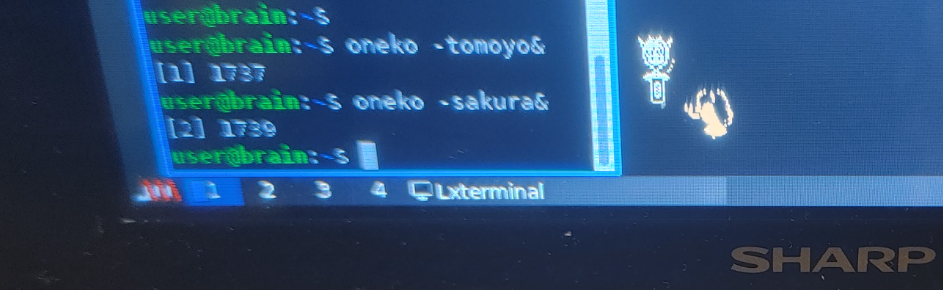
onelo(X11猫)は11上で動作するマウスカーソルを追いかける猫を表示するデスクトップマスコットです。
キャラがマウスカーソルが変化したネズミを追いかけて、追いつくと特定のアクションをしたのちに、眠りにつきます。
標準はマウスを追いかけるネコですが、オプションでいろいろなキャラに変更できます。
(ネコ、トラ、イヌ、BSDデーモン、(ccさくら)さくら、(ccさくら)知世)
上記公式サイトから、以下をダウンロードして、brainux上で解凍してインストールします。
current version for X Window System – [oneko-1.2.sakura.5.tar.gz]
マニュアルにも書いてありますが、Imakefileがありますのでxmkmf にて環境に合わせたMakefaileを生成して、ビルドします。
ビルド&インストール
tar xvf oneko-1.2.sakura.5.tar.gz
cd oneko-1.2.sakura.5
xmkmf -a
make
sudo make install
上記スクリーンショットは、oneko –tomoyo& を起動した後で、oneko –sakura& を起動した場合です。
すると、マウスカーソル(カード)を追いかける桜に知世がカメラを向けるというカオス原作再現な状況にできます。
インストールログ
user@brain:~/oneko$ tar xvf oneko-1.2.sakura.5.tar.gz
user@brain:~/oneko$ cd oneko-1.2.sakura.5


user@brain:~/oneko/oneko-1.2.sakura.5$ xmkmf -a
mv -f Makefile Makefile.bak
imake -DUseInstalled -I/usr/lib/X11/config
make Makefiles
make: Nothing to be done for 'Makefiles'.
make includes
make: Nothing to be done for 'includes'.
make depend
gccmakedep  --      -Dlinux -D__arm__ -D__arm32__ -U__arm -Uarm -D_POSIX_C_SOURCE=199309L                               -D_POSIX_SOURCE -D_XOPEN_SOURCE        -D_BSD_SOURCE -D_SVID_SOURCE                                 -D_LARGEFILE_SOURCE -D_FILE_OFFSET_BITS=64                                                           -DFUNCPROTO=15 -DNARROWPROTO   -DSHAPE   -- oneko.c


user@brain:~/oneko/oneko-1.2.sakura.5$ make
gcc -g -O2 -fno-strict-aliasing         -Dlinux -D__arm__ -D__arm32__ -U__arm -Uarm -D_POSIX_C_SOURCE=199309L                           -D_POSIX_SOURCE -D_XOPEN_SOURCE                                 -D_BSD_SOURCE -D_SVID_SOURCE                                 -D_LARGEFILE_SOURCE -D_FILE_OFFSET_BITS=64                                                   -DFUNCPROTO=15 -DNARROWPROTO   -DSHAPE    -c -o oneko.o oneko.c
In file included from /usr/include/arm-linux-gnueabi/sys/types.h:25,
                 from /usr/include/X11/Xlib.h:38,
                 from oneko.h:11,
                 from oneko.c:9:
/usr/include/features.h:187:3: warning: #warning "_BSD_SOURCE and _SVID_SOURCE are deprecated, use _DEFAULT_SOURCE" [-Wcpp]
  187 | # warning "_BSD_SOURCE and _SVID_SOURCE are deprecated, use _DEFAULT_SOURCE"
      |   ^~~~~~~
oneko.c:338:1: warning: return type defaults to ‘int’ [-Wimplicit-int]
  338 | GetResources()
      | ^~~~~~~~~~~~
oneko.c:437:1: warning: return type defaults to ‘int’ [-Wimplicit-int]
  437 | MakeMouseCursor()
      | ^~~~~~~~~~~~~~~
oneko.c:466:1: warning: return type defaults to ‘int’ [-Wimplicit-int]
  466 | SetupColors()
      | ^~~~~~~~~~~
oneko.c: In function ‘InitScreen’:
oneko.c:627:8: warning: extra tokens at end of #endif directive [-Wendif-labels]
  627 | #endif SHAPE
      |        ^~~~~
oneko.c: In function ‘Interval’:
oneko.c:745:5: warning: implicit declaration of function ‘pause’ [-Wimplicit-function-declaration]
  745 |     pause();
      |     ^~~~~
oneko.c: In function ‘DrawNeko’:
oneko.c:812:8: warning: extra tokens at end of #endif directive [-Wendif-labels]
  812 | #endif SHAPE
      |        ^~~~~
rm -f oneko
gcc -o oneko -g -O2 -fno-strict-aliasing       oneko.o -lXext -lX11   -lm
rm -f oneko._man
if test -z "true" ; then \
   cd `dirname oneko` && \
   ln -s `basename oneko.man` `basename oneko._man`; \
else \
             cpp -undef -traditional  -D__apploaddir__=/etc/X11/app-defaults -D__filemansuffix__=5x -D__osfilemansuffix__=5 -D__libmansuffix__=3x -D__oslibmansuffix__=3 -D__mansuffix__=1x -D__osmansuffix__=1 -D__syscallmansuffix__=2x -D__ossysmansuffix__=2 -D__gamemansuffix__=6x -D__osgamemansuffix__=6 -D__miscmansuffix__=7x -D__osmiscmansuffix__=7 -D__admmansuffix__=8x -D__osadmmansuffix__=8 -D__miscmansuffix__=7x -D__osmiscmansuffix__=7 -D__drivermansuffix__=4x -D__osdrivermansuffix__=4 -D__adminmansuffix__=8 -D__projectroot__=/usr -D__xconfigfile__=xorg.conf -D__xconfigdir__=/usr/lib/X11 -D__xlogfile__=Xorg -D__xservername__=Xorg -D__appmansuffix__=1x -D__xorgversion__="\"`echo 7 7 0 | sed -e 's/ /./g' -e 's/^/Version\\\ /'`\" \"X Version 11\"" -D__vendorversion__="`echo 7 7 0 | sed -e 's/ /./g' -e 's/^/Version\\\ /'` X.Org"  \
     < oneko.man | sed -e '/^#  *[0-9][0-9]*  *.*$/d'                   -e '/^#line  *[0-9][0-9]*  *.*$/d'                      -e '/^[         ]*XCOMM$/s/XCOMM/#/'                    -e '/^[         ]*XCOMM[^a-zA-Z0-9_]/s/XCOMM/#/'       -e '/^[  ]*XHASH/s/XHASH/#/'                     -e '/\@\@$/s/\@\@$/\\/' >oneko._man; \
fi


user@brain:~/oneko/oneko-1.2.sakura.5$ sudo make install
[sudo] password for user:
install -c   oneko /usr/bin/oneko
install in . done
user@brain:~/oneko/oneko-1.2.sakura.5$


user@brain:~$ oneko --help
oneko: Unknown option "--help".
Usage: oneko [<options>]

Options are:
-display <display>      : Neko appears on specified display.
-fg <color>             : Foreground color
-bg <color>             : Background color
-speed <dots>
-time <microseconds>
-idle <dots>
-name <name>            : set window name of neko.
-towindow               : Neko chases selected window.
-toname <name>          : Neko chases specified window.
-tofocus                : Neko runs on top of focus window
-rv                     : Reverse video. (effects monochrome display only)
-position <geometry>   : adjust position relative to mouse pointer.
-debug                 : puts you in synchronous mode.
-patchlevel            : print out your current patchlevel.
-neko Use neko bitmaps
-tora Use tora bitmaps
-dog Use dog bitmaps
-bsd_daemon Use bsd_daemon bitmaps
-sakura Use sakura bitmaps
-tomoyo Use tomoyo bitmaps
user@brain:~$なお、GittHubにも同じバージョンとも思われるソースが上がっていますので、こちらからもインストールできます(見た感じソースやドキュメントの文字コードが変更されているだけのようです)。
ですが、Imakefileが入っていないので、先ほどの手順ではビルドできません。
README.md ドキュメントの通り、clangツールを使用してコンパイルするか、
Imakefileの代わりにCMakeLists.txtがありますので、cmakeコマンドでインストール可能です。(こちらのソースの場合、システムへのインストールは手動になるようです。)
macopix アクティブウィンドウに座るマスコットプログラム
MaCoPiXは、UNIX系OS(要X Window System)、Microsoft Windows(7以降)、macOS(10.9以降)で動作するマスコットプログラムです。
キャラクターは、マスコットデータ(おすわりマスコット)に登録されたメッセージやしぐさでランダムに動きます。
公式ページにあるキャラクターデータは、2003-2007年公開当時の人気キャラクター関係が多数登録されています。
([はやて×ブレード] [マリみて] [秋桜] [みずいろ] [Pia2] [月姫] [とらハ] [こみパ] [Kanon] [ONE])
公式ページ
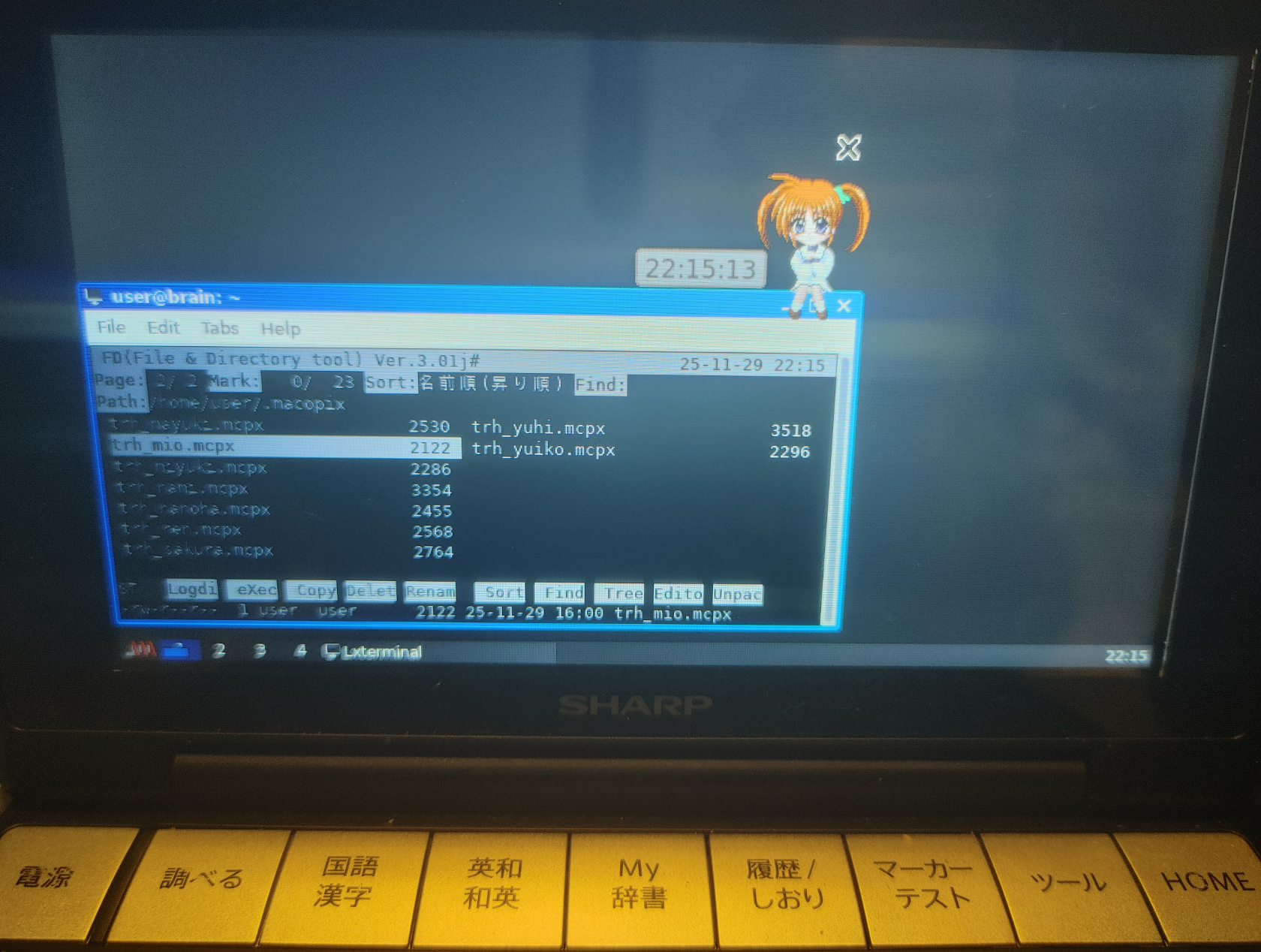
インストールは、APT経由で可能です。
(データは新規サイトのものであれば、アプリからダウンロード可能)
sudo apt install macopix
以下のコマンドで起動が可能です。マスコットデータは、~/.macopix/に保存されている .mcpx ファイルになります。
macopix <マスコットデータ名> &
今回は公式データの中から、現状おそらく唯一の現役キャラであると思われる「高町なのは」を召喚します。
「高町なのは」は、「とらいあんぐるハート」グループにいますのでこちらのマスコットデータをダウンロードして設定します。
注)「魔法少女リリカルなのは」はもうすぐ新作TVシリーズも始まるTVシリーズ3作、映画4作やスピンオフ作品まで出ている人気作ですが、元もは大人向けゲームのファンディスクでのパロディ企画企画から派生したスピンオフ作品です(現在で元ネタよりも有名な作品となっているものの1つ)。
マスコットを右クリックして、Mascot Launcherで「とらいあんぐるハート1・2・3」から「高町なのは」を選択します。
このままだとコメントが文字化け(□)しますが、そこは設定変更で対応できます。
ただし、コンフィグ画面が大きいので、BrainのX画面では設定変更できないので、
PC等のX11画面上のターミナルから、
ssh -X <BrainuxのIPアドレス>
で、Brainuxにアクセスして、macopix &で起動します。
あとはマスコットを右クリックして、Configから「Resource」->「Font/Color」画面で、
「Default for Clock」と「Default for Balloon」のフォントを日本語文字列対応の「IPAGithic Regular」あたりに変更します。
その他の設定部分も必要に応じて変更してください。
もしこれでダメな場合は、Macotのほうのフォントも変更してみてください。
(かなり細かい調整ができますので、公式ページを参考にしてください。)
設定を変更したら、右下の「OK」をクリックして設定画面を終了させます。
あらためてマスコットを右クリックして、「Save」->「Save all」で保存します。
これで次回起動時に反映されますが、
起動方法のところで書いた通り、起動時のマスコット指定だけは毎回起動時オプションに指定が必要です。
インストールログ
user@brain:~$ apt show macopix
Package: macopix
Version: 3.4.0+dfsg.1-3
Priority: optional
Section: games
Maintainer: Ying-Chun Liu (PaulLiu) <paulliu@debian.org>
Installed-Size: 4,962 kB
Depends: libc6 (>= 2.28), libcairo2 (>= 1.10.0), libgdk-pixbuf-2.0-0 (>= 2.25.2), libglib2.0-0 (>= 2.35.9), libgtk-3-0 (>= 3.21.5), libpango-1.0-0 (>= 1.14.0), libssl1.1 (>= 1.1.0), libx11-6
Breaks: macopix-gtk2 (<< 3.4.0-1)
Replaces: macopix-gtk2 (<< 3.4.0-1)
Homepage: http://rosegray.sakura.ne.jp/macopix/
Tag: uitoolkit::gtk
Download-Size: 381 kB
APT-Sources: http://archive.debian.org/debian bullseye/main armel Packages
Description: Mascot Constructive Pilot for X
 MaCoPiX (Mascot Constructive Pilot for X) is a desktop mascot application for
 UNIX / X Window system. You can make window sitters, fixed desktop mascots,
 and, furthermore, desktop clock mascots, using MaCoPiX.


user@brain:~$ sudo apt install macopix
[sudo] password for user:
Reading package lists... Done
Building dependency tree... Done
Reading state information... Done
The following NEW packages will be installed:
  macopix
0 upgraded, 1 newly installed, 0 to remove and 2 not upgraded.
Need to get 381 kB of archives.
After this operation, 4,962 kB of additional disk space will be used.
Get:1 http://archive.debian.org/debian bullseye/main armel macopix armel 3.4.0+dfsg.1-3 [381 kB]
Fetched 381 kB in 1s (377 kB/s)
Selecting previously unselected package macopix.
(Reading database ... 63691 files and directories currently installed.)
Preparing to unpack .../macopix_3.4.0+dfsg.1-3_armel.deb ...
Unpacking macopix (3.4.0+dfsg.1-3) ...
Setting up macopix (3.4.0+dfsg.1-3) ...
Processing triggers for man-db (2.9.4-2) ...
user@brain:~$


(macopix:2313): Gtk-WARNING **: 15:50:50.278: cannot open display:
user@brain:~$ macopix --help
 macopix : Mascot Constructive Pilot for X   Ver3.4.0
  [usage] % macopix [options] (mascot file)
     -h, --help               : Print this message
     -c, --common-dir         : Print COMMON Directory
     -b, --biff               : Turn on the biff function
     -s, --signal             : Turn on the time signal
     -o, --offset offset[%]   : Set offset-value for Focus Following
     -r, --rcfile rc-file     : Set the resource file
     -m, --menu   menu-file   : Set the file for quick menu
     -mg --mag    magnify     : Set magnification percentage of mascot
     -i, --ip-style (0|1|2|3) : Set interpolation style for magnification
## For Installation
     -a, --auto-install       : Set mascot auto install ON
     -na --no-auto-install    : Set mascot auto install OFF
     -O, --over-write         : Permit to overwrite files in user dir
     --install-user-mascot (mascot)  : Mascot Installation to User Dir.
     --install-user-menu (menu)      : Menu Installation to User Dir.
     --install-common-mascot (mascot): Mascot Installation to Common Dir.
     --install-common-menu (menu)    : Menu Installation to Common Dir.
## For Socket Message
     --sockmsg                : Start MaCoPiX as Socket Message Receiver
     --message (text)         : Send Message to Socket Message Receiver
     --message-expire (time)  : Socket Message Expire Time[ms]
     --message-type-lump      : Force to Set Lump Sum Balloon
     --message-type-step      : Force to Set Stepping Balloon
     --message-step (frame)   : Stepping Interval Frame for SockeMsg
     -nc, --no-duet-click     : Duet Animation [Click] OFF
     -nr, --no-duet-random    : Duet Animation [Random] OFF

 ================== Installed Menus ==================
   !!! Common Directory - /usr/share/macopix/ - does not exist.

  !!! User Directory - /home/user/.macopix/ - does not exist.
user@brain:~$
Emi Clock 美少女コスプレ時計 Emi Clock
美少女コスプレ時計 Emi Clockは古のジョーク時計アプリです。
種類のかわいい文字盤と、26種類の衣装を選ぶことができるコスプレ時計です
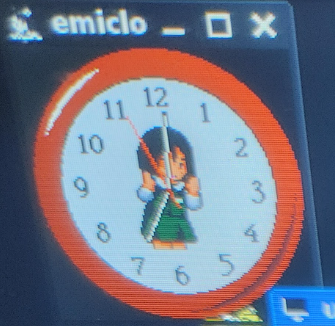
X11版のソースコートのダウンロード先が公式ページからリンクされていますので、
こちらからダウンロードできます。
X11版 Emi Clock 2.0.2
emiclock-2.0.2.tar.gz
インストールは、以下のような流れで行えます。
Imakefileがありますのでxmkmf にて環境に合わせたMakefaileを生成して、ビルドします。
cd
mkdir emiclock
cd emiclock/
wget https://ftp.vector.co.jp/11/78/1347/emiclock-2.0.2.tar.gz
tar zxvf emiclock-2.0.2.tar.gz
cd emiclock-2.0.2
xmkmf -a
make
sudo make install
ただうちの環境では、makeinstallすると、メニューの2段階目以降が表示されなくなりましたので、以下のリソースファイルをリネームして暫定で回避しています。
/etc/X11/app-defaults/EmiClock
↓
/etc/X11/app-defaults/EmiClock.bk
インストールログ
user@brain:~$ mkdir emiclock
user@brain:~$ cd emiclock/

user@brain:~/emiclock$ wget https://ftp.vector.co.jp/11/78/1347/emiclock-2.0.2.tar.gz
--2025-11-30 16:55:04--  https://ftp.vector.co.jp/11/78/1347/emiclock-2.0.2.tar.gz
Resolving ftp.vector.co.jp (ftp.vector.co.jp)... 141.147.176.138
Connecting to ftp.vector.co.jp (ftp.vector.co.jp)|141.147.176.138|:443... connected.
HTTP request sent, awaiting response... 200 OK
Length: 308682 (301K) [application/gzip]
Saving to: ‘emiclock-2.0.2.tar.gz’
emiclock-2.0.2.tar. 100%[===================>] 301.45K  1.13MB/s    in 0.3s
2025-11-30 16:55:05 (1.13 MB/s) - ‘emiclock-2.0.2.tar.gz’ saved [308682/308682]
user@brain:~/emiclock$


user@brain:~/emiclock$ tar zxvf emiclock-2.0.2.tar.gz
emiclock-2.0.2/
emiclock-2.0.2/00.README
~
emiclock-2.0.2/sys/netaudio/audio.c
user@brain:~/emiclock$


user@brain:~/emiclock$ cd emiclock-2.0.2


user@brain:~/emiclock/emiclock-2.0.2$ xmkmf -a
mv -f Makefile Makefile.bak
imake -DUseInstalled -I/usr/lib/X11/config
make Makefiles
make: Nothing to be done for 'Makefiles'.
make includes
make: Nothing to be done for 'includes'.
make depend
gccmakedep  --      -Dlinux -D__arm__ -D__arm32__ -U__arm -Uarm -D_POSIX_C_SOURCE=199309L                               -D_POSIX_SOURCE -D_XOPEN_SOURCE        -D_BSD_SOURCE -D_SVID_SOURCE                                 -D_LARGEFILE_SOURCE -D_FILE_OFFSET_BITS=64                                                           -DFUNCPROTO=15 -DNARROWPROTO      -- main.c EmiClock.c menu.c gengine.c        gdata_cbase.c gdata_char.c gdata_cmono.c credit.c credit_mono.c        sound.c rcfile.c misc.c CascadeMenu.c version.c
user@brain:~/emiclock/emiclock-2.0.2$


uuser@brain:~/emiclock/emiclock-2.0.2$ make
rm -f main.o
gcc -c -g -O2 -fno-strict-aliasing         -Dlinux -D__arm__ -D__arm32__ -U__arm -Uarm -D_POSIX_C_SOURCE=199309L                                -D_POSIX_SOURCE -D_XOPEN_SOURCE                                 -D_BSD_SOURCE -D_SVID_SOURCE                                 -D_LARGEFILE_SOURCE -D_FILE_OFFSET_BITS=64                                           -DFUNCPROTO=15 -DNARROWPROTO     -DSIGTYPE=void main.c
In file included from /usr/include/arm-linux-gnueabi/sys/types.h:25,
                 from /usr/include/X11/Xlib.h:38,
                 from /usr/include/X11/Intrinsic.h:53,
                 from main.c:44:
~
fi
user@brain:~/emiclock/emiclock-2.0.2$


user@brain:~/emiclock/emiclock-2.0.2$ sudo make install
[sudo] password for user:
install -c   emiclock /usr/bin/emiclock
cp resources/Xaw/EmiClock.ad .
install -c -m 0444 EmiClock.ad /etc/X11/app-defaults/EmiClock
install in . done
user@brain:~/emiclock/emiclock-2.0.2$


user@brain:~/emiclock/emiclock-2.0.2$ ./emiclock --help
./emiclock: Unknown command line option "--help".
Usage: ./emiclock [options]
        -toolkitoption ...
        -nossound
        -nosave
        -noscache
        -noshape
        -perfect
        -grayscale
        -gray4
        -mono
        -help
        -version
user@brain:~/emiclock/emiclock-2.0.2$
xhime 常駐姫ちゃん (X11上で動作するデスクトップマスコット的なアニメーションソフト)
xhimeはX11上で動作するデスクトップマスコット的なアニメーションソフトです。
常駐姫ちゃんとも呼ばれています。(オリジナルはPC98版で、それをX11に移植したものですす。)
(「姫ちゃんのリボン」という昔のアニメのキャラクターをモデルにしたスクトップマスコットです。)
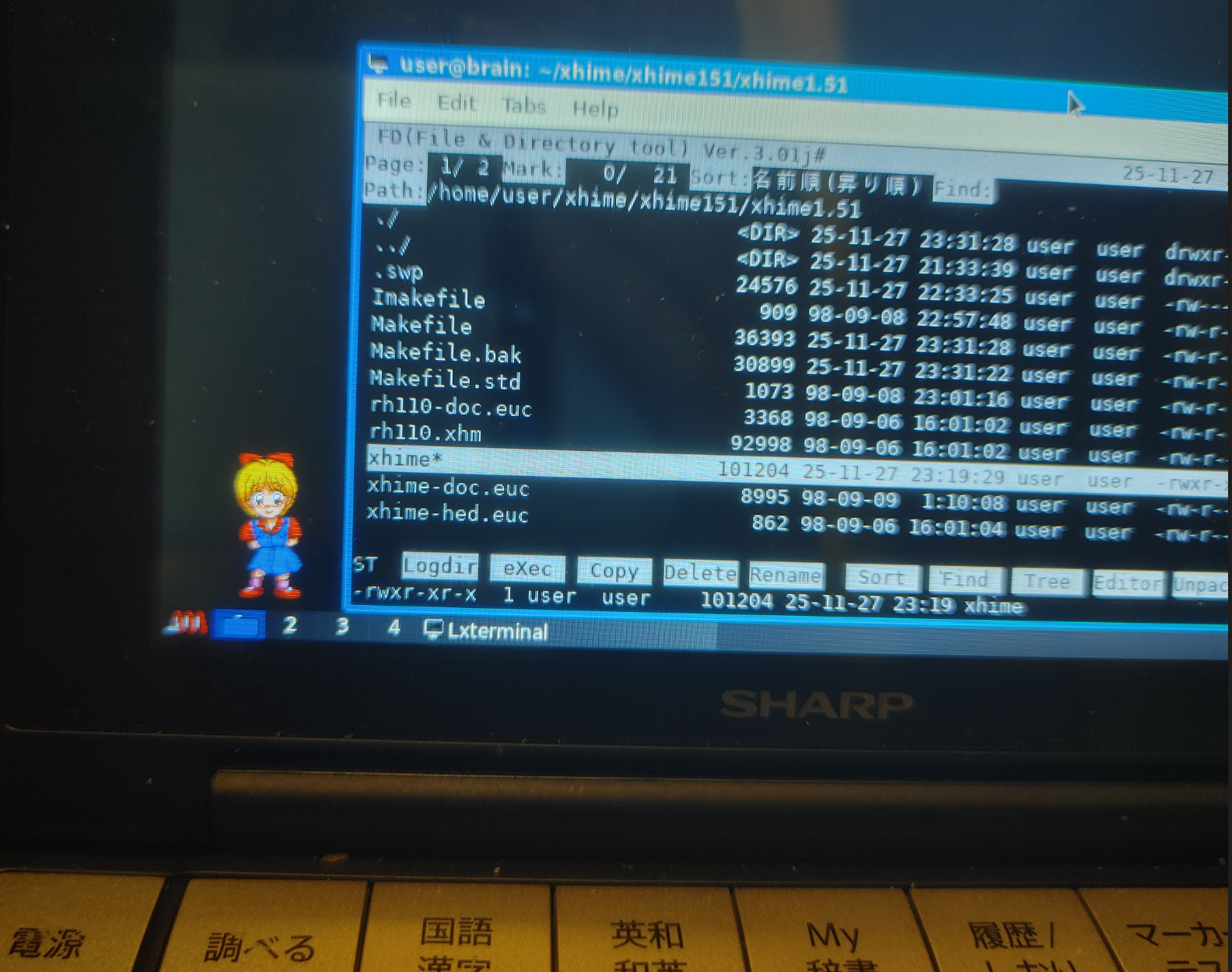
インストールは、aptなどでのインストールはできず、ソースからコンパイルする必要があります。
xhime – 常駐姫ちゃん X Window System 版 – からソース アーカイブを入手し、
解凍したものをBrainxに転送して、コンパイルするのですが、
まずは Imakefileから Makefileを生成します。
xmkmf -a
user@brain:~/xhime/xhime151/xhime1.51$ xmkmf -a
mv -f Makefile Makefile.bak
imake -DUseInstalled -I/usr/lib/X11/config
make Makefiles
make: Nothing to be done for 'Makefiles'.
make includes
make: Nothing to be done for 'includes'.
make depend
gccmakedep  --      -Dlinux -D__arm__ -D__arm32__ -U__arm -Uarm -D_POSIX_C_SOURCE=199309L                              -D_POSIX_SOURCE -D_XOPEN_SOURCE                          -D_BSD_SOURCE -D_SVID_SOURCE                                 -D_LARGEFILE_SOURCE -D_FILE_OFFSET_BITS=64                                                                   -DFUNCPROTO=15 -DNARROWPROTO   -DSHAPE  -DAUDIO_DEVICE=\"/dev/audio\"  -DMAILSPOOL_PATH=\"/usr/spool/mail/\" -DXHIMEDAT_PATH=\"/usr/lib/X11/xhime\" -DXSYSV_SIG   -- xhime.c

In file included from xhime.c:28:
/usr/lib/gcc/arm-linux-gnueabi/10/include/varargs.h:4:2: error: #error "GCC no longer implements <varargs.h>."
    4 | #error "GCC no longer implements <varargs.h>."
      |  ^~~~~
/usr/lib/gcc/arm-linux-gnueabi/10/include/varargs.h:5:2: error: #error "Revise your code to use <stdarg.h>."
    5 | #error "Revise your code to use <stdarg.h>."
      |  ^~~~~
user@brain:~/xhime/xhime151/xhime1.51$
エラーになりました。
非常に古いソフトウェアなので、ソースの修正が必要なようです。
理由は、現在非推奨になっている”varargs.h”というヘッダファイルを使っていて、
最新の環境ではコンパイルできないためです。
このため以下の部分を修正します。(varargs.hをstdarg.hに変更する関係で、該当するソース部分も変更する必要があります。)
28行目付近
include <varargs.h>
↓
include <stdarg.h>
118行付近
void
Error(va_alist)
va_dcl
{
va_list args;
char *fmt;

fprintf(stderr, "%s: ", ProgramName);

va_start(args);
fmt = (char *)va_arg(args, char *);
vfprintf(stderr, fmt, args);
va_end(args);

fprintf(stderr, "\n");
}

void
ErrorExit(va_alist)
va_dcl
{
va_list args;
char *fmt;

fprintf(stderr, "%s: ", ProgramName);

va_start(args);
fmt = (char *)va_arg(args, char *);
vfprintf(stderr, fmt, args);
va_end(args);

fprintf(stderr, "\n");
exit(1);
}
↓
void Error(const char *fmt, …)
{
    va_list args;
    fprintf(stderr, "%s: ", ProgramName);
    va_start(args, fmt);
    vfprintf(stderr, fmt, args);
    va_end(args);
    fprintf(stderr, "\n");
}

void ErrorExit(const char *fmt, …)
{
    va_list args;
    fprintf(stderr, "%s: ", ProgramName);
    va_start(args, fmt);
    vfprintf(stderr, fmt, args);
    va_end(args);
    fprintf(stderr, "\n");
    exit(1);
}
改めて、コンパイルします。
(Makeでワーニングが出てますが、まずはコンパイルを目指します。)
xmkmf -a
make
make install
実行は ”xhime &” でマスコット(姫ちゃん)が表示されます。
マウスの左ボタンで移動ができます。右ボタンで終了します。 中央のボタンを押すと、表示ウィンドウを一番上に(Raise)します。 デフォルトでは Return キーに反応してアニメーションが変化します。
が、Returnキーを押しても、アニメーション(いけいけGoGOジャーンプ)してくれません。
コンパイル時のワーニング部分にキー入力判別のあたりがあるのでこの辺は後日対応したいですね。(warning: ‘XKeycodeToKeysym’ is deprecated [-Wdeprecated-declarations])
xhime -use_vm & で起動すると、姫ちゃんの周りにウィンドウ枠が表示されますが、
その中であればEnterキーに反応しますので、動作確認にどうぞ。
(2026/1/17追記)
xtermからxhimeを起動したところ、Enterキーに反応しました。
Brainux標準のlxterminal から起動すると反応しないので、
何か条件があるのかもしれません。
インストールログ
user@brain:~/xhime/xhime151/xhime1.51$ xmkmf -a
mv -f Makefile Makefile.bak
imake -DUseInstalled -I/usr/lib/X11/config
make Makefiles
make: Nothing to be done for 'Makefiles'.
make includes
make: Nothing to be done for 'includes'.
make depend
gccmakedep  --      -Dlinux -D__arm__ -D__arm32__ -U__arm -Uarm -D_POSIX_C_SOURCE=199309L                              -D_POSIX_SOURCE -D_XOPEN_SOURCE                          -D_BSD_SOURCE -D_SVID_SOURCE                                 -D_LARGEFILE_SOURCE -D_FILE_OFFSET_BITS=64                                                                   -DFUNCPROTO=15 -DNARROWPROTO   -DSHAPE  -DAUDIO_DEVICE=\"/dev/audio\"  -DMAILSPOOL_PATH=\"/usr/spool/mail/\" -DXHIMEDAT_PATH=\"/usr/lib/X11/xhime\" -DXSYSV_SIG   -- xhime.c


user@brain:~/xhime/xhime151/xhime1.51$ make
gcc -g -O2 -fno-strict-aliasing         -Dlinux -D__arm__ -D__arm32__ -U__arm -Uarm -D_POSIX_C_SOURCE=199309L          -D_POSIX_SOURCE -D_XOPEN_SOURCE                          -D_BSD_SOURCE -D_SVID_SOURCE                                 -D_LARGEFILE_SOURCE -D_FILE_OFFSET_BITS=64                                                                   -DFUNCPROTO=15 -DNARROWPROTO   -DSHAPE  -DAUDIO_DEVICE=\"/dev/audio\"  -DMAILSPOOL_PATH=\"/usr/spool/mail/\" -DXHIMEDAT_PATH=\"/usr/lib/X11/xhime\" -DXSYSV_SIG    -c -o xhime.o xhime.c
In file included from /usr/include/arm-linux-gnueabi/sys/types.h:25,
                 from /usr/include/X11/Xlib.h:38,
                 from xhime.c:13:
/usr/include/features.h:187:3: warning: #warning "_BSD_SOURCE and _SVID_SOURCE are deprecated, use _DEFAULT_SOURCE" [-Wcpp]
  187 | # warning "_BSD_SOURCE and _SVID_SOURCE are deprecated, use _DEFAULT_SOURCE"
      |   ^~~~~~~
xhime.c: In function ‘CheckEvent’:
xhime.c:944:3: warning: ‘XKeycodeToKeysym’ is deprecated [-Wdeprecated-declarations]
  944 |   XKeycodeToKeysym(MyDisplay, event.xkey.keycode, ix) );
      |   ^~~~~~~~~~~~~~~~
In file included from xhime.c:13:
/usr/include/X11/Xlib.h:1687:15: note: declared here
 1687 | extern KeySym XKeycodeToKeysym(
      |               ^~~~~~~~~~~~~~~~
xhime.c:946:7: warning: ‘XKeycodeToKeysym’ is deprecated [-Wdeprecated-declarations]
  946 |       if (XKeycodeToKeysym(MyDisplay, event.xkey.keycode, ix) == ActionKeysym){
      |       ^~
In file included from xhime.c:13:
/usr/include/X11/Xlib.h:1687:15: note: declared here
 1687 | extern KeySym XKeycodeToKeysym(
      |               ^~~~~~~~~~~~~~~~
xhime.c: In function ‘ResetChild’:
xhime.c:1333:3: warning: implicit declaration of function ‘wait’ [-Wimplicit-function-declaration]
 1333 |   wait(&stat);
      |   ^~~~
xhime.c: In function ‘OpenData’:
xhime.c:411:31: warning: ‘strncat’ specified bound 256 equals destination size [-Wstringop-overflow=]
  411 |    if (STR_TAIL(path) != '/') strncat(path, "/", sizeof(path));
      |                               ^~~~~~~~~~~~~~~~~~~~~~~~~~~~~~~~
xhime.c: In function ‘GetMailPath’:
xhime.c:581:36: warning: ‘strncat’ specified bound 256 equals destination size [-Wstringop-overflow=]
  581 |     if (STR_TAIL(MailPath) != '/') strncat(MailPath, "/", sizeof(MailPath));
      |                                    ^~~~~~~~~~~~~~~~~~~~~~~~~~~~~~~~~~~~~~~~
xhime.c: In function ‘OpenData.part.0’:
xhime.c:412:4: warning: ‘strncat’ specified bound 256 equals destination size [-Wstringop-overflow=]
  412 |    strncat(path, fname, sizeof(path));
      |    ^~~~~~~~~~~~~~~~~~~~~~~~~~~~~~~~~~
xhime.c:419:4: warning: ‘strncat’ specified bound 256 equals destination size [-Wstringop-overflow=]
  419 |    strncat(path, fname, sizeof(path));
      |    ^~~~~~~~~~~~~~~~~~~~~~~~~~~~~~~~~~
xhime.c: In function ‘GetMailPath’:
xhime.c:582:5: warning: ‘strncat’ specified bound 256 equals destination size [-Wstringop-overflow=]
  582 |     strncat(MailPath, (char *)getenv("USER"), sizeof(MailPath));
      |     ^~~~~~~~~~~~~~~~~~~~~~~~~~~~~~~~~~~~~~~~~~~~~~~~~~~~~~~~~~~
rm -f xhime
gcc -o xhime -g -O2 -fno-strict-aliasing       xhime.o -lXext -lX11   -lm
user@brain:~/xhime/xhime151/xhime1.51$


user@brain:~/xhime/xhime151/xhime1.51$ sudo make install
[sudo] password for user:
install -c   xhime /usr/bin/xhime
+ mkdir -p /usr/lib/X11/xhime
+ install -c -m 0444 rh110.xhm /usr/lib/X11/xhime
install in . done
user@brain:~/xhime/xhime151/xhime1.51$


user@brain:~/xhime/xhime151/xhime1.51$ xhime --help
xhime version 1.51 by `Shochan' Shoichi-NAKAYAMA (C) 1994-1996,1998
  Original: `rhime.exe' by MSP-Iris (C) 1994
usage: xhime [<options>] [<filename.xhm>]
  options are:
    -help              Print usage message and exit
    -display <host:n>  Specify the host and display number
    -geometry <+X+Y>   Specify the geometry
    -key <keyname>     Specify the keysym of the special key
    -nokey             Don't check for the special key
    -noshape           Don't use shape extension
    -bg <color>        Specify the background color
    [-N | -B | -D]     Draw in normal, brighter, or darker colors
    -<statenumber>     Specify the action state
    -use_wm            Use window manager
    -audio <audiofile> Specify audio file
     [-audev <dev>|-aucmd <cmd>]
                        Specify audio device or command
     -showaudio         the same as ``-aucmd showaudio''
    -biff              Enable biff feature
     -file <mailfile>   Specify the mail file
     -update <sec>      Specify the mail polling interval
     -nobell            Don't ring the bell when mails arrive
xfishtank X のルートで様々な熱帯魚が泳ぐ壁紙上の水槽が楽しめます。
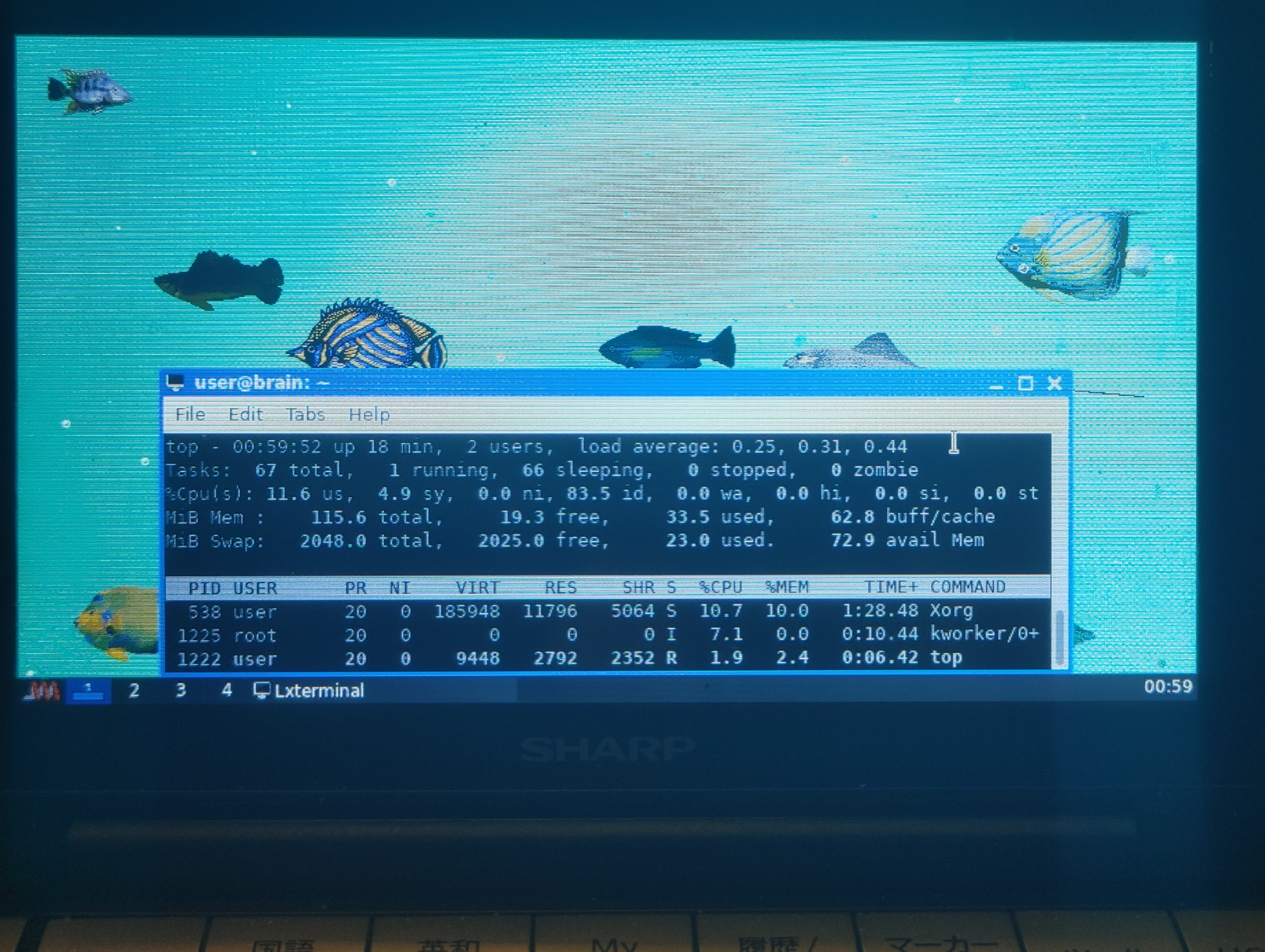
X のルートを水槽にして、様々な熱帯魚が泳ぐ壁紙上の水槽を楽しめます。
インストールは、APT経由で可能です
sudo apt instsll xfishtank
実行は、” xfishtank & “で起動できます。
デフォルトでは、泡の数:32、魚の数:10です。
必要であれば、オプションで、変更できます。
インストールログ
user@brain:~$ apt show xfishtank
Package: xfishtank
Version: 2.5-1+b1
Priority: optional
Section: games
Source: xfishtank (2.5-1)
Maintainer: Marius Gavrilescu <marius@ieval.ro>
Installed-Size: 449 kB
Depends: libc6 (>= 2.10), libimlib2 (>= 1.4.5), libx11-6
Homepage: http://jim.rees.org/computers/xfishtank.html
Tag: game::toys, interface::graphical, interface::x11, role::program,
 scope::utility, uitoolkit::xlib, use::entertaining, x11::screensaver
Download-Size: 77.7 kB
APT-Sources: http://archive.debian.org/debian bullseye/main armel Packages
Description: turns your X root into an aquarium
 Enjoy an animated aquarium background with a variety of tropical fish
 swimming in it on your screen.


user@brain:~$ sudo apt install xfishtank
Reading package lists... Done
Building dependency tree... Done
Reading state information... Done
The following additional packages will be installed:
  libid3tag0 libimlib2
The following NEW packages will be installed:
  libid3tag0 libimlib2 xfishtank
0 upgraded, 3 newly installed, 0 to remove and 3 not upgraded.
Need to get 293 kB of archives.
After this operation, 1,129 kB of additional disk space will be used.
Do you want to continue? [Y/n] Y
Get:1 http://archive.debian.org/debian bullseye/main armel libid3tag0 armel 0.15.1b-14 [29.9 kB]
Get:2 http://archive.debian.org/debian bullseye/main armel libimlib2 armel 1.7.1-2+deb11u1 [185 kB]
Get:3 http://archive.debian.org/debian bullseye/main armel xfishtank armel 2.5-1+b1 [77.7 kB]
Fetched 293 kB in 2s (125 kB/s)
Selecting previously unselected package libid3tag0:armel.
(Reading database ... 73715 files and directories currently installed.)
Preparing to unpack .../libid3tag0_0.15.1b-14_armel.deb ...
Unpacking libid3tag0:armel (0.15.1b-14) ...
Selecting previously unselected package libimlib2:armel.
Preparing to unpack .../libimlib2_1.7.1-2+deb11u1_armel.deb ...
Unpacking libimlib2:armel (1.7.1-2+deb11u1) ...
Selecting previously unselected package xfishtank.
Preparing to unpack .../xfishtank_2.5-1+b1_armel.deb ...
Unpacking xfishtank (2.5-1+b1) ...
Setting up libid3tag0:armel (0.15.1b-14) ...
Setting up libimlib2:armel (1.7.1-2+deb11u1) ...
Setting up xfishtank (2.5-1+b1) ...
Processing triggers for man-db (2.9.4-2) ...
Processing triggers for libc-bin (2.31-13+deb11u11) ...


user@brain:~$ xfishtank --help
xfishtank: invalid option -- '-'
usage: xfishtank
                [-c color]  background color
                [-b limit]  number of bubbles (default 32)
                [-f limit]  number of fish (default 10)
                [-i mult]   move interval (default 0.2)
                [-r rate]   move frequency (default 0.2)
                [-m num]    median cut to this many colors
                [-C num]    use only this many color cells
                [-d]        clip fish, swim on root window
                [-p file]   fish swim on picture in file
                [host:display]
user@brain:~$
xfireworks Xのルートウィンドウ上で花火が打ちあがります
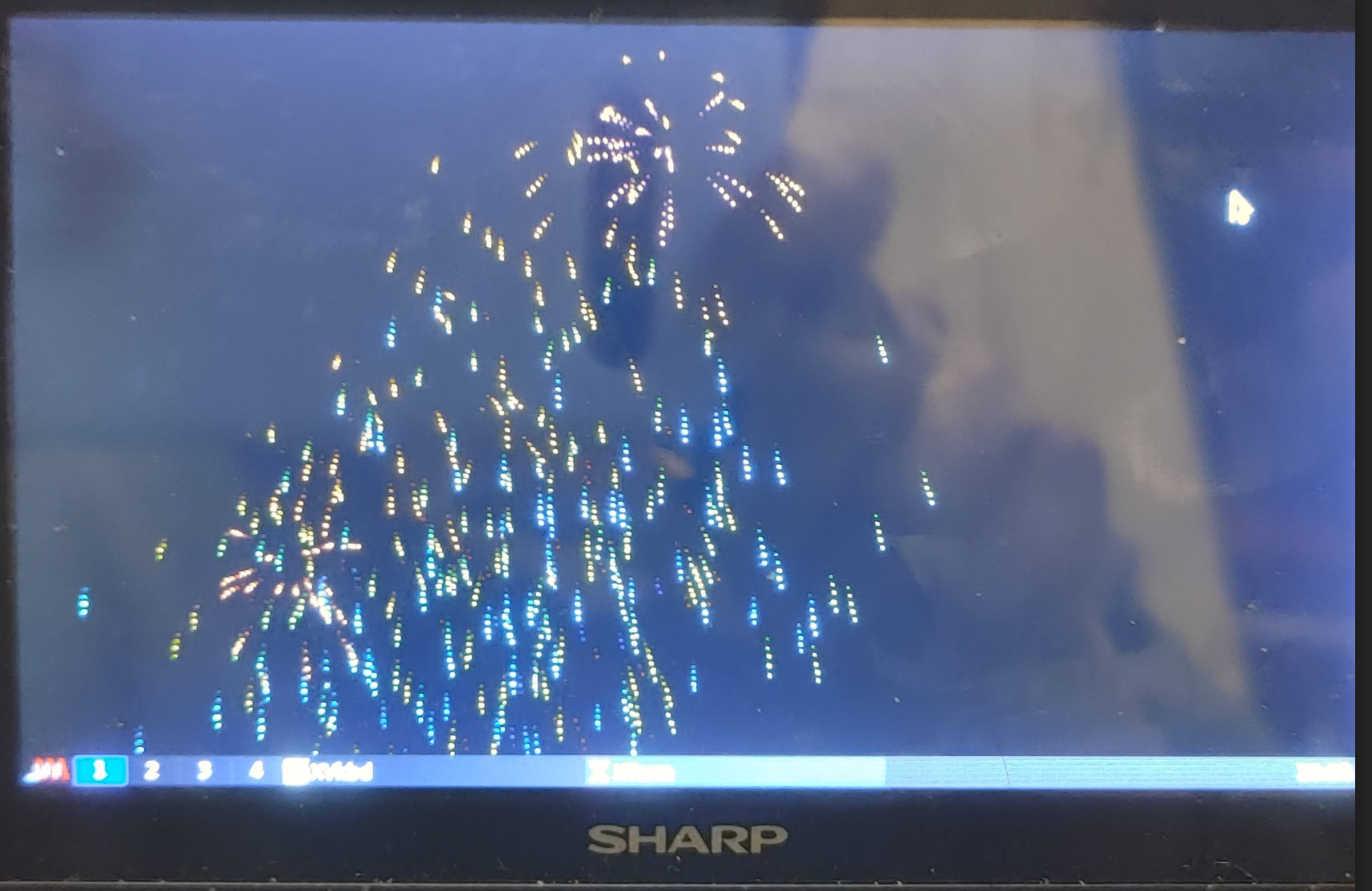
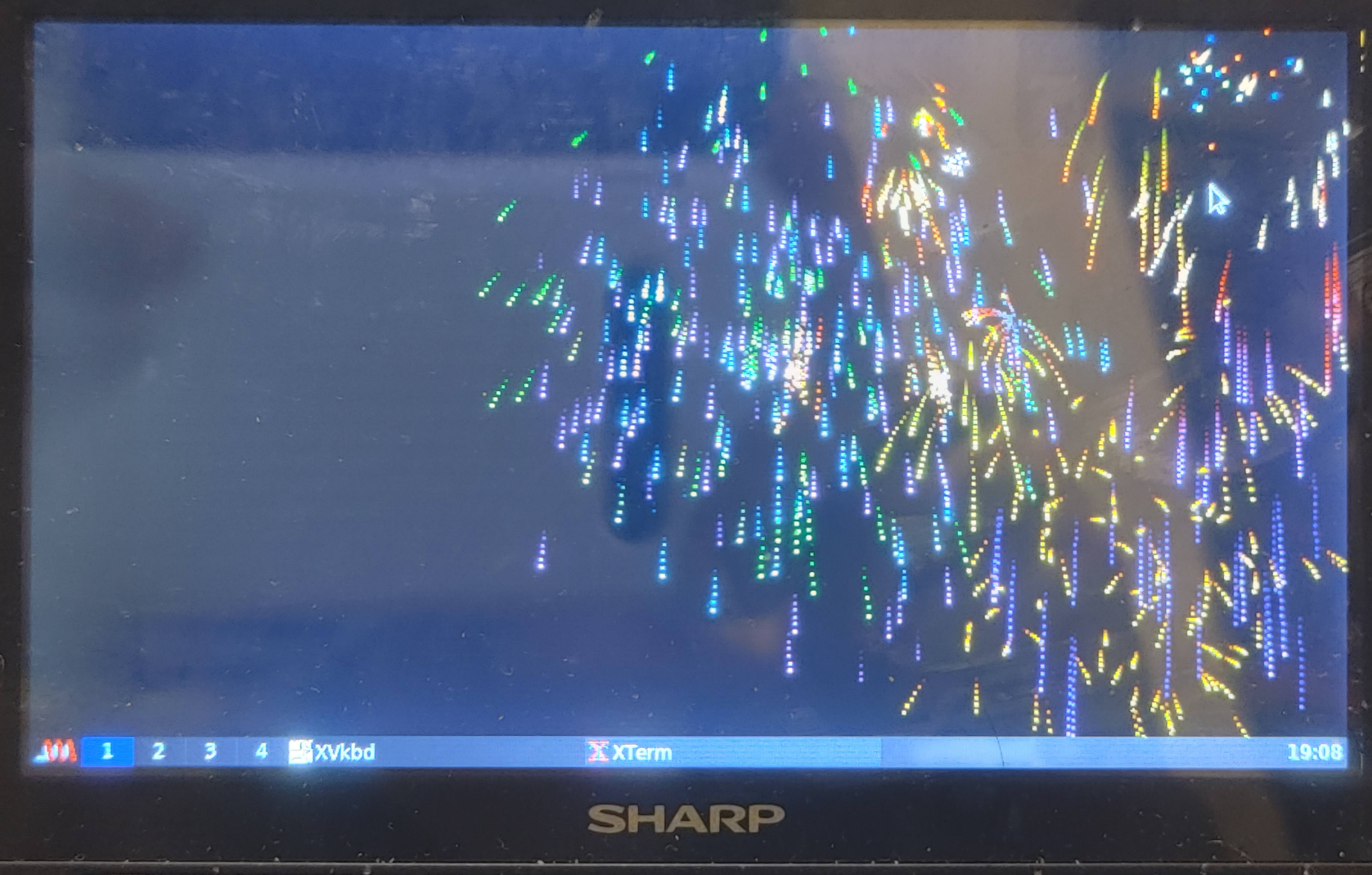
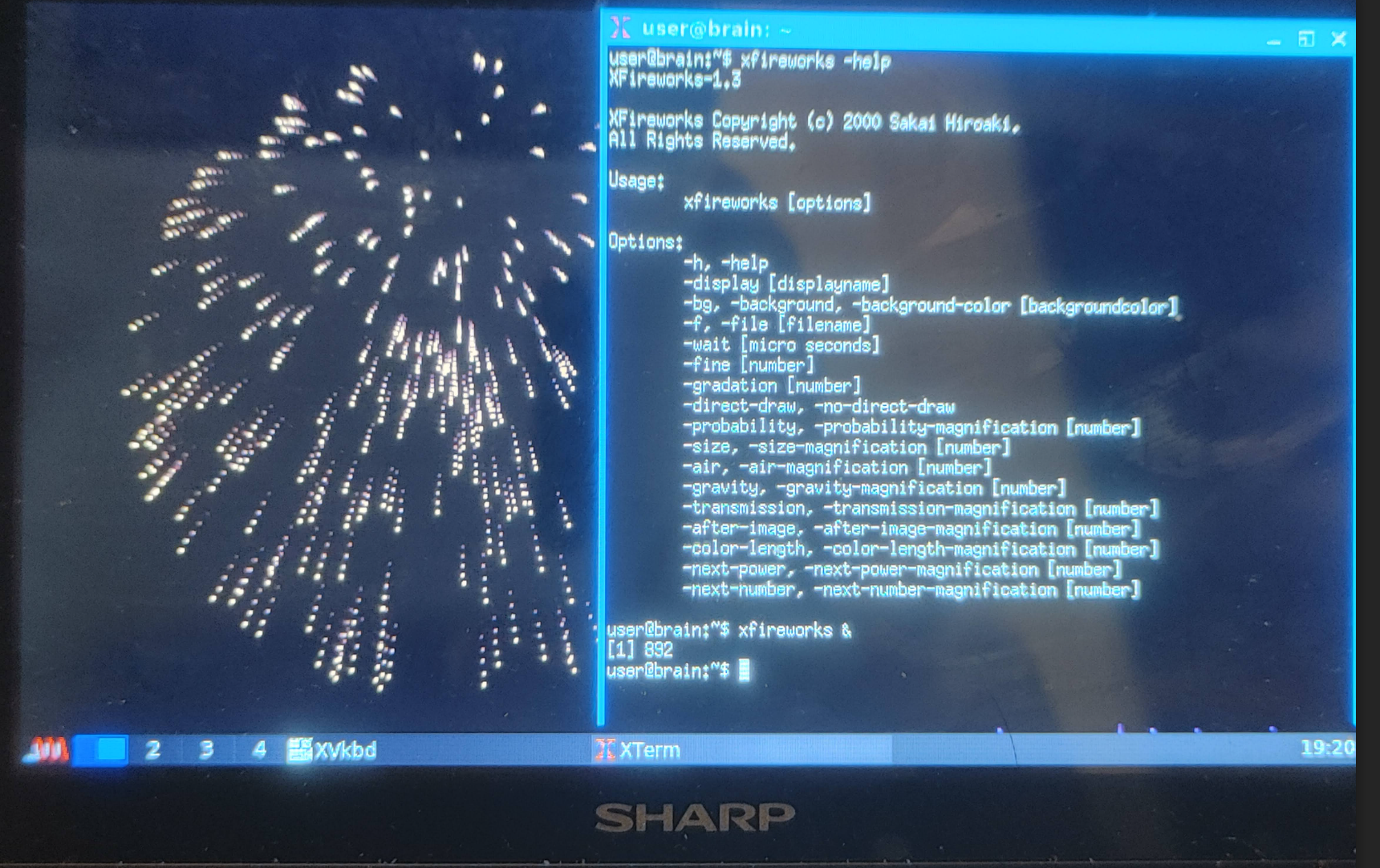
XFireworks は、X のルートウィンドウで花火大会を開催します。
これは、日本語の “花火大会” の模倣です。 日本で夏に行われる上に有名なイベントであり、川辺で行われます。花火の種類も豊富で,とってもきれいです.
起動は、「xfireworks &」です。
「xfireworks -no-direct-draw &」で起動すると花火の動きがスムーズになる気がするけど、
安定しているのは、「xfireworks &」のほうな気もします。
オプションで、打ち上げ頻度や残像の残り方などのパラメータが変更できるようで、
好みにあわせてみてください(詳細は、man xfireworksを参照してください。)
インストールは、APT経由で可能です
sudo apt instsll xfireworks
XMascot Xの画面上で揺れるマスコットを表示する プログラム (2025/12/14追加)
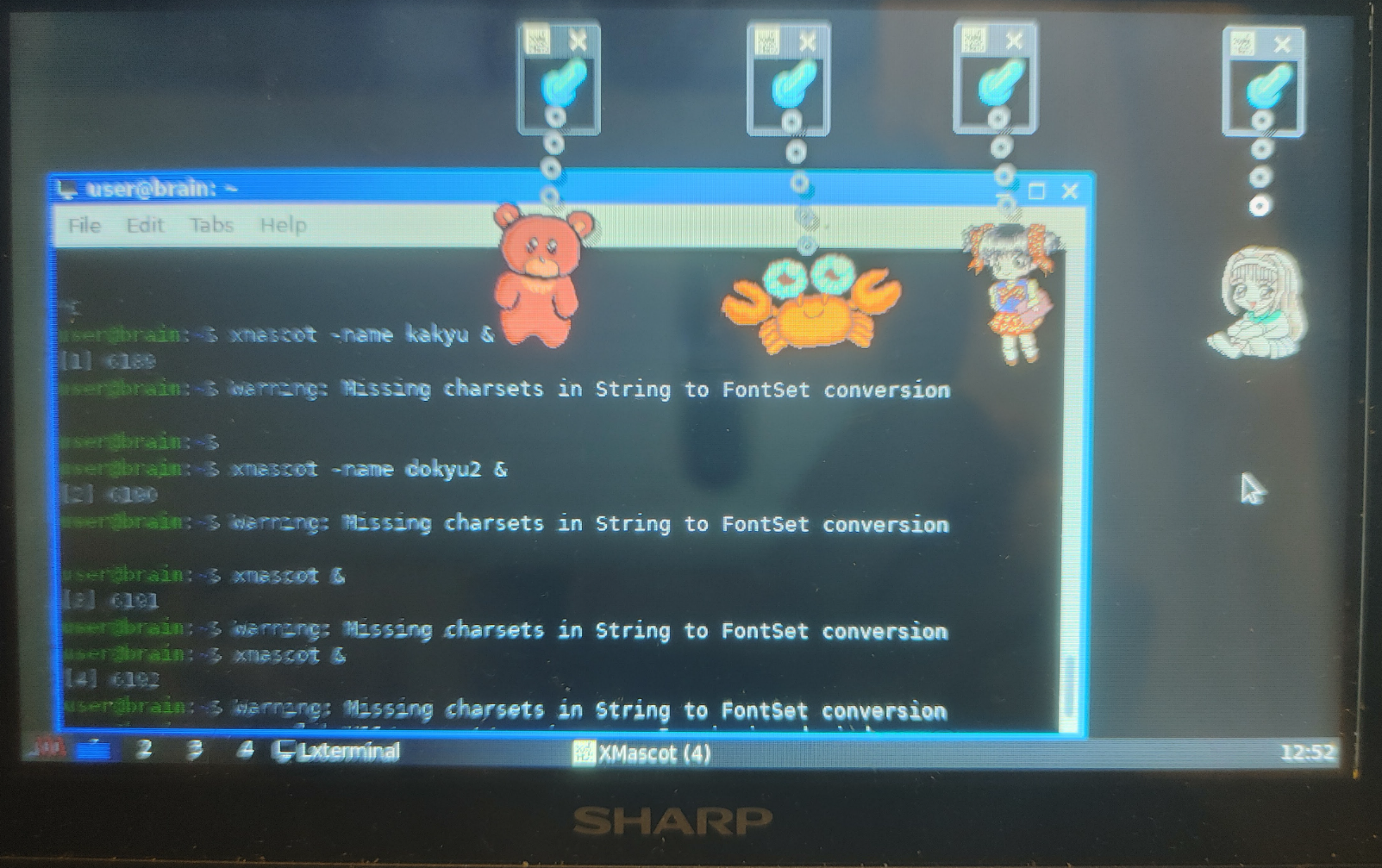
XMascot は、X Window System の画面上に可愛いマスコットを表示する プログラムです。
重力加速度と鎖の長さから振り子運動を計算して、マスコットを揺らしてくれます。
標準の重力加速度は 0.17G(地球加速度の1/6,月面上と同じ)、減衰係数0.01です。
調整すると、揺れ方が変わります。
詳しくは、公式ページのFAQをご確認ください。
標準では、動物シリーズ(10種類)、星座シリーズ(12種類)のキャラクターが用意されています。
また、このアプリ公開当時はいくつかの外部データが公開されていたのですが、
ページごと消えているところも多く、現時点で探してみると以下の2つが見つかりました。
「同級生2」マスコット
「下級生」マスコットのページ
インストールは、aptなどでのインストールはできず、ソースからコンパイルする必要があります。今回は、追加データも含めてインストールしてみます。
途中、そのままではエラーになるので、文字コードの変換やソースなどの一部変更等を行っています。
$ cd
$ mkdir XMascot
$ cd XMascot
$ wget https://cclub-flying.dsl.gr.jp/products/xmascot/xmascot2.6a.tar.gz
$ wget https://cclub-flying.dsl.gr.jp/products/xmascot/dokyu2/dokyu2mas.tar.gz
$ wget https://cclub-flying.dsl.gr.jp/~sage/bin/kakyumas.tar.gz
$ tar zxvf xmascot2.6a.tar.gz
$ cd xmascot2.6a
$ cd mascots
$ tar zxvf ../../dokyu2mas.tar.gz
$ mv dokyusei2 dokyu2
$ mkdir kakyu
$ cd kakyu
$ tar zxvf ../../../kakyumas.tar.gz
$ cd ../../
$ find ./ -type f -not -name ‘.gif’ -not -name ‘.mag’ -not -name ‘.au’ -not -name ‘.raw’ | xargs -i nkf -w -Lu –overwrite {};
$ vi Imakefile
XMascot.ad:: XMascot.ad.sed
sed ‘s!SOUND_COMMAND_NAME!$(SOUND_COMMAND)!;s!XMASDIR!$(XMASDIR)!’ XMascot.ad.sed > $@
sed ‘s!menu1!menu1!’ mascots/zodiac/zodiac.Xdefaults >> $@
XCOMM sed ‘s!menu1!menu2!’ mascots/dokyu2/dokyu2.Xdefaults >> $@
XCOMM sed ‘s!menu1!menu3!’ mascots/nadesico/nadesico.Xdefaults >> $@
XCOMM sed ‘s!menu1!menu4!’ mascots/kakyu/kakyu.Xdefaults >> $@
XCOMM sed ‘s!menu1!menu5!’ mascots/eva/eva.Xdefaults >> $@
↓
XMascot.ad:: XMascot.ad.sed
sed ‘s!SOUND_COMMAND_NAME!$(SOUND_COMMAND)!;s!XMASDIR!$(XMASDIR)!’ XMascot.ad.sed > $@
sed ‘s!menu1!menu1!’ mascots/zodiac/zodiac.Xdefaults >> $@
sed ‘s!menu1!menu2!’ mascots/dokyu2/dokyu2.Xdefaults >> $@
XCOMM sed ‘s!menu1!menu3!’ mascots/nadesico/nadesico.Xdefaults >> $@
sed ‘s!menu1!menu4!’ mascots/kakyu/kakyu.Xdefaults >> $@
XCOMM sed ‘s!menu1!menu5!’ mascots/eva/eva.Xdefaults >> $@
——————-
japanese/XMascot.ad:: japanese/XMascot.ad.sed
sed ‘s!SOUND_COMMAND_NAME!$(SOUND_COMMAND)!;s!XMASDIR!$(XMASDIR)!’ japanese/XMascot.ad.sed > $@
sed ‘s!menu1!menu1!’ mascots/zodiac/zodiac.Xdefaults.jp >> $@
XCOMM sed ‘s!menu1!menu2!’ mascots/dokyu2/dokyu2.Xdefaults.jp >> $@
XCOMM sed ‘s!menu1!menu3!’ mascots/nadesico/nadesico.Xdefaults.jp >> $@
XCOMM sed ‘s!menu1!menu4!’ mascots/kakyu/kakyu.Xdefaults.jp >> $@
XCOMM sed ‘s!menu1!menu5!’ mascots/eva/eva.Xdefaults.jp >> $@
↓
japanese/XMascot.ad:: japanese/XMascot.ad.sed
sed ‘s!SOUND_COMMAND_NAME!$(SOUND_COMMAND)!;s!XMASDIR!$(XMASDIR)!’ japanese/XMascot.ad.sed > $@
sed ‘s!menu1!menu1!’ mascots/zodiac/zodiac.Xdefaults.jp >> $@
sed ‘s!menu1!menu2!’ mascots/dokyu2/dokyu2.Xdefaults.jp >> $@
XCOMM sed ‘s!menu1!menu3!’ mascots/nadesico/nadesico.Xdefaults.jp >> $@
sed ‘s!menu1!menu4!’ mascots/kakyu/kakyu.Xdefaults >> $@
XCOMM sed ‘s!menu1!menu5!’ mascots/eva/eva.Xdefaults.jp >> $@
$ vi xmascot.h
enum{ NODAT, STRING, ID, SYMBOL, RESERVE } TokenType;
↓
typedef enum{ NODAT, STRING, ID, SYMBOL, RESERVE } TokenType;
$ xmkmf -a
$ make
$ sudo make install
$ sudo cp mascots/dokyu2/.mag /usr/lib/X11/xmascot/
$ sudo cp mascots/kakyu/.mag /usr/lib/X11/xmascot/
$ sudo chmod +r /usr/lib/X11/xmascot/*.*
これで、一通りインストールが完了しました。それぞれ、以下で起動できます。
$ xmascot &
$ xmascot -name dokyu2 & #同級生2マスコット
$ xmascot -name kakyu & #下級生マスコット
(参考)
マスコットデータ フォルダ:
/usr/lib/X11/xmascot/
Xリソースファイル(Unicode:日本語リソース):
/usr/lib/X11/en_US.UTF-8/app-defaults/XMascot
Xリソースファイル(Default:デフォルトリソース):
/etc/X11/app-defaults/XMascot
もし、xmascot &で起動して全てのキャラクターをメニューから選択したいのであれば、Xリソースファイルを、以下のように置換してみてください。
(viでは、:%s/dokyu2/menu2./g のように操作すると、文字列の一括置換ができます。)
dokyu2* -> menu2. kakyu -> *menu3.
*menu2.popup.label: -> *menu2.title:
*menu3.popup.label: -> *menu3.title:
*menusNum: 2 -> *menusNum: 4
xdesktopwaves Xのルートウィンドウ上で水の波をシミュレーション
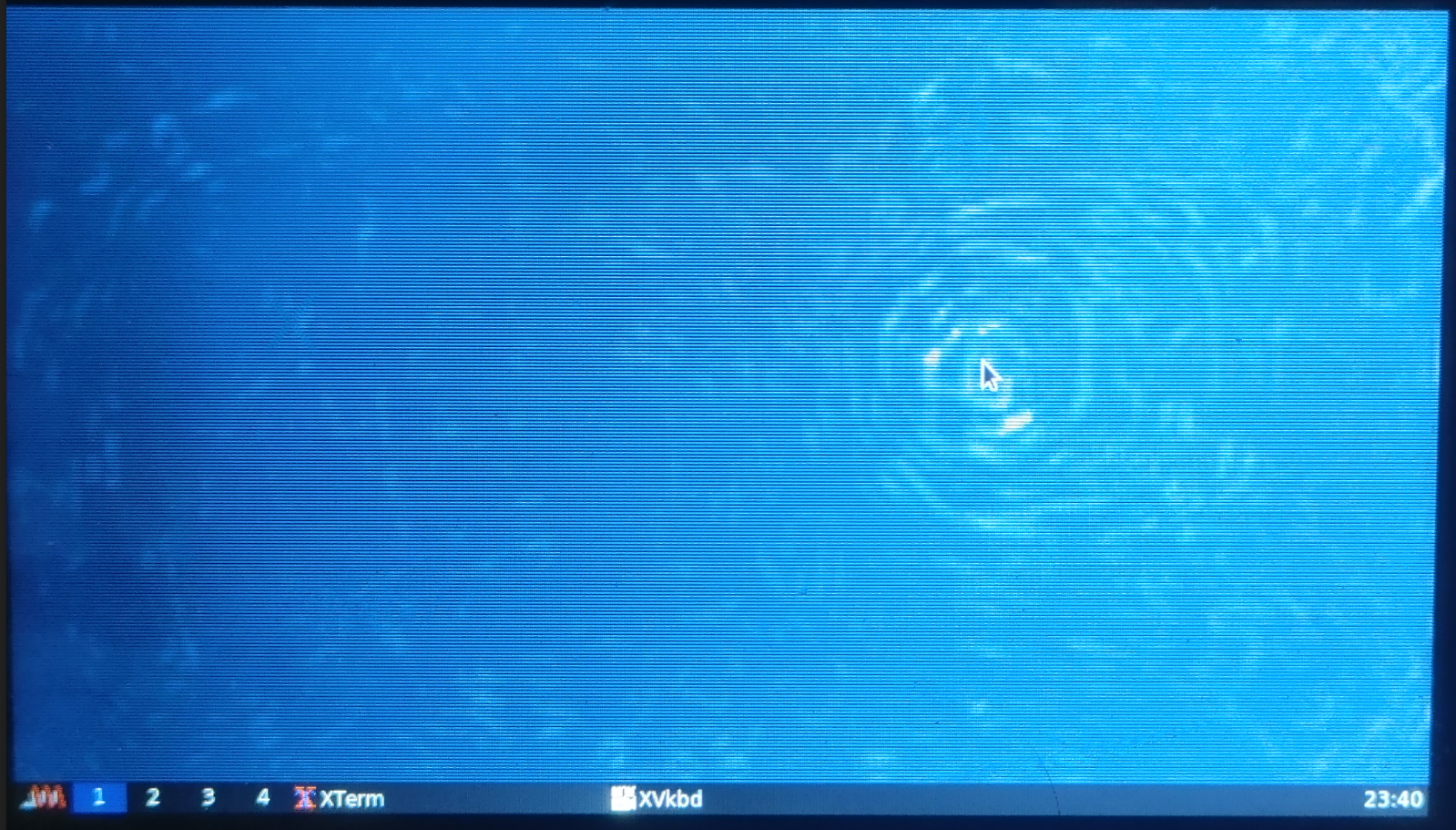
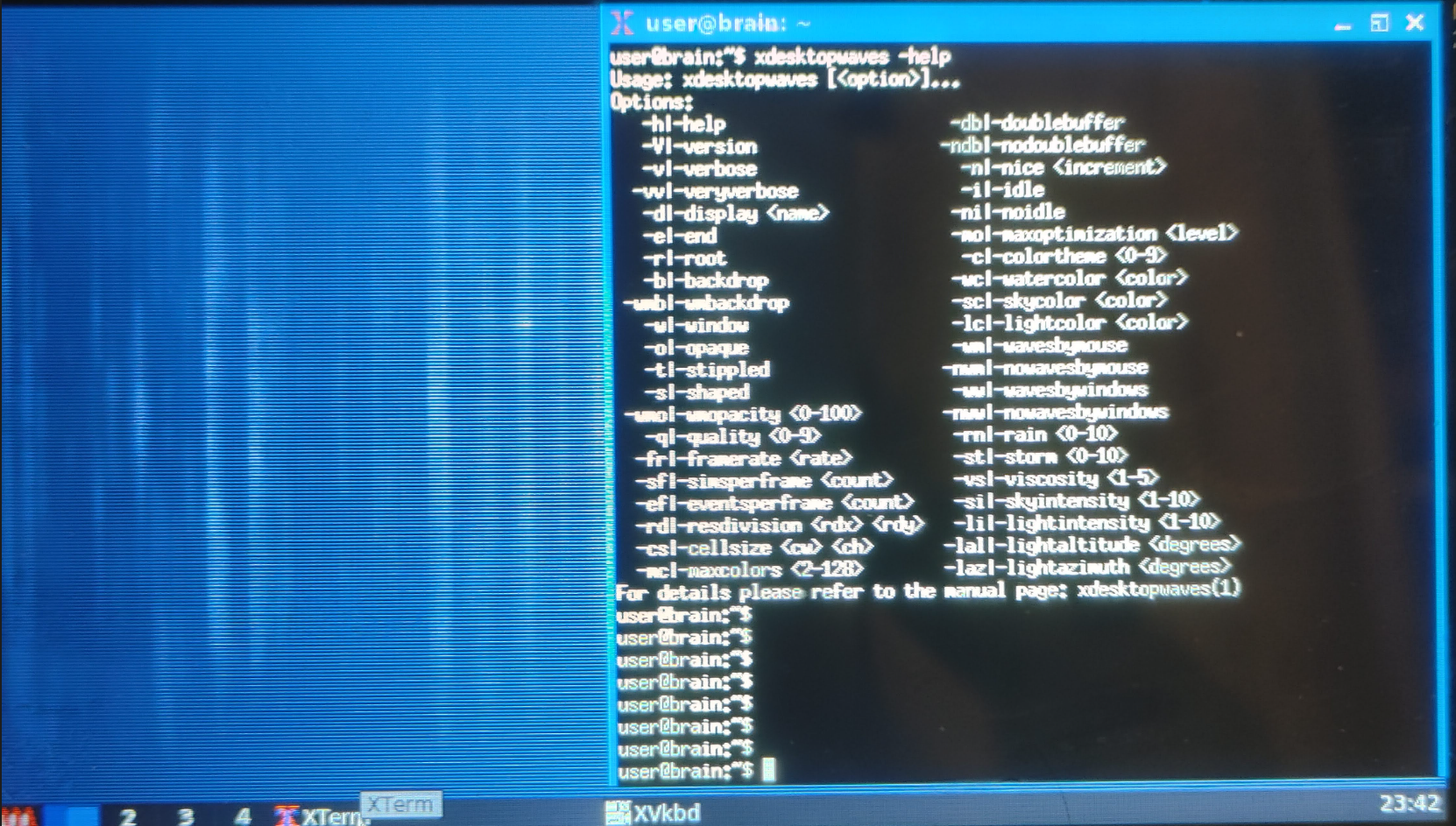
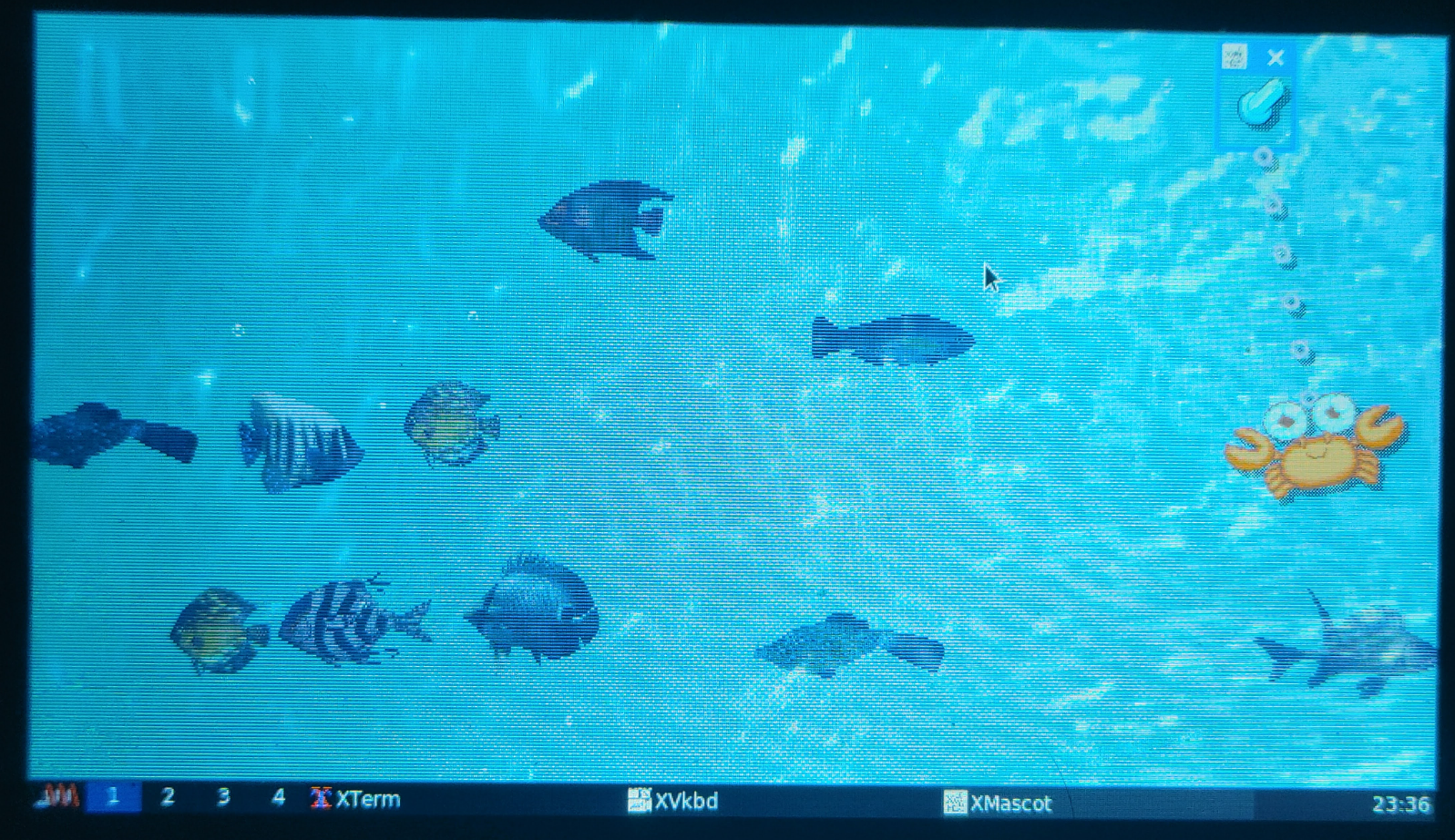
xdesktopwaves は X ウィンドウシステムを水面下におくセルオートマトンです。 ウィンドウとマウスが海上の船のようになり、各動きが水の波を引き起こします。 雨を触らせたり嵐で水をかきみだしたりすることもできます。
xfishtank、XMascot(下で紹介)と一緒に動かすと、結構いい感じになります。
(XMascotの減衰係数を0にするのがコツで、これにより波が発生しつつけます。)
インストールは、APT経由で可能です
sudo apt instsll xdesktopwaves
dclock X Window System 向けの柔軟な表示設定が可能なデジタル時計
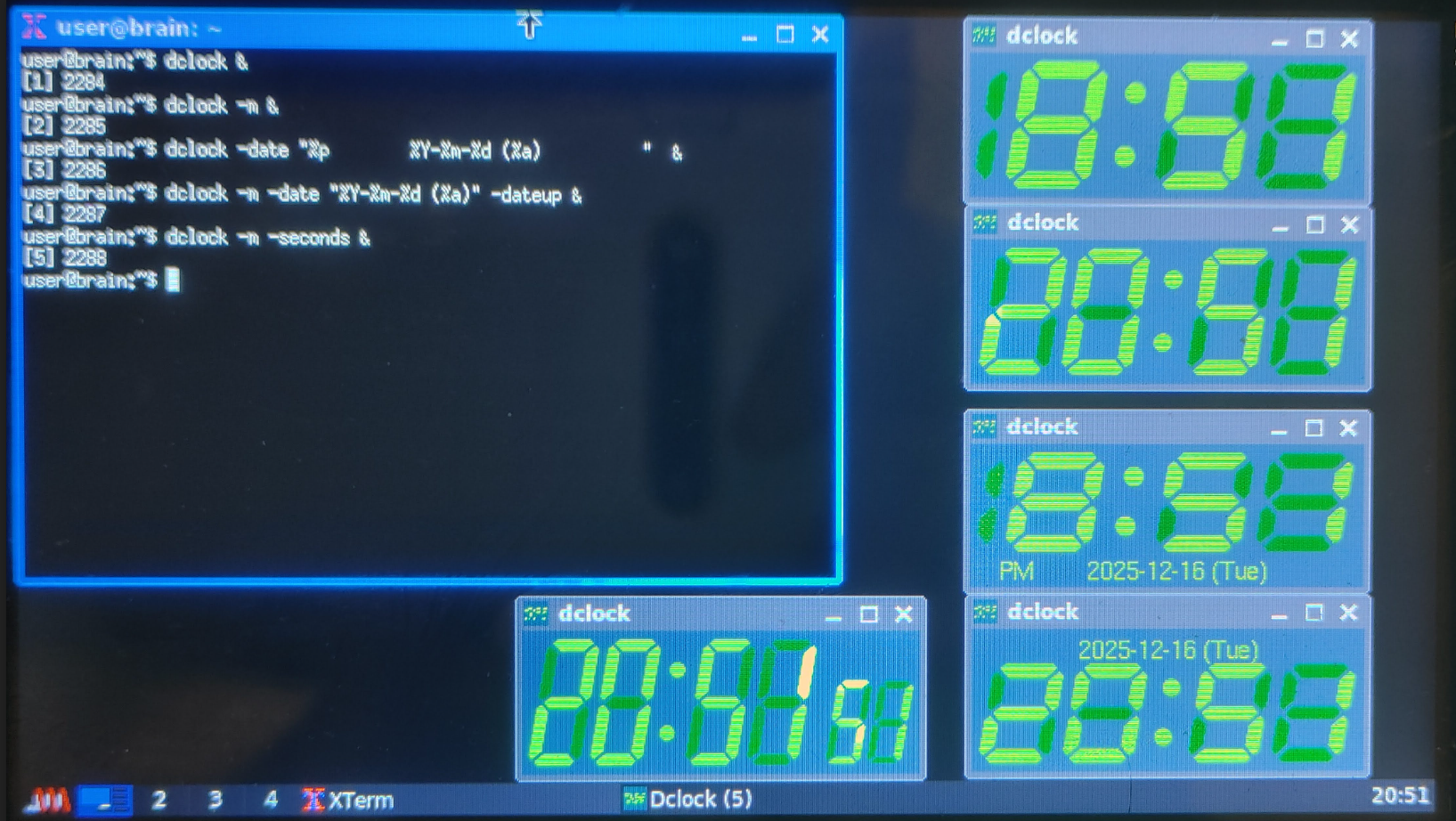
Dclock の主要機能は、その描画方法における柔軟性の高さです。
“date” からの出力による “Wednesday, 3rd Jan” のような表示さえ可能です。
Dclock はアラーム設定もサポートしています
表示はいろいろとカスタマイズ可能です(例)。
dclock 12時間表示(デフォルト)
dclock -m 24時間表示
dclock -date “%p %Y-%m-%d (%a) “ 下にAM/PM表示 年-月-日(曜日省略形)を表示
dclock -m -date “%Y-%m-%d (%a)” -dateup 24時間&上に年-月-日(曜日省略形)を表示
dclock -m -seconds 24時間&秒を表示する
インストールは、APT経由で可能です
sudo apt instsll dclock
mxclock 絵柄が綺麗な時計です.
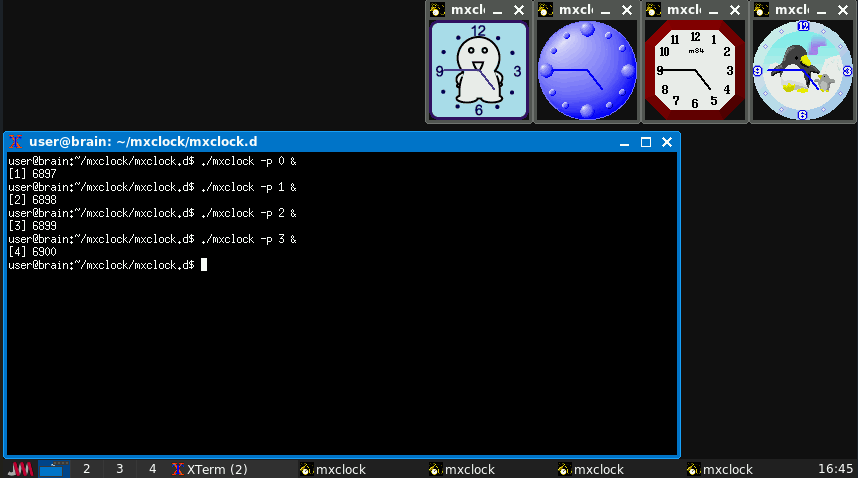
普通の時計です。サイズ変更は出来ません。
マウスの左右ボタンで文字盤(4種類)を切替えられます。
起動時オプションで秒針も表示できます(-sec)
    <起動時のオプション>
            -sec
                    秒針を表示します。
            -p patternnumber
                    時計の図柄を選択します。-p 1 という感じで使います。
                    使用できるパターンは0〜3の4通りです。
            -display hostname:display[.screen]
                    表示するディスプレイの指定をします。
            -geometry {+-}xoff{+-}yoff
                    表示位置の指定をします。

    <実行中の操作>
            マウスの左右ボタンで文字盤を切替えられます。
インストールは、aptなどでのインストールはできず、ソースからコンパイルする必要があります。
$ cd
$ mkdir mxclock
$ cd mxclock/
$ wget https://ftp.vector.co.jp/05/92/1347/mxclock.taz
$ tar xf mxclock.taz
$ cd mxclock.d
$ xmkmf -a
$ make
$ sudo make install
SunClock 時刻と地理データを表示可能な可愛い時計
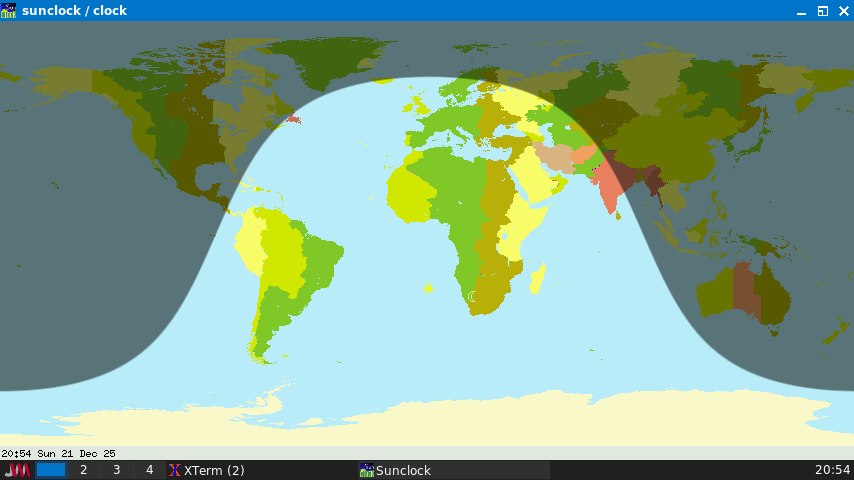
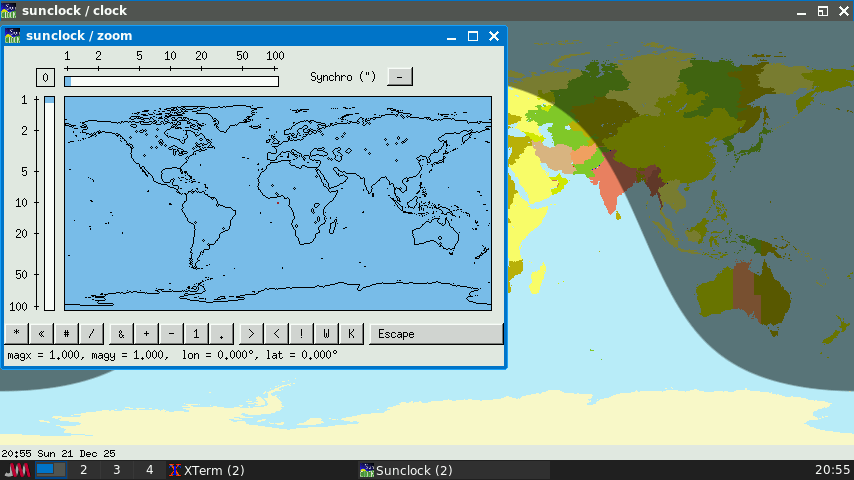
sunclock は、世界地図を表示し、昼の地域を明るく、夜の地域を暗く描画 することにより、地球に太陽光が照らされた地域を示します。 デフォルトのタイムゾーンに対するローカルタイムを示すだけでなく、 主要な都市の GMT 時間、法定時および太陽時、都市の緯度経度、 地球上の任意の二点間の距離を表示できます。 Sunclock は、経線、緯線、南北回帰線および極圏を表示できます。 時間の進み方を加速し、四季の移り変わりを表示する組み込み機能を 有しています。
メインは世界地図表示ですね。都市の選択とかはやり方がわからなくて、できていませんが
世界地図だけでも環境インテリア的にはいいかと。
(詳細は、man sunclockを参照してください。)
インストールは、APT経由で可能です
sudo apt instsll sunclock
Xantfarm X11用のシンプルなアリ農場
公式サイト:xantfarm
Xantfarmはアリ塚をシミュレートし、ルートウィンドウに表示します。
アリの世界には三つの元素があります:空気、土、砂です。 アリは空気中を移動し、土を掘り起こし、それを砂として落とします。 アリには3つの行動があります:さまよい、運搬する、パニックです。 プログラムにはいくつかの簡単な確率が組み込まれています これは、放浪と運搬の間の切り替えを制御します。 パニックになるのを見るには、カーソルでアリをつついてみてください。
実行例
xsetroot -solid Brown
xantfarm ~/.xantfarm.checkpoint -num 10 -c 150 -air Cyan -sand Coral -ant Black
定期的に状況を保存して、次回起動時に続きから開始できるようにします
(5000サイクル間隔で保存なので標準の15cpsだと5分に1回保存します・)
-num:100 (アリの数 標準は10)
-c :150 (1秒間に実行するサイクル(CPS) 標準は15)
あと、空(-air),砂(-sand),アリ(-ant)の色も変えられます。
地面の色は、X11のルートウィンドウの色になりますので、別で指定します。
xsetroot -solid Brown
色指定は、X11 color names – Wikipediaが参考になります。
終了後に画面が残るので、xsetroot コマンドで初期化してください。
インストールは、ソースからのビルドになります。
$ cd
$ mkdir xantfarm
$ cd xantfarm
$ wget https://www.acme.com/software/xantfarm/xantfarm_14Aug2014.tar.gz
$ tar zxf xantfarm_14Aug2014.tar.gz
$ cd xantfarm
$ xmkmf -a
$ make
$ sudo make install
———-
XMangekyou X11で動く万華鏡です
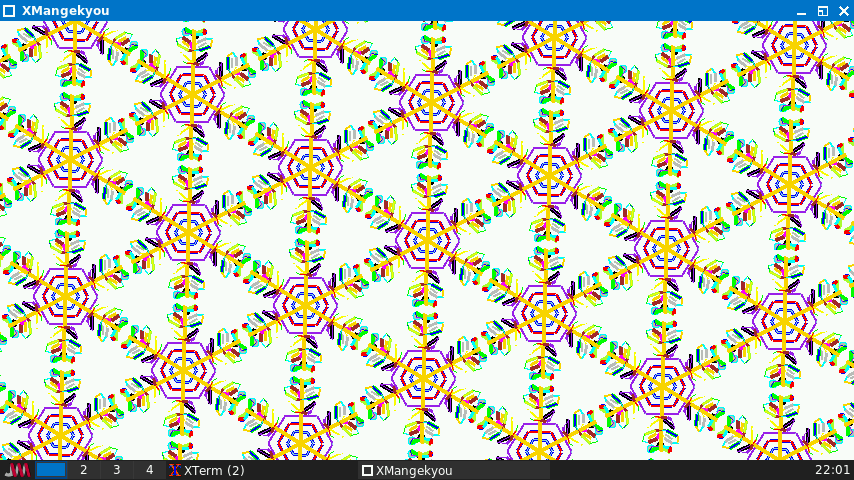
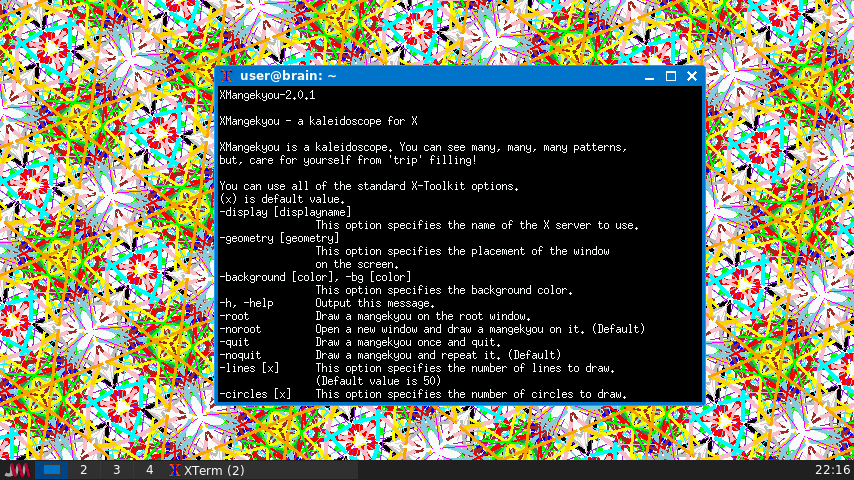
公式サイト:XMangekyou
万華鏡です.
変化しながらくるくるまわる映像はとってもきれいですが,トリップしすぎて
まわりに怪しがられないように気をつけてください.
壁紙に張り付けることもできます.
ある条件で,アニメーションがはじまっちゃったりします。
いろいろ表示のカスタマイズができるようです。
詳しくは、”nkf README.euc | more”で確認してください。
アニメーションが始める条件については、どこにも記載がありませんが
ぜひソースファイルを読んで、条件を探してみてください。
場所探すのはそんなに難しくはありません。あとは条件を満たしてみてください。
インストールは、ソースからのビルドになります。
$ cd
$ mkdir XMangekyou
$ cd XMangekyou
$ wget https://kozos.jp/myfreesoft/xmangekyou-2.0.1.tar.gz
$ tar zxf xmangekyou-2.0.1.tar.gz
$ cd xmangekyou-2.0.1
・configure.hを変更します。
#define XMANGEKYOU_LIB “/usr/X11R6/lib/X11/XMangekyou/”
↓
#define XMANGEKYOU_LIB “/usr/local/lib/X11/XMangekyou/”
・Makefileを変更します。
XMANGEKYOU_PREFIX = /usr/X11R6
↓
XMANGEKYOU_PREFIX = /usr/local
$ make
$ sudo make install
———-
Xshodow「書道」のアプリケーションです.
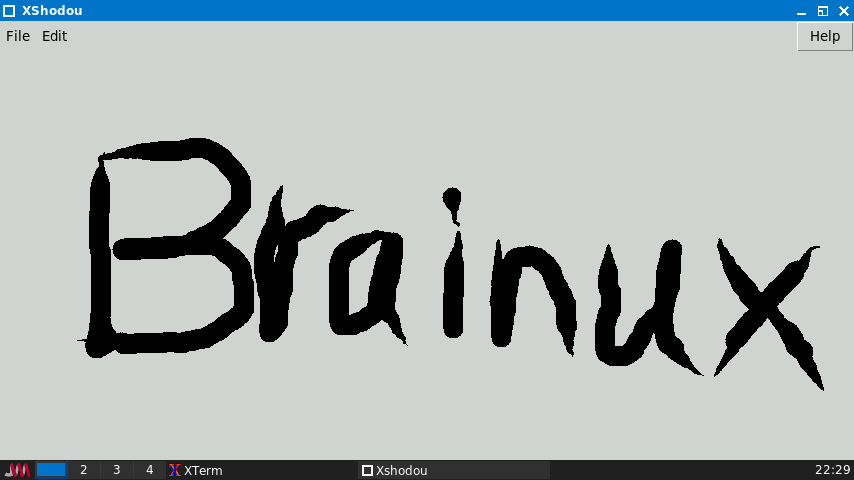
公式サイト:XShodou
XShodou は,UNIX の X Window System 上で動作する, 「書道」のアプリケーションです. マウスのドラッグを繰り返すことにより,だれでも気がるに「書道」 が楽しめます.
Shodou は FreeBSD 用ですが,Tck/Tk で書いてあるので,
UNIX ならば それほど苦労することなく,移植できるでしょう.
実行には Tck/Tk が必要です.
詳しい使用方法は,インストール後に man xshodou をご覧ください.
起動は、テーミナル上で「xshodou」で起動します。
マウスで筆をシミュレーションして書道をすることができます。
マウスドラッグで筆の移動。
マウスの右クリックを押すと筆を下に下げます(=線が太くなる)、
逆にマウスの左クリックを押すと筆を上にあげます(=線が細くなる)
なので残念ながらタッチパネルだけで操作すると1筆書きになっちゃいます。
インストールは上に書かれているように、Tck/Tk で書かれているので、
環境に合わせてファイルを書き替えてからインストールするだけです
(ビルドは不要)。
$ cd
$ mkdir XShodou
$ cd XShodou
$ wget https://kozos.jp/myfreesoft/xshodou-1.11.tar.gz
$ tar zxf xshodou-1.11.tar.gz
$ cd xshodou-1.11
$ sudo apt install tcl tk
$ vi Makefile
XSHODOU_PREFIX = /usr/X11R6
↓
XSHODOU_PREFIX = /usr/local
$ vi xshodou
#!/usr/local/bin/wish
↓
#!/usr/bin/wish
set title_file /usr/X11R6/lib/X11/XShodou/xshodou-title.xbm
↓
set title_file /usr/local/lib/X11/XShodou/xshodou-title.xbm
$ sudo make install
————
bb AAlib に基づくアスキーアートデモ
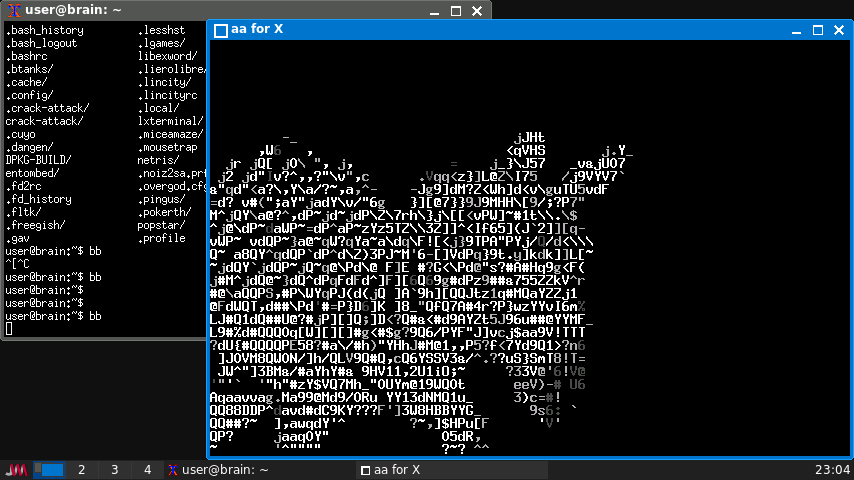
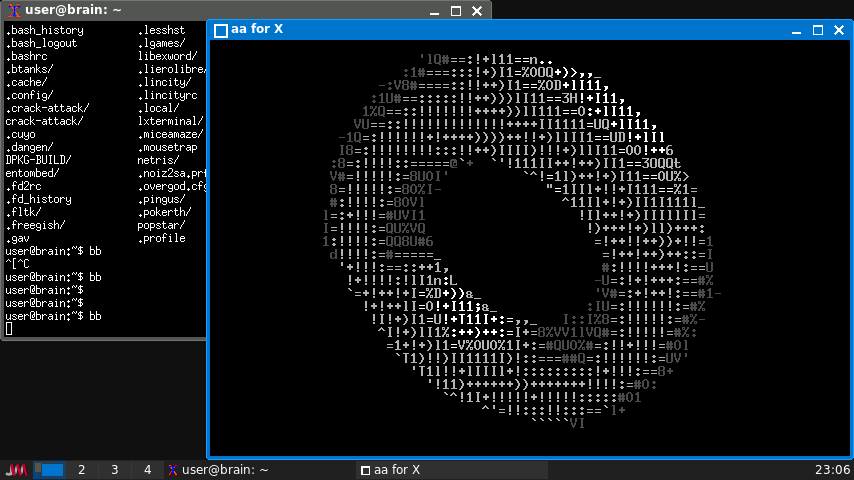
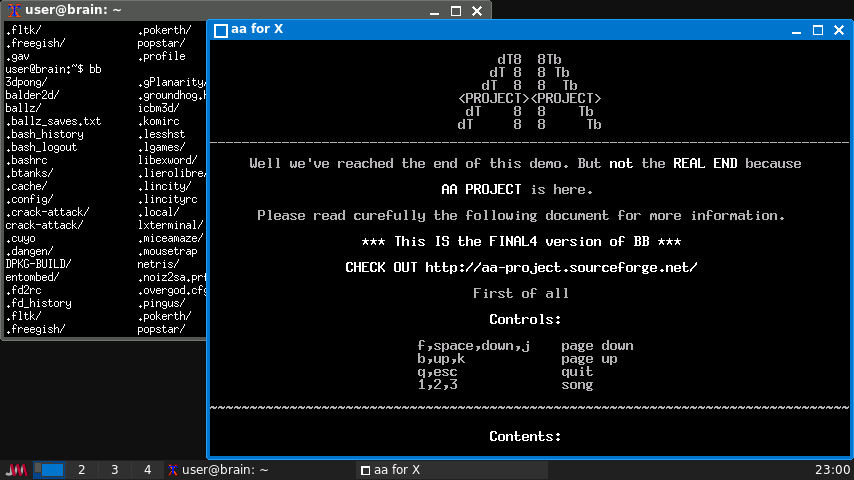
https://packages.debian.org/bullseye/bb
起動:bb
本パッケージには、移植性の高いアスキーアートグラフィックライブラリである、 AAlib を用いたアスキーアートの ‘高品質な AV デモ’ が含まれます。 このデモは、テキスト端末又は X11 端末で表示可能です。
Brain上で、アスキーアートアニメーションデモが表示できます。
(6-7分程度)
なお最初にサウンド有効するか聞かれますが、Brainでは音楽と表示が同期されず、音楽だけが流れ続けますので、サウンドは無効にしましょう。
(サウンドはUSBサウンドデバイス経由ですが、クリアに再生されていました。)
インストール:APT経由 ”sudo apt install bb”
———-
○ gamine 幼児向けインタラクティブゲーム
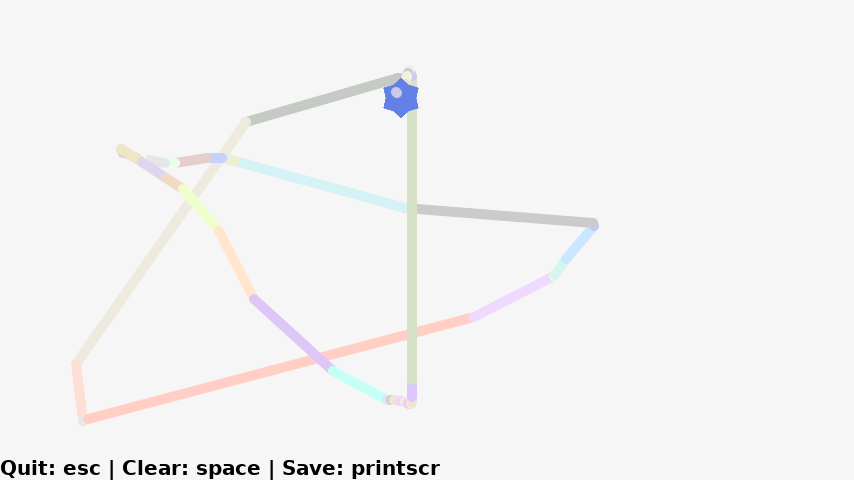
https://packages.debian.org/bullseye/games/gamine
起動:gamine
Gamineは、キーボード操作ができない2歳児向けに設計されたゲームです。
子供はマウスを使って画面上に色付きの点や線を描くことができます。
タッチパネルでも操作できますが、ゆっくり操作したほうがいい感じで書けます。
インストール:APT経由 ”sudo apt install gamine”
———-
〇 golly ハッシュライフアルゴリズムを使用したライフゲームシミュレーター
https://packages.debian.org/bullseye/games/golly
起動:golly
Gollyは、任意の大きさのセルグリッドを用いてコンウェイのライフゲームをシミュレートします。オプションでハッシュライフアルゴリズムを使用することができ、これにより巨大なパターンの世代数を高速に計算したり、一度に多くの世代先まで計算したりすることが可能になります。
Gollyは、セルオートマトンを表示および編集するためのグラフィカルインターフェースを提供します。コピー&ペースト、ズーム、自動調整、複数レイヤー、およびパターンの異なる領域をウィンドウの異なる領域で同時に表示する機能をサポートしています。
Gollyは、RLE、Life 1.05/1.06、dblife、およびmacrocellファイル形式からパターンを読み込むことができます。また、画像をLifeパターンとして解釈することも可能です。Gollyには、Life用語集のコピーを含む統合ヘルプ機能が備わっています。
Gollyは、8セル近傍を持つ2次元セルオートマトンに関する他のルールもサポートしており、1次元セルオートマトンもサポートしています。
インストール:APT経由 ”sudo apt install golly”
———-
○ xcowsay グラフィカルに設定可能なしゃべる牛
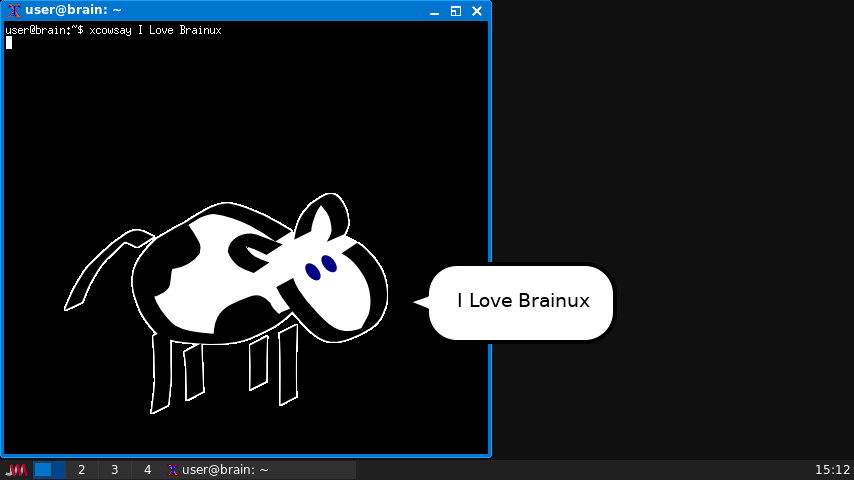
定番のPerlスクリプト「cowsay」のGTK+版です。デスクトップにかわいい牛のポップアップが表示され、吹き出しとカスタマイズ可能なテキストが表示されます。牛が画像を表示するドリームモードもあります。また、牛を通して定期的にフォーチュンクッキーを届けるfortune(6)ラッパースクリプト「xcowfortune」が付属しています。
https://packages.debian.org/bullseye/games/xcowsay
起動:
/usr/games/xcowsay
/usr/games/xcowdream
/usr/games/xcowfortune
/usr/games/xcowthink
インストール:APT経由 ”sudo apt install xcowsay”
———-
○ xflip 鏡像又は画面が溶けるプログラム
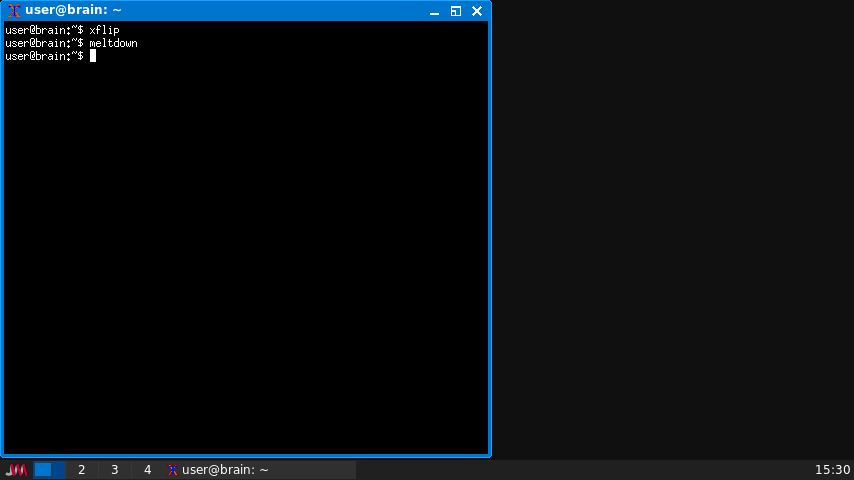
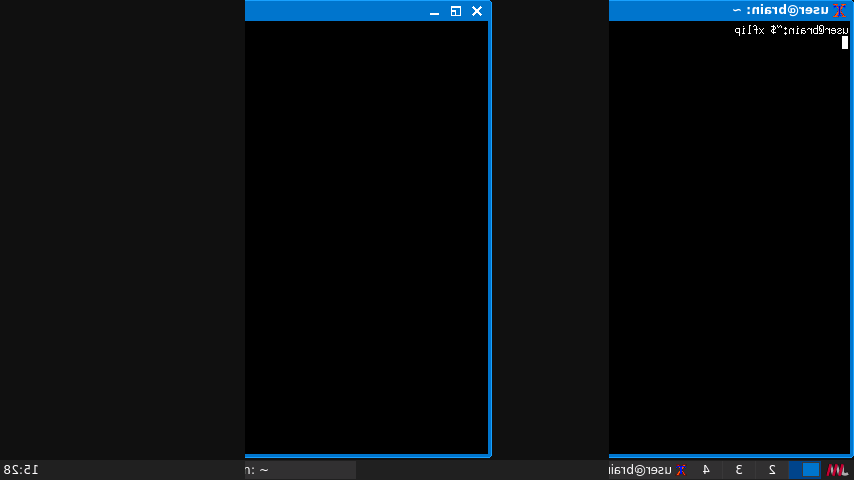
https://packages.debian.org/bullseye/games/xflip
起動:
xflip
meltdown
画面 (又は友人のホストを使った “xhost”) を垂直軸又は水平軸方向に裏返り ます。どちらのコマンドも、xflip および meltdown という名前ですが、 独立してそれぞれの bit planes に働く -planes オプションが存在します。 このバージョンでは、垂直方向と水平方向に同時に裏返る -oblic オプションが付属します。
インストール:APT経由 ”sudo apt install xflip”
———-
○ xjokes X11のジョーク
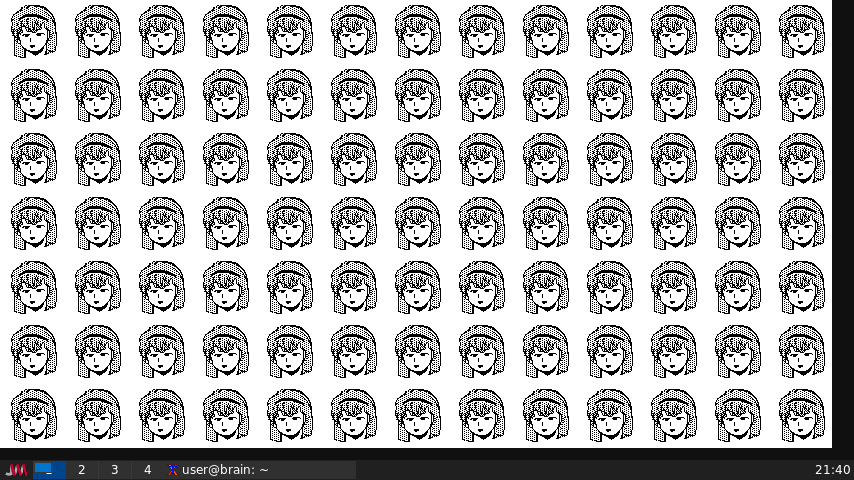
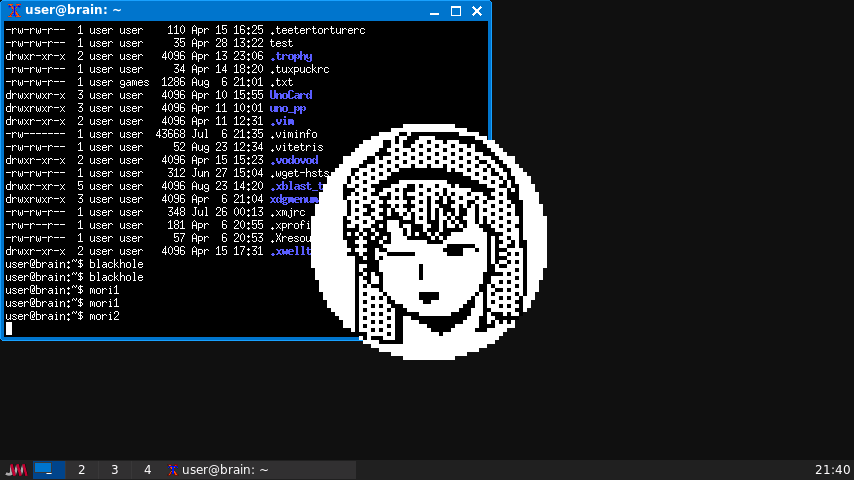
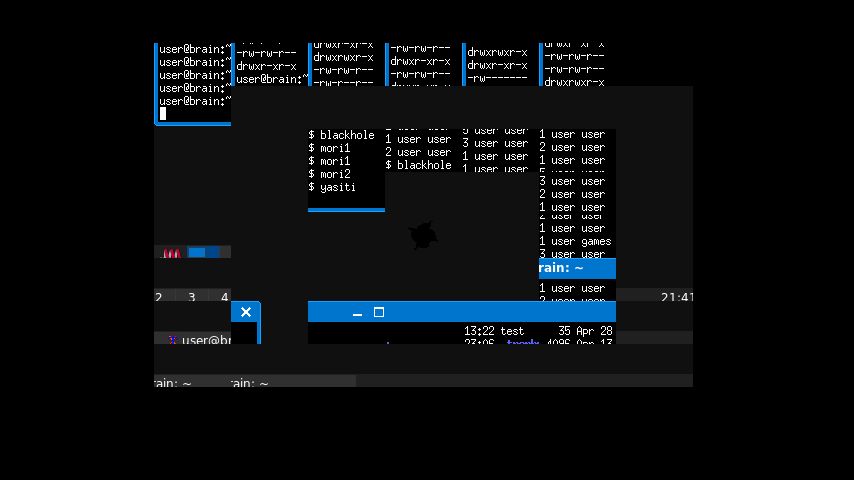
https://packages.debian.org/bullseye/games/xjokes
X11ディスプレイを微調整するための、小さくて面白いプログラムが4つあります。
blackhole 画面中央にブラックホールが発生したような画面効果が発生します。
mori1 画面全体に女の子の顔がタイル状に敷きしめられます(スクリーンショット1)。
mori2 画面中に女の子の顔が表示されます(スクリーンショット2)。
yasiti うずまき状に画面が吸い込まれていきます(スクリーンショット3)。
です。
インストール:APT経由 ”sudo apt install xjokes”
———-
◎ xmountains X 用のフラクタル景観ジェネレーター
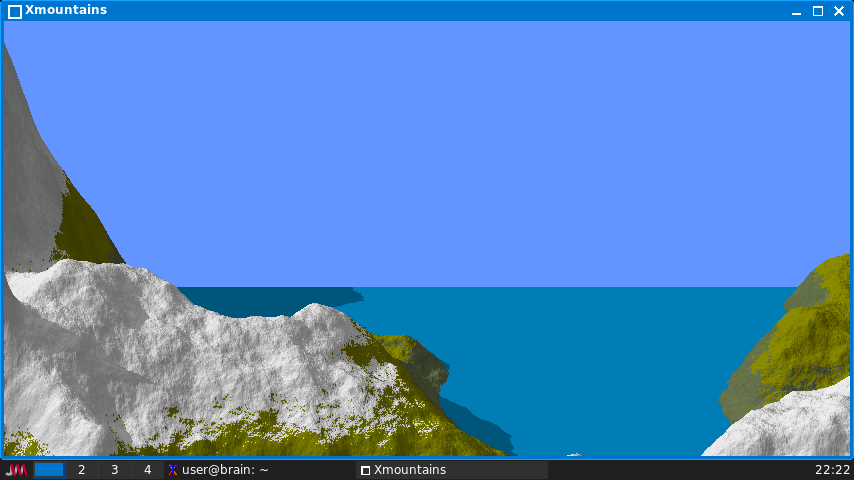
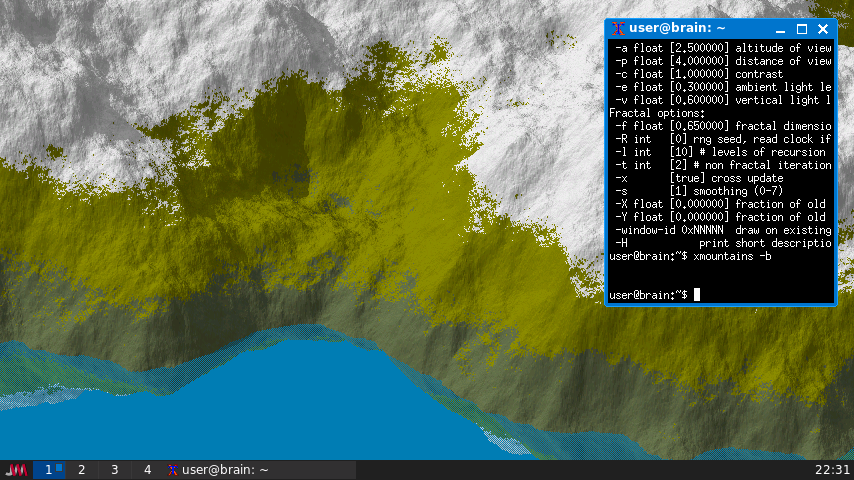
https://packages.debian.org/bullseye/games/xmountains
ランダムなフラクタル山を生成し、ウィンドウ内に表示します(X軸のルートウィンドウ内にも表示できます)。
プログラムの実行中、フラクタルは右側に継続的に拡張され、画像は右から左にスクロールして、新たに生成された領域を表示します。
xmountains ウィンドウにフラクタルにより山を描画する
xmountains -b ルートウィンドウにフラクタルにより山を描画する(Ctrl+cで中断)
xmountains -b -q ルートウィンドウにフラクタルにより山を描画するが、
Ctrl+c終了後はルートウィンドウを初期化
インストール:APT経由 ”sudo apt install xmountains”
———-
○ xphoon ルートウィンドウに月の画像を設定する
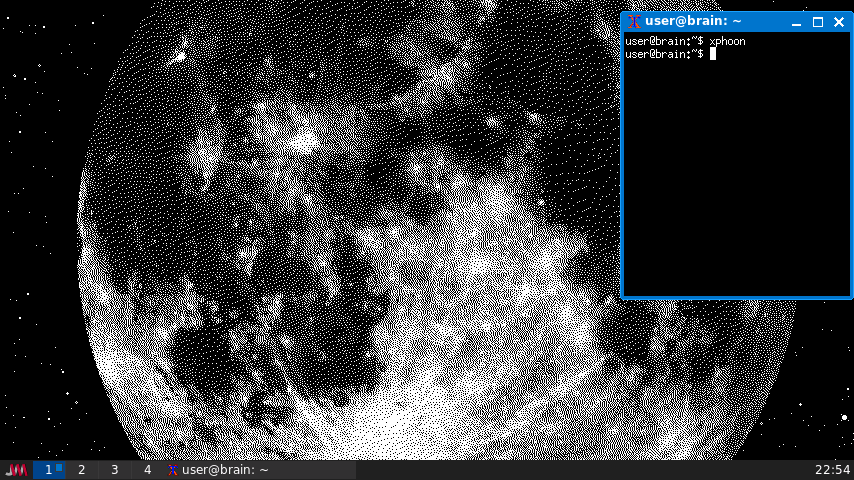
https://packages.debian.org/bullseye/games/xphoon
xphoonは、Xルートウィンドウに、地球からの反射光による暗い面の部分的な照明を含めた、現在の月の位相の画像を設定します。画像は、数式に基づいて計算されたモノクロのディザリングビットマップです。バックグラウンドで実行され、時間の経過とともに画像が適切に更新されます。
インストール:APT経由 ”sudo apt install xphoon”
———-
Brainで「痛デスクトップ」?
上記のアプリを組み合わせると、こんなbrainで「痛デスクトップ環境」が作れます。
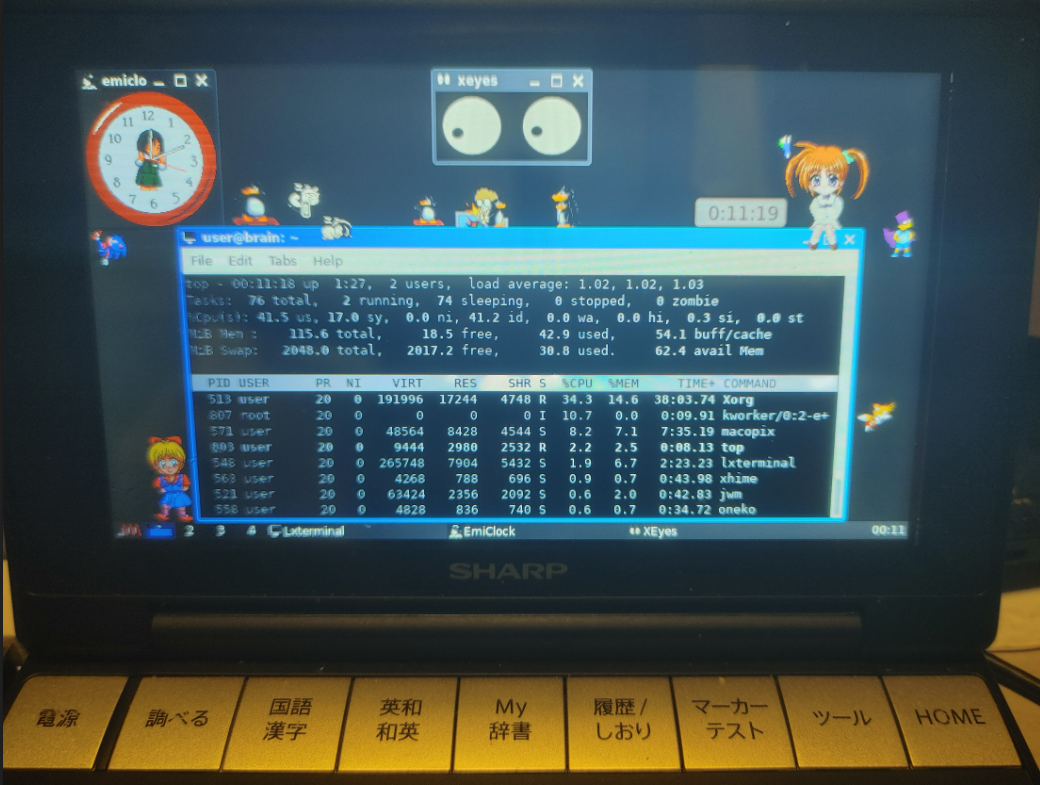
痛デスクトップ レシピ
xeyes &
emiclock &
oneko -tomoyo &
oneko -sakura &
xhime &
macopix trh_nanoha.mcpx &
xpenguins –all -n 10 -m 150 &
Terminai 内アプリ: top
—
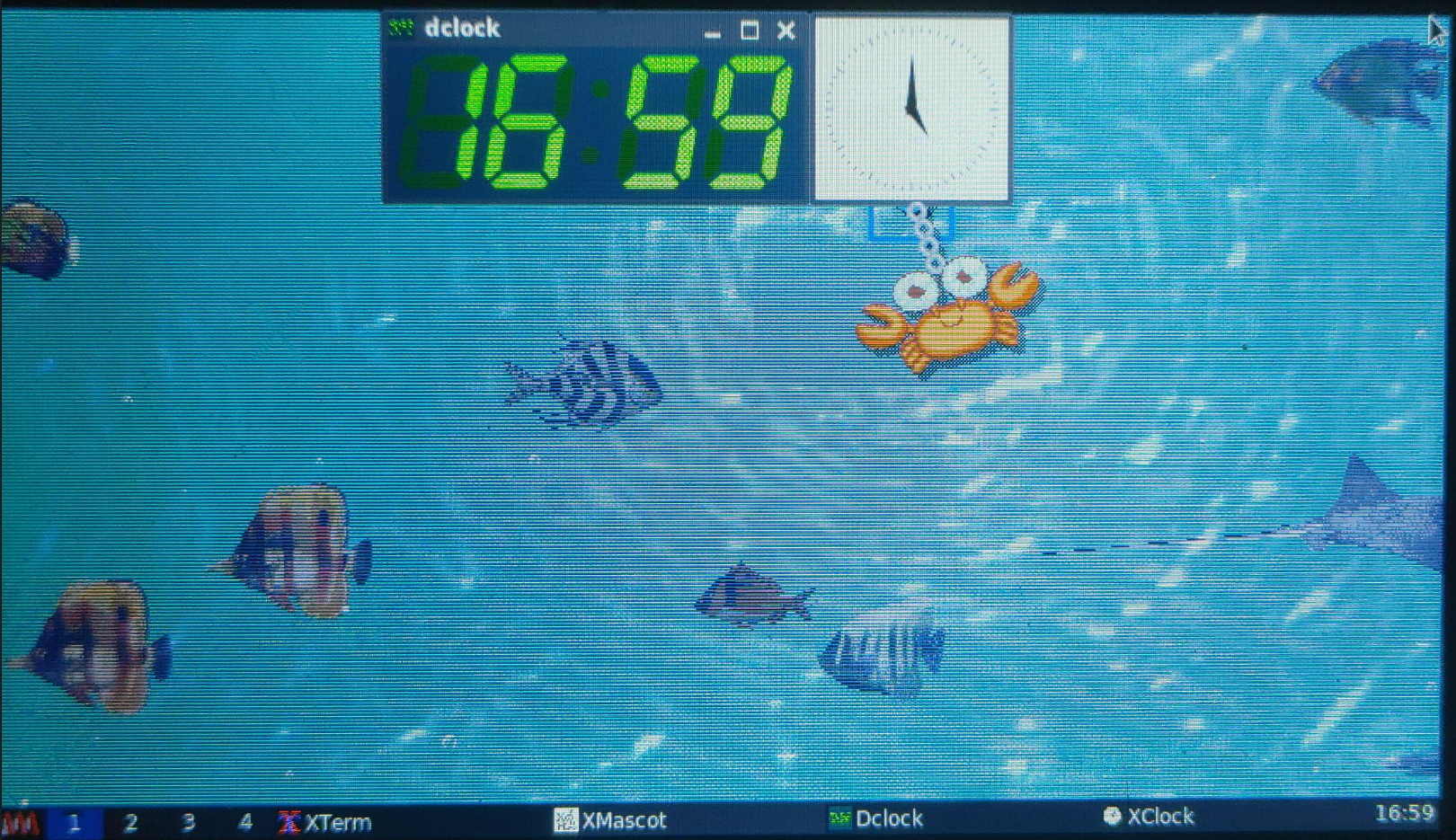
アクアリウム時計 レシピ
xfishtank &
xdesktopwaves &
XMascot & # 蟹、重力加速度 0.02G、減衰係数 0.00
dclock -m &
xclock &
他、試してみてほしいアプリありましたら、コメントで
教えてください
つづき
Views: 706
